
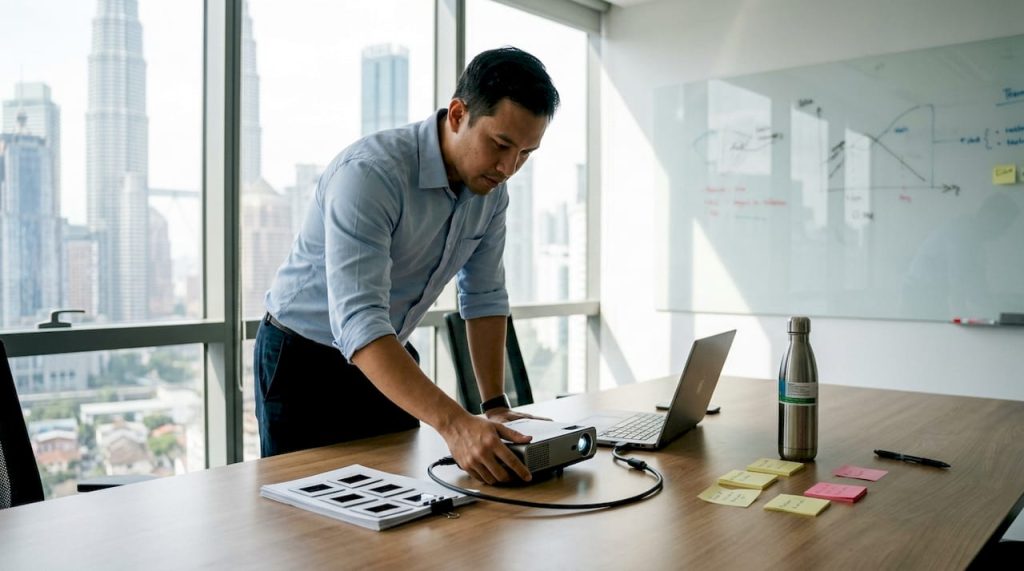
Most people assume that using a projector for a presentation means plugging it in, turning it on, and hoping for the best. That assumption costs you credibility. A poorly set up projector produces blurry images, washed-out colors, and technical delays that pull your audience's attention away from your message. Whether you're a trainer running a workshop in Kuala Lumpur, a lecturer managing a packed classroom, or a manager presenting quarterly results, the difference between a forgettable session and a memorable one often comes down to preparation. This guide walks you through everything: projector setup, content design, troubleshooting, and expert strategies built for real Malaysian environments.
Table of Contents
- Why projector setup matters for effective presentations
- Step-by-step guide: Setting up your projector for meetings and classrooms
- Designing presentation content that works for projectors
- Overcoming common presentation challenges with projectors
- What most projector users in Malaysia overlook
- Find your ultimate projector setup in Malaysia
- Frequently asked questions
Key Takeaways
| Point | Details |
|---|---|
| Proper setup is key | Aligning, adjusting, and testing your projector prevents issues and boosts your presentation's impact. |
| Design for clarity | High-contrast colors, large fonts, and simple layouts make your content readable for all audiences. |
| Practice and adapt | Run tech tests, rehearse delivery, and stay flexible to overcome common projector challenges. |
| Engage your audience | Use interactive tactics and high energy, especially in dim or long sessions, to maintain focus. |
Why projector setup matters for effective presentations
A projector is only as effective as the environment it operates in. Poor preparation leads to blurry images, low audience engagement, and embarrassing technical delays right when you need everything to run smoothly. The good news is that most of these problems are completely preventable with a structured approach to setup.
According to a projector setup guide, centrally aligned positioning, minimal keystone correction, and optimized room lighting are the three foundational elements of a successful projection environment. Keystone correction refers to the digital or optical adjustment that fixes a trapezoidal distortion when the projector is not perfectly level with the screen. Relying too heavily on it degrades image sharpness, so physical alignment always comes first.
Here is a quick overview of essential setup tasks and their impact:
| Setup task | Why it matters |
|---|---|
| Central projector alignment | Prevents image distortion and uneven focus |
| Correct throw distance | Ensures image fills screen without overflow |
| Room lighting adjustment | Boosts contrast and color accuracy |
| Cable and connection test | Eliminates signal drop during presentation |
| Tripod or mount use | Keeps projector stable throughout session |
Even small details make a measurable difference. Using a tripod instead of balancing a projector on a stack of books, or testing your HDMI cable before the meeting starts, removes the kind of friction that derails sessions.
Key setup habits every presenter should build:
- Arrive at least 20 minutes early to run a full equipment check
- Dim overhead lights rather than switching them off completely
- Confirm the screen surface is clean and wrinkle-free
- Test all connection ports before guests arrive
"A dimmed room can lower audience energy. Counter this with a high-energy delivery style, direct questions to the audience, and periodic interactive moments to keep attention sharp."
These habits separate professionals who consistently deliver polished presentations from those who scramble at the last minute.
Step-by-step guide: Setting up your projector for meetings and classrooms
Now that you understand the importance of setup, here is how you can ensure a flawless experience every time. The steps below are designed for typical Malaysian office meeting rooms and school classrooms, where ceiling heights and room dimensions vary widely.
Following a classroom projector setup guide gives you a reliable framework: check throw ratio, center the projector, use a tripod, adjust focus, and always practice before presenting.
- Place the projector correctly. Use your projector's throw ratio specification to calculate the ideal distance from the screen. For a standard 100-inch screen in a medium-sized meeting room, most standard projectors need roughly 3 to 4 meters of distance.
- Perform projector keystone correction. Adjust the physical angle first, then use digital correction sparingly. Over-correcting digitally softens the image.
- Set the focus. Use the focus ring on the lens to sharpen text and fine details. Stand at the back of the room to judge sharpness from the audience's perspective.
- Connect your devices. Test both HDMI and wireless connections. If your projector supports wireless mirroring, confirm it works with your laptop and any guest devices before the session starts.
- Adjust the room lighting. Dim overhead lights to a level that improves contrast without making the room feel uncomfortable or sleepy.
- Run a full test. Play a slide with text, an image, and a video clip. Check projector calibration settings if colors appear off. Confirm audio output if you are using the projector's built-in speakers.
For rooms with unusual dimensions, consult projector distance tips to calculate the right throw ratio before purchasing or positioning your unit.
Pro Tip: Always test both wired and wireless connections before your session. Device switching mid-presentation is one of the most common causes of delays, and having both options ready means you can pivot instantly if one fails.
Designing presentation content that works for projectors
After setup, the next step is making sure your content is as clear as your projection. Even a perfectly calibrated projector cannot save slides that are poorly designed for projection environments.

High contrast colors, large fonts, simple layouts, and a 5 to 10 percent margin from the screen edges are the baseline standards for projection-ready slides. These principles exist because projectors compress color ranges and reduce fine detail compared to a monitor viewed up close.
Research suggests that 85% of clarity issues in projected presentations come from poor content formatting rather than equipment problems. That statistic should shift where you spend your preparation time.
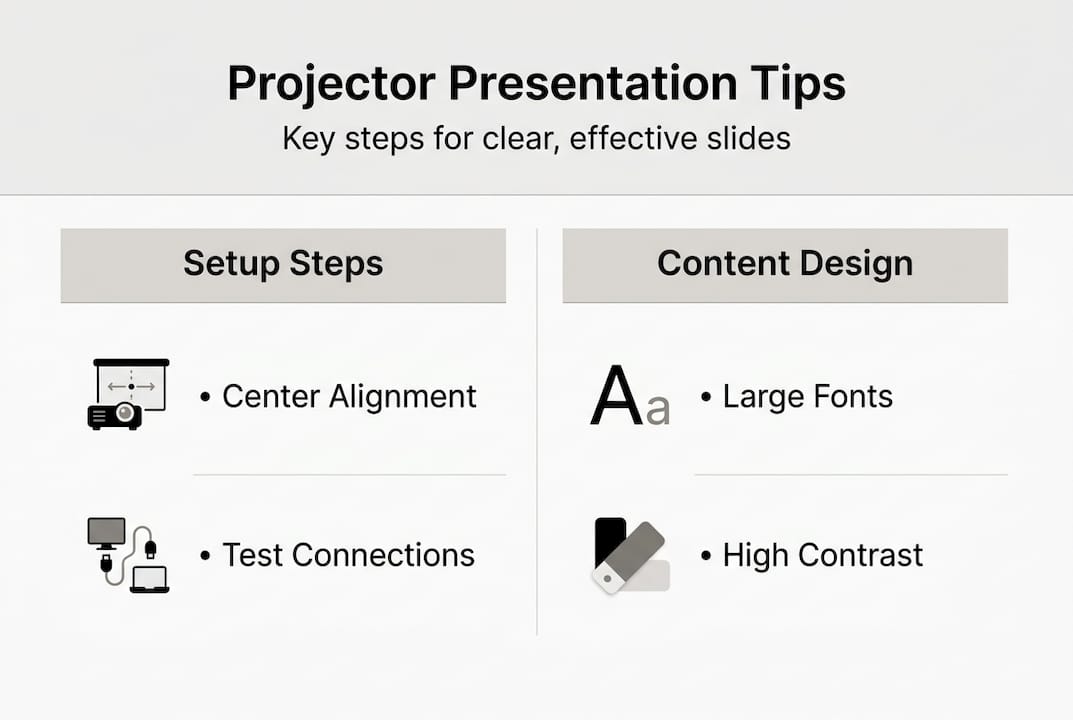
Here is a comparison of common design mistakes versus recommended practices:
| Common mistake | Recommended practice |
|---|---|
| Light yellow or white text on pale backgrounds | Dark text on white or use white text on dark backgrounds |
| Font sizes below 20pt | Minimum 28pt for body text, 36pt or larger for headings |
| Images placed at slide edges | Keep all content within a 5-10% margin from edges |
| Cluttered slides with 10+ bullet points | Maximum 5 points per slide, one idea at a time |
| Low-resolution images | Use images at 1920×1080 resolution or higher |
Top content mistakes to avoid in projected presentations:
- Overloading slides with text that the audience reads instead of listens to
- Using decorative fonts that look great on screen but blur when projected
- Placing key data or logos near the edges where projection can cut them off
- Choosing color palettes that look vivid on a laptop but wash out under projection
For more strategies on keeping your audience engaged, explore these engaging presentation tips that go beyond basic slide design. Always test your full slide deck in the actual room before the session. What looks sharp on your laptop screen can look very different at 100 inches.
Overcoming common presentation challenges with projectors
Content ready and devices set up are just the start. Let's address the real-world pitfalls you will face once you step in front of an audience.
Practicing high-energy delivery in dimmed rooms and using wireless connectivity for device switching are two of the most effective strategies for maintaining audience engagement throughout a session.
The four most common challenges and their solutions:
- Dim environment fatigue. When the room is darkened for projection, audiences naturally become drowsy. Counter this by increasing your vocal energy, moving around the room, and building in a short activity or question every 10 to 15 minutes.
- Device switching delays. Switching between a laptop, tablet, or guest presenter's device can kill momentum. A wireless projector connection solves this by letting multiple devices connect without physical cable swaps.
- Content cropping. Images or text that appear cut off at the edges are usually a result of incorrect aspect ratio settings. Match your slide dimensions to your projector's native resolution (typically 16:9 for modern units).
- Audience disengagement. Long, uninterrupted slide sequences lose people fast. Break content into shorter segments and use the projector's blank screen function to redirect attention back to you when needed.
Maintenance habits that prevent technical faults mid-session:
- Clean the projector lens monthly with a soft microfiber cloth
- Check lamp hours and replace before they hit the manufacturer's limit
- Store cables properly to avoid connector damage
- Keep firmware updated for wireless connectivity stability
Pro Tip: Use your projector's wireless feature to invite a co-presenter or participant to share their screen directly. This turns a one-way presentation into a collaborative experience and dramatically increases room energy. Learn more about improving collaboration with projectors for team-based sessions. Also review maintenance and troubleshooting tips to keep your unit performing at its best year-round.
What most projector users in Malaysia overlook
Here is the uncomfortable truth: most people shopping for projectors obsess over specs. Lumens, resolution, contrast ratio. These numbers matter, but they are not what separates a great presentation from a mediocre one.
In our experience, basic setup and content design account for roughly 80 percent of presentation outcomes. We have seen a RM 800 projector deliver a sharper, more engaging session than a RM 5,000 unit simply because the presenter ran a proper tech rehearsal and designed their slides for projection.
The most common failure point is not the equipment. It is the assumption that setup is someone else's job. Educators and managers who consistently deliver strong sessions treat the pre-session check as non-negotiable, not optional. They walk the room, test the angles, and run through their slides on the actual screen before anyone else arrives.
For deeper insight into classroom-specific strategies, the projector classroom insights resource covers practical adjustments that make a real difference in learning environments.
Fancy hardware is a multiplier, not a foundation. Build the foundation first.
"Success with projectors isn't about the hardware. It's about preparation and practice."
Find your ultimate projector setup in Malaysia
Ready to level up your presentation experience? Here is how to find what you need.

As Malaysia's top projector seller, ProjectorDisplay.com gives you access to a curated range of portable, laser, short-throw, and smart projectors suited for meeting rooms, classrooms, and training halls. You get fast shipping across Peninsular Malaysia, WhatsApp support, and expert guidance to match the right unit to your space. Browse the classroom projector guide to find the right fit for educational settings, or follow the installation guide Malaysia for a smooth setup from day one. Your next great presentation starts with the right equipment and the right support.
Frequently asked questions
What is the best way to position a projector for a small meeting room?
Position your projector centrally aligned with the screen, ensure it is at the appropriate throw distance for your room size, and use minimal keystone correction for a sharp image.
How can I ensure my slides are readable through a projector?
Use high-contrast color schemes, large fonts at a minimum of 28pt, and simple layouts with a margin away from the edges for maximum clarity.
What should I do if the audience loses interest during a dimmed room presentation?
Increase your presentation energy, involve the audience with direct questions, use wireless device switching between presenters, and insert interactive content to keep engagement high.
Are wireless projectors better for collaborative environments?
Wireless projectors make it significantly easier to switch between presenters or devices quickly, which is highly beneficial for collaborative meetings or training sessions.
Recommended
- How to install a projector in Malaysia for home and classroom – Projector Display
- Best Projector For Presentations 2025: Top Picks For Malaysia – Projector Display
- Business projector basics: essential guide for professionals – Projector Display
- How Projectors Work: A Simple Guide for Malaysians – Projector Display