
TL;DR:
- Reliable wireless projector setup in Malaysia requires compatible hardware and a strong, optimized WiFi network.
- Using WiFi 6 on 5GHz and mesh systems helps overcome thick walls and interference common in Malaysian buildings.
- Proper configuration and troubleshooting can ensure smooth, lag-free projection for home, educational, and business use.
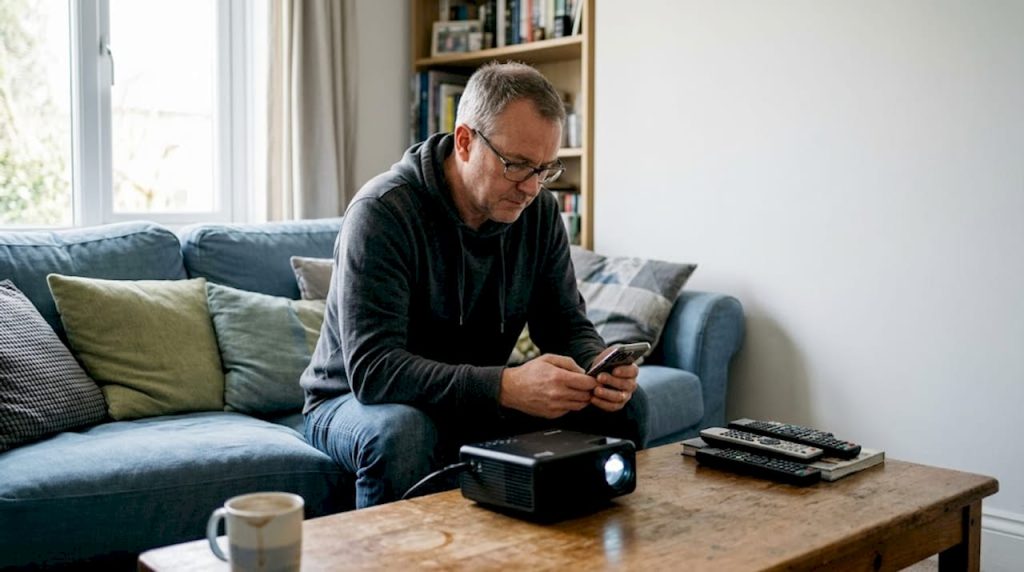
Tangled cables, limited seating arrangements, and the panic of hunting for the right HDMI adapter before a big presentation — these are frustrations that Malaysian home users, teachers, and business professionals know all too well. Connecting your projector wirelessly changes everything. You get flexible placement, a cleaner setup, and the freedom to cast from across the room. But WiFi projector connections come with their own challenges: signal dropouts, protocol mismatches, and the unique obstacles posed by Malaysian building construction. This guide walks you through every stage, from choosing the right hardware to optimizing your connection for rock-solid performance.
Table of Contents
- Essential requirements for WiFi projector setup in Malaysia
- Step-by-step guide: Connecting your projector to WiFi
- Troubleshooting and common setup issues
- Testing and optimizing your wireless projection
- Why WiFi projector setup in Malaysia needs a local approach
- Projector Display: Your trusted source for WiFi-ready projectors and accessories
- Frequently asked questions
Key Takeaways
| Point | Details |
|---|---|
| WiFi setup basics | You need a compatible projector, modern router (WiFi 6/5GHz), and a stable home or office network. |
| Choosing protocols | Pick Miracast, AirPlay, or Chromecast based on your device and preferred speed. |
| Troubleshooting | Most issues are solved by staying within 10m of the router or upgrading to mesh WiFi. |
| Local adaptability | Malaysian buildings benefit from mesh WiFi and careful placement to avoid signal dropouts. |
Essential requirements for WiFi projector setup in Malaysia
Before you plug anything in or tap a single setting, you need the right foundation. A failed WiFi projector setup is almost always a preparation problem, not a technology problem.
Compatible projectors and adapters
Not every projector supports wireless connectivity out of the box. You'll want to check for one of the following:
- Built-in WiFi with support for Miracast, AirPlay, or Chromecast
- A projector with an HDMI port that accepts a wireless adapter (such as a Chromecast, Amazon Fire Stick, or Miracast dongle)
- Smart projectors running Android OS, which support most casting apps natively
For users exploring enhancing wireless projector connections, understanding your projector's native protocol support is the critical first step.
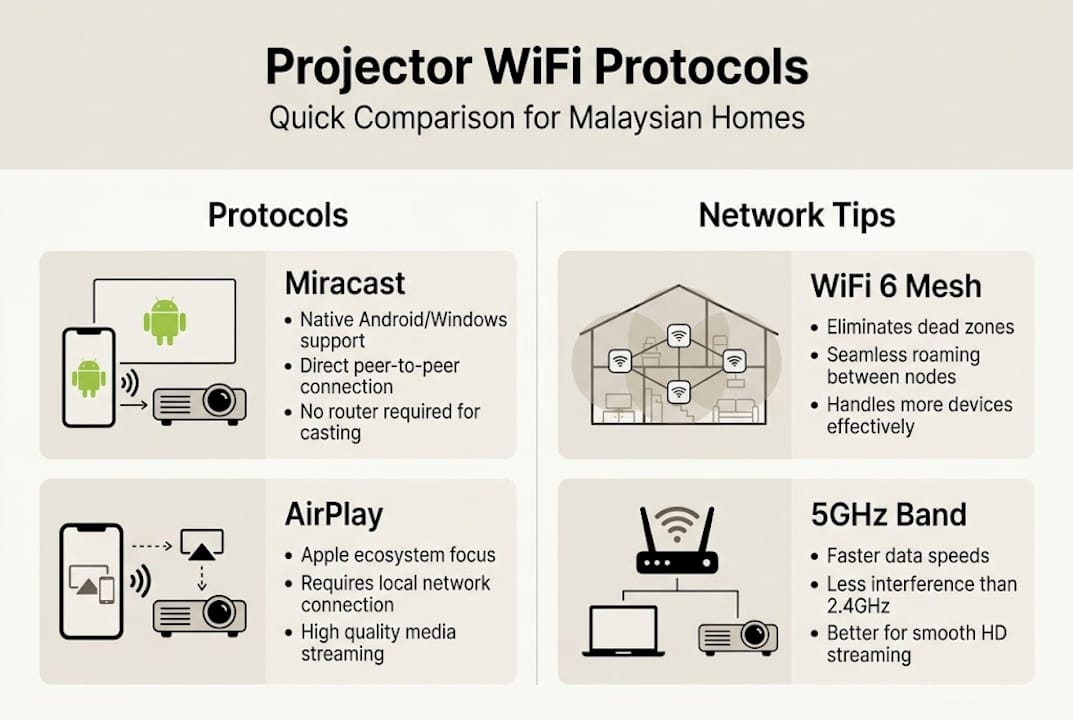
Wireless protocols explained
| Protocol | Best for | Typical latency |
|---|---|---|
| Miracast | Windows and Android | 80–150ms |
| AirPlay | Apple devices (iPhone, Mac) | 60–100ms |
| Chromecast | Cross-platform, broad compatibility | 100–200ms |
As outlined in the step-by-step wireless projector connectivity guide, wireless protocols vary significantly in latency and device compatibility, and Wi-Fi 6 on the 5GHz band with both devices on the same network under 10 meters apart delivers the lowest lag.
Minimum WiFi network specifications
For smooth wireless projection, your network should meet these benchmarks:
- Router standard: Wi-Fi 6 (802.11ax) strongly preferred
- Band: 5GHz for lower interference and higher throughput
- Speed: At least 25 Mbps dedicated to the projector
- Range: Keep projector within 10 meters of the router where possible
If you're unsure whether WiFi or a cable is right for your situation, comparing WiFi vs HDMI for projectors can help clarify the tradeoffs for your specific use case.
Placement and distance considerations
Position your router centrally in the room where you'll be projecting. Avoid placing the projector behind large furniture or near microwave ovens, which operate on the 2.4GHz band and cause interference.
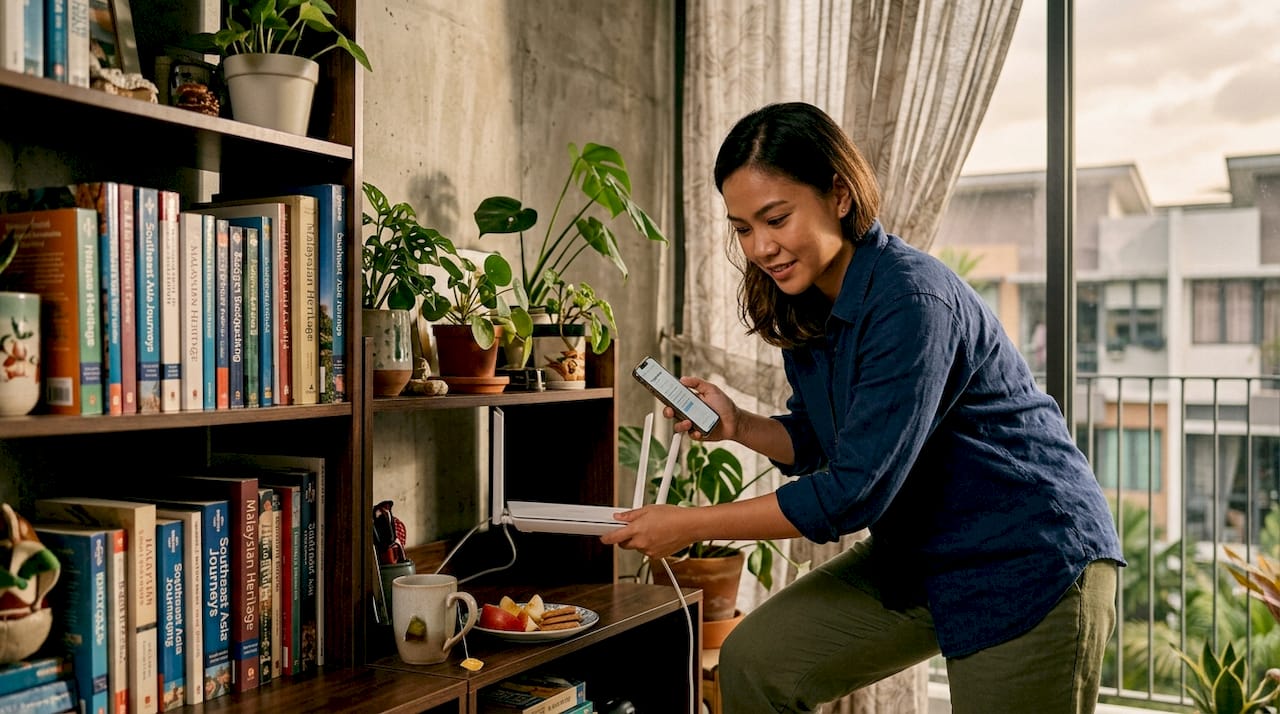
Pro Tip: Malaysian homes and office buildings are commonly built with reinforced concrete walls, which block WiFi signals far more aggressively than timber-frame construction. If your space has multiple floors or thick partition walls, a mesh WiFi system is not optional — it's essential. A guide on improving home WiFi signal in Malaysia covers the best mesh options for local building types.
Step-by-step guide: Connecting your projector to WiFi
With your hardware and network ready, it's time to make the connection. The exact steps depend on which protocol your devices support, but the preparation is the same across all methods.
Before you start
- Update your projector's firmware via the manufacturer's website or the projector's built-in update menu.
- Confirm your smartphone, laptop, or tablet is connected to the same WiFi network you'll use for projection.
- If using an adapter (Chromecast, Miracast dongle), plug it into the projector's HDMI port and power it via USB.
- Switch the projector input source to the correct HDMI channel.
Connecting via Miracast (Windows or Android)
- On your Windows PC, press Windows + K to open the Cast menu.
- Select your projector or Miracast adapter from the device list.
- On Android, go to Settings > Connected Devices > Cast and tap your projector.
- Accept the connection prompt on screen.
Connecting via AirPlay (Apple devices)
- Swipe down from the top-right corner of your iPhone or iPad to open Control Center.
- Tap Screen Mirroring and select your AirPlay-compatible projector.
- Enter the AirPlay code shown on the projector screen if prompted.
Connecting via Chromecast or Google Cast
- Open any Cast-compatible app (YouTube, Google Chrome, etc.).
- Tap the Cast icon and select your Chromecast device.
- For full screen mirroring, use the Google Home app.
Using proprietary apps like iProjection
Epson's iProjection app, for example, allows multi-device casting and adds features like split-screen projection. These apps often provide more stable connections than generic protocols and are worth installing if your projector brand offers one.
For a deeper walkthrough of each method, the in-depth wireless setup guide covers additional scenarios and device-specific configurations.
Pro Tip: Always keep your projector and casting device on the same WiFi band. If your router broadcasts both 2.4GHz and 5GHz under the same network name, manually separate them in your router settings and connect both devices to the 5GHz band. This alone eliminates most lag complaints.
Protocol latency comparison
| Method | Latency range | Ideal use case |
|---|---|---|
| AirPlay | 60–100ms | Apple ecosystem, smooth video |
| Miracast | 80–150ms | Windows presentations, Android |
| Chromecast | 100–200ms | Streaming, casual use |
Latency varies by protocol, and WiFi 6 mesh networks are essential in Malaysian environments for consistent reliability, especially in schools and offices with many competing devices.
Troubleshooting and common setup issues
Even with the right setup, you might face occasional hiccups. Here's how to solve the most common issues.
Important note: In large buildings or spaces with concrete walls, a stable 5GHz signal is far more critical than raw internet speed. Distance and physical barriers are the leading causes of projector WiFi failure in Malaysian environments. A mesh WiFi system dramatically reduces these risks.
Common issues and their fixes
- Projector not detected on the casting menu: Confirm both devices are on the same WiFi band. Restart the projector and retry. Check if the projector's wireless module is enabled in its settings menu.
- Signal dropouts mid-presentation: Move the router closer, or add a mesh node between the router and projector. Avoid 2.4GHz if other devices are competing for bandwidth.
- High latency or stuttering video: Switch to the 5GHz band. Close background apps on your casting device. Lower the projection resolution temporarily.
- Audio out of sync with video: This is often a Miracast issue. Try switching to Chromecast or a proprietary app. Some projectors have an audio delay setting in their menu.
- Connection drops when screen locks: Disable auto-lock or screen timeout on your casting device during presentations.
For users dealing with persistent signal problems, exploring wireless adapters for projectors can offer hardware-based solutions that bypass router dependency entirely. A full projector WiFi setup tutorial is also available for users who want a visual walkthrough.
Sources consistently emphasize that stable 5GHz networks over short distances deliver smooth performance across home, educational, and business use cases, regardless of the specific protocol used.
Testing and optimizing your wireless projection
After addressing setup issues, let's make sure your projector connection delivers the best experience possible.
Verification checklist
- Image sync test: Display a static image and check for any tearing, lag, or color distortion. If the image is clean and stable, your signal is solid.
- Motion test: Play a 1080p video clip and observe smoothness. Stuttering indicates bandwidth issues.
- Audio test: Play a clip with clear dialogue and check if audio matches lip movement. A gap of more than 100ms is noticeable to most viewers.
- Network speed test: Run a speed test on your casting device while connected to the 5GHz band. You want at least 25 Mbps available for the projector.
- Range test: Walk the projector to its intended position and recheck image quality. Signal strength drops with distance.
Performance benchmarks to know
Protocol latency ranges from 60ms with AirPlay to 200ms with Chromecast. For presentations, anything under 150ms is generally unnoticeable. For gaming or live video, aim for AirPlay or a wired fallback.
Router and placement optimization tips
- Enable Band Steering on your router to automatically push devices to 5GHz.
- Set your router's Quality of Service (QoS) to prioritize the projector's IP address.
- Place the router at the same height as the projector, not on the floor.
- Avoid running the projector near Bluetooth speakers or wireless keyboards, which can cause 2.4GHz interference.
For advanced mirroring techniques, wireless screen mirroring strategies for Malaysia cover 2025 and 2026 router models and app configurations. If you want a broader overview of the technology, a comprehensive wireless projector guide explains the full ecosystem in plain language.
Why WiFi projector setup in Malaysia needs a local approach
Most international setup guides assume timber-frame homes with open floor plans and routers that can broadcast freely across rooms. That's not the reality in most Malaysian homes, schools, or offices. Reinforced concrete walls, narrow corridors, and multi-floor shophouses create WiFi dead zones that no amount of router repositioning will fix without a mesh system.
We've seen clients invest in premium projectors only to suffer through stuttering connections because they paired them with a cheap ISP-provided router. The projector wasn't the problem. The network was. Upgrading to a Wi-Fi 6 mesh system transformed those same setups into reliable, lag-free experiences. The lesson: your projector is only as good as the network it runs on.
Another overlooked factor is the density of competing WiFi networks in Malaysian apartment buildings. Dozens of routers broadcasting on the same channels create interference that degrades performance even when your signal appears strong. Switching to a less congested 5GHz channel in your router settings, or using optimizing home WiFi techniques specific to dense urban environments, makes a measurable difference. If persistent issues remain after these steps, working with a local AV installer who understands Malaysian building types is genuinely worth the consultation fee.
Projector Display: Your trusted source for WiFi-ready projectors and accessories
Ready to upgrade your setup or need tailored advice? At Projector Display, we stock a wide range of WiFi-ready projectors, wireless adapters, and projection screens suited for Malaysian homes, classrooms, and boardrooms.

Whether you're shopping for a portable smart projector or a laser model with built-in Chromecast support, our team can match you with the right hardware. Browse our latest projector deals for current promotions, or check out our installation guide for 2026 for setup tips tailored to Malaysian environments. Reach us via WhatsApp for fast, personalized support from people who understand local conditions.
Frequently asked questions
What WiFi speed is best for wireless projector use?
A WiFi 6 connection on 5GHz is recommended for the lowest latency and most stable projection, especially in Malaysian buildings with concrete walls or multiple floors.
Can I connect any projector to WiFi?
Only projectors with built-in WiFi or compatible wireless adapters can connect directly to WiFi networks; older models without HDMI or USB ports may not support wireless casting at all.
Which is better for projectors: Miracast, AirPlay, or Chromecast?
Miracast suits Windows and Android users, AirPlay is best for Apple devices with latency as low as 60ms, and Chromecast offers the broadest app compatibility at 100–200ms latency.
What do I do if my projector loses WiFi connection during a presentation?
Move closer to the router, switch to the 5GHz band, or deploy a mesh WiFi for concrete wall environments to prevent dropouts in large or multi-floor spaces.
Recommended
- Setting Up Home WiFi Network: Step-by-Step Made Easy – Projector Display
- How to Connect Projector: Step-by-Step Guide for Malaysia 2025 – Projector Display
- How to Connect Projector: Step-by-Step Guide for Malaysia 2025 – Projector Display
- Step-by-step guide to wireless projector connectivity – Projector Display