
TL;DR:
- Multiple wireless connection options are available, including Miracast, AirPlay, Chromecast, and Wi-Fi Direct.
- Ensuring compatible devices, updated firmware, and a strong, interference-free Wi-Fi network is crucial for smooth projection.
- Wired HDMI remains the most reliable choice for high latency applications, especially in complex Malaysian environments.
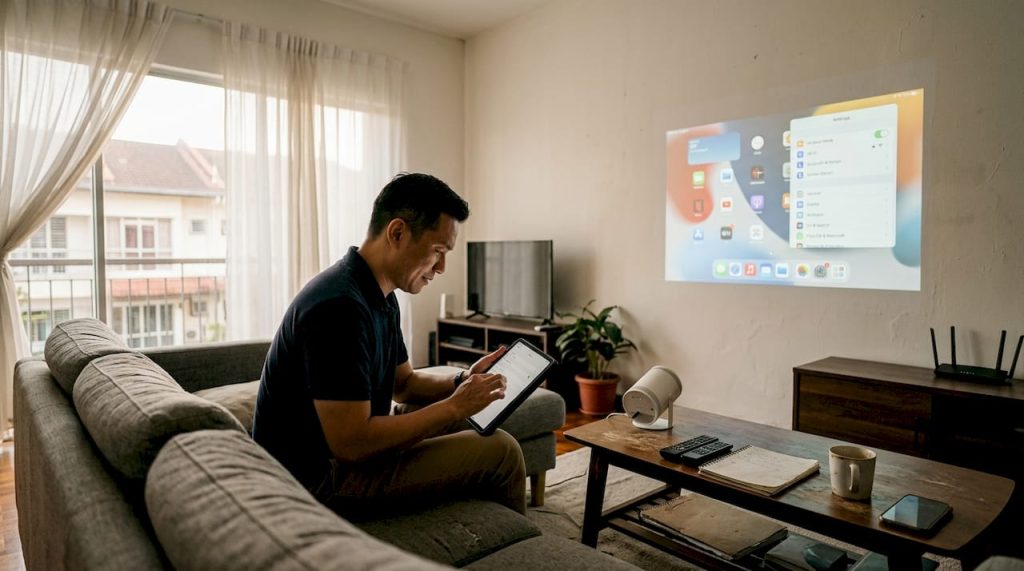
You finally set up your projector for movie night or a big client presentation, and then it hits you: a confusing menu of wireless options, a laggy screen, or a connection that drops every few minutes. It's one of the most common frustrations among projector users in Malaysia, whether you're working from a condo in KL, running a classroom in Penang, or hosting a home theater setup in Johor Bahru. This guide cuts through the confusion. We'll walk you through every wireless connection method, what your devices need, step-by-step setup instructions, and how to fix the issues that trip most people up.
Table of Contents
- Understand your wireless projector connectivity options
- Gather your essentials: Devices and setup requirements
- Step-by-step: Connect your devices wirelessly
- Troubleshoot wireless projector issues like a pro
- Our take: When to choose wireless and when to go wired
- Upgrade your setup with the right projector and accessories
- Frequently asked questions
Key Takeaways
| Point | Details |
|---|---|
| Know your connection types | Identifying which wireless method your projector supports makes setup easier. |
| Optimize your network | Upgrade to Wi-Fi 6 or mesh Wi-Fi to reduce lag and dropouts, especially in large homes. |
| Follow device-specific steps | Detailed instructions for Miracast, AirPlay, or Chromecast make connection smooth. |
| Troubleshoot proactively | Check for interference, firmware updates, and Wi-Fi frequency for fast fixes. |
| Pick the right solution | Wireless is flexible but HDMI remains best for zero-latency needs like gaming. |
Understand your wireless projector connectivity options
Not all wireless projectors work the same way, and that's where most users get stuck. Before you start pressing buttons, it helps to know what connection types actually exist and which one fits your situation.
According to Epson's documentation, wireless projection methods include Wi-Fi infrastructure (connecting through your router), Simple AP mode (the projector creates its own hotspot), Wi-Fi Direct, Miracast, AirPlay, Chromecast, and proprietary apps. Each has a distinct use case.
Here's a quick breakdown of the most common options:
- Miracast: Works natively on Windows 10/11 and most Android devices. No app needed. Best for quick screen mirroring in offices.
- AirPlay: Apple's protocol for iPhone, iPad, and Mac. Requires the projector to support AirPlay or a connected Apple TV.
- Chromecast: Needs a Chromecast dongle or built-in support. Works well with Android, Chrome browser, and Google apps.
- Simple AP / Wi-Fi Direct: The projector broadcasts its own network. Useful when there's no router available, like in a classroom or outdoor setup.
- Proprietary apps: Brands like Epson use iProjection, which adds features like multi-device projection and annotation.
| Method | Best for | Latency | Setup ease |
|---|---|---|---|
| Miracast | Windows/Android | Medium | Easy |
| AirPlay | Apple devices | Medium | Easy |
| Chromecast | Android/Chrome | Medium-high | Moderate |
| Simple AP | No router available | Higher | Moderate |
| Wi-Fi Direct | Peer-to-peer | Medium | Moderate |
| Proprietary app | Multi-device/advanced | Varies | Moderate |
Models like the Epson EF-22N and CO-FH02 support multiple methods simultaneously, which is why they're popular in Malaysian homes and offices. You can explore Epson projector wireless features to see exactly which protocols each model supports. For a broader look at screen mirroring methods, there's a dedicated guide that covers 2025-era devices in detail. Understanding how projectors work at a basic level also helps you make smarter setup decisions.
Gather your essentials: Devices and setup requirements
After exploring the available connection methods, it's essential to ensure your devices and environment are ready for setup. Skipping this step is exactly why most wireless connections fail on the first try.
Start with this checklist before you touch any settings:
- Confirm your projector has built-in Wi-Fi or a wireless adapter port
- Check that your laptop, phone, or tablet supports the connection method you want to use
- Update your projector's firmware to the latest version
- Install any required apps (Epson iProjection, Google Home, etc.)
- Make sure your router supports 5GHz Wi-Fi for lower interference
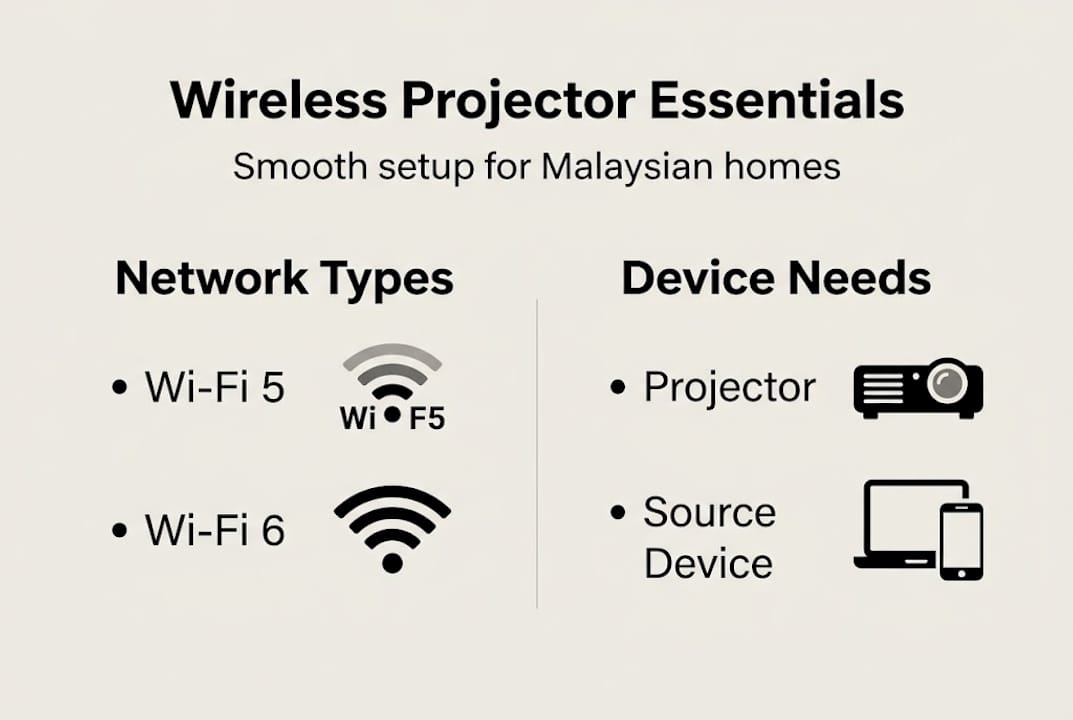
Wi-Fi 5 and Wi-Fi 6 standards are recommended for smooth wireless projection, and models like the EF-22N and CO-FH02 have built-in support for popular streaming and casting protocols right out of the box.
Here's a quick reference for what each method requires:
| Method | Device requirement | App needed | Network needed |
|---|---|---|---|
| Miracast | Windows 10+/Android 4.2+ | No | No (direct) |
| AirPlay | iOS 12+/macOS Mojave+ | No | Yes (same Wi-Fi) |
| Chromecast | Android/Chrome browser | Google Home | Yes |
| Simple AP | Any Wi-Fi device | Varies | No (projector hotspot) |
| iProjection | Any | Yes (Epson app) | Yes |
For Malaysian homes with multiple floors or thick concrete walls, a standard single-band router often struggles. A mesh Wi-Fi system or a dedicated 5GHz access point near your projector makes a real difference. The wireless connectivity basics page explains signal behavior in detail if you want to go deeper.
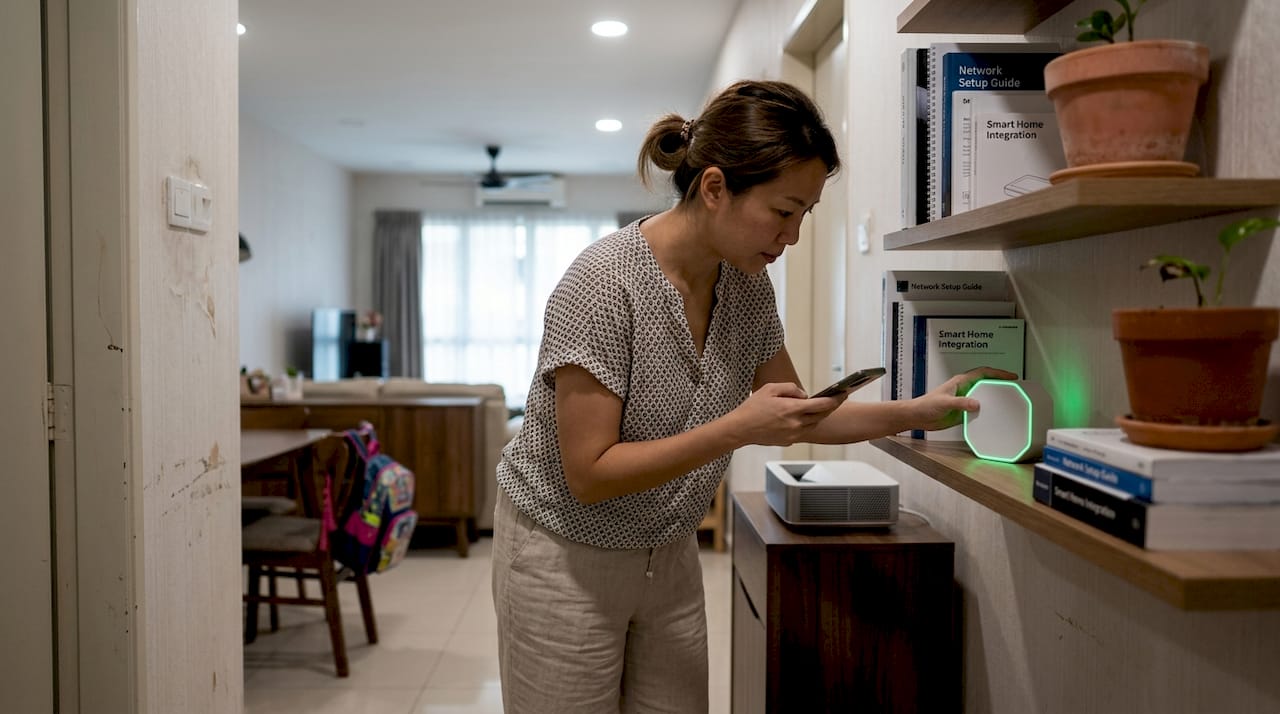
Pro Tip: Download a free Wi-Fi analyzer app (like WiFi Analyzer on Android) before your setup. It shows you which channels are congested in your area so you can manually assign a cleaner channel on your router. This single step can eliminate most interference issues before they start.
If you run into connection problems later, the presentation troubleshooting guide covers the most common failure points in plain language.
Step-by-step: Connect your devices wirelessly
Now that your environment is ready, let's walk through connecting your devices using the optimal method. Follow the steps that match your device and projector combination.
Miracast (Windows or Android):
- On your projector, go to Settings > Network > Wireless LAN and enable Miracast or Screen Mirroring.
- On Windows, press Win + K to open the Cast menu and select your projector.
- On Android, go to Settings > Connected Devices > Cast and tap your projector name.
- Accept the connection prompt on the projector if one appears.
AirPlay (iPhone, iPad, or Mac):
- Make sure both your Apple device and projector are on the same Wi-Fi network.
- On iPhone/iPad, swipe down for Control Center and tap Screen Mirroring.
- On Mac, click the AirPlay icon in the menu bar and select your projector.
- Enter the AirPlay code shown on the projector screen if prompted.
Chromecast:
- Plug the Chromecast dongle into the projector's HDMI port and power it via USB.
- Set up Chromecast using the Google Home app on your phone.
- In any supported app (YouTube, Netflix, etc.), tap the Cast icon and select your Chromecast.
Simple AP mode:
- Enable Simple AP or Hotspot mode in the projector's network settings.
- Connect your phone or laptop to the projector's Wi-Fi network using the displayed password.
- Open the projector's companion app and follow the on-screen pairing steps.
Latency is a real concern here. AirPlay runs at 60 to 100ms, Miracast at 80 to 150ms, and Chromecast at 100 to 200ms, while the ideal threshold for smooth mirroring is under 50ms. For movies and slideshows, 100ms is barely noticeable. For gaming or live demos, it's painful.
Pro Tip: For the lowest wireless latency, connect both your source device and projector to a 5GHz Wi-Fi 6 network. Keep them on the same frequency band and within 10 meters of the router. This setup gets you as close to that sub-50ms target as wireless allows. Check out Epson model details to see which units support Wi-Fi 6 natively. For a visual walkthrough, wireless projection steps has clear diagrams for each method.
Troubleshoot wireless projector issues like a pro
Even with optimal setup, wireless hiccups can happen. Here's how to resolve them efficiently without wasting an hour rebooting everything.
The most common culprits behind Wi-Fi projector failures include signal interference from microwaves and Bluetooth devices, thick walls, outdated firmware, wrong Wi-Fi band selection, and incorrect passwords. Start with the simplest fixes first.
Quick fix checklist:
- Restart both the projector and your router
- Confirm both devices are on the same Wi-Fi band (2.4GHz vs. 5GHz)
- Re-enter the Wi-Fi password manually (autocomplete errors are more common than you'd think)
- Update the projector firmware via the settings menu
- Move the projector closer to the router for initial setup, then reposition
- Disable Bluetooth on nearby devices to reduce 2.4GHz interference
- Switch to a less crowded Wi-Fi channel using your router's admin panel
"Choose 5GHz for faster speeds but remember shorter range. Use a Wi-Fi analyzer to monitor signal strength and switch channels when congestion spikes."
For larger Malaysian homes, especially those with multiple floors or older concrete construction, mesh Wi-Fi and extenders are worth the investment. The Epson CO-FH02 in particular has earned strong local reviews for its stable wireless performance, but even the best projector can't compensate for a weak network.
If you're using the projector for gaming or a live business presentation where every millisecond counts, don't fight the wireless battle. Plug in an HDMI cable. Wired connections eliminate interference entirely and give you the lowest possible latency. Wireless is convenient, but HDMI is still the gold standard for reliability-critical scenarios. For ongoing connection issues, the solving wireless issues page has a structured diagnostic flow.
Our take: When to choose wireless and when to go wired
Wireless projection genuinely changes how you use a projector. No cable management, no tripping hazards, no hunting for the right adapter when a colleague shows up with a different laptop. For collaborative meetings, flexible home setups, and classroom environments, wireless is a game changer.
But we've seen too many users assume wireless is always the better choice. It isn't. If you're gaming, running a live demo with real-time screen interaction, or presenting in a venue packed with competing Wi-Fi networks, wired HDMI will save you from an embarrassing freeze at the worst possible moment.
Malaysia's climate and construction style add another layer. Thick concrete walls in older buildings and high-density apartment blocks can cut your 5GHz signal range significantly. A mesh Wi-Fi system isn't a luxury in these environments. It's a practical necessity. The projector selection tips page covers which Epson models are best suited for these conditions.
Our honest callout: wireless is a tool, not always the answer. Understand your scenario before deciding.
Upgrade your setup with the right projector and accessories
Now that you know exactly how wireless projection works and what it takes to get it right, the next step is making sure you have the right hardware for your specific use case.

At ProjectorDisplay.com, we stock a curated range of wireless-ready projectors suited for Malaysian homes, offices, and classrooms, from compact portable units to full-featured laser models. Browse the best projector deals to find options with built-in Wi-Fi 6, AirPlay, and Miracast support. If you're looking for value, check out our current projector sales for discounted wireless-enabled models. And once you've picked your projector, the projector accessories guide helps you choose the right mounts, screens, and signal boosters to complete your setup.
Frequently asked questions
What is the easiest way to connect a projector wirelessly?
Miracast and AirPlay are the simplest options for most users. Miracast works natively on Windows and Android, while AirPlay handles Apple devices without any additional apps.
Why does my wireless projector lag or lose connection?
Lag and dropouts are usually caused by Wi-Fi interference, network congestion, or outdated firmware. Switching to 5GHz Wi-Fi and keeping firmware updated are the two fastest fixes.
Which is better for projectors, Wi-Fi or wired HDMI?
Wired HDMI always wins on latency and reliability. Wi-Fi gives you flexibility and cleaner cable management, making it the better everyday choice when latency is not critical.
How can I improve my projector's wireless range in a large Malaysian house?
Mesh networks and smart device placement are the most effective solutions. Position your projector within clear line-of-sight of a mesh node and use the 5GHz band for the best throughput.
Recommended
- Projector Wireless Connection: Enhancing Presentations – Projector Display
- Screen Mirroring Mini Projector Guide for Seamless Streaming – Projector Display
- How to Connect Projector: Step-by-Step Guide for Malaysia 2025 – Projector Display
- How to Connect Projector: Step-by-Step Guide for Malaysia 2025 – Projector Display