
TL;DR:
- Matching the correct ports and cables is essential for successful projector connections.
- Short, quality HDMI cables under 5 meters are recommended to prevent signal loss in Malaysia's humid climate.
- Wired connections like HDMI or VGA offer higher stability and lower latency compared to wireless options.
You're five minutes from a big presentation, a classroom lesson, or movie night at home, and your laptop refuses to show anything on the projector screen. The room goes quiet. Everyone waits. This frustrating scenario plays out constantly across Malaysia, and it almost always comes down to one of a handful of fixable problems. This guide walks you through every connection type available, from HDMI and VGA to USB-C and wireless, with a clear checklist, step-by-step instructions, and troubleshooting tips built specifically for Malaysian users. Whether you're setting up at home, in a school lab, or a corporate boardroom, you'll find exactly what you need here.
Table of Contents
- Understanding projector and laptop ports
- Tools and requirements checklist
- Step-by-step connection instructions
- Troubleshooting common projector connectivity issues
- Best practices for stable projector connectivity in Malaysia
- Our take: What most guides miss about projectors in Malaysia
- Next steps: Upgrade your projector experience
- Frequently asked questions
Key Takeaways
| Point | Details |
|---|---|
| Check your ports first | Identifying your laptop and projector ports is essential for choosing the right cable or adapter. |
| Use short, quality cables | For best results in Malaysia, keep HDMI cables under 5 meters and choose reliable brands. |
| Wired beats wireless | Wired HDMI or USB-C connections provide lower latency and more stable presentations than wireless. |
| Adapt troubleshooting steps | Quick fixes like resetting display output or trying different cables resolve most common problems. |
| Test your setup before use | Always test your connection in advance, especially for critical events or in unfamiliar environments. |
Understanding projector and laptop ports
Before you grab any cable, take sixty seconds to look at both your laptop and your projector. Matching the right ports is the single most important step, and skipping it is why most connections fail.
The four main ways to connect a laptop to a projector are HDMI, VGA, USB-C, and wireless. HDMI is the gold standard, carrying both audio and video digitally at resolutions up to 4K at 60Hz. VGA is the older analog format you'll still find on many office and school projectors across Malaysia. It maxes out at around 1920×1200 and carries no audio. USB-C is increasingly common on newer laptops, but it only sends video if your laptop supports DisplayPort Alt Mode or Thunderbolt, so you may need a USB-C to projector adapter to make it work. Wireless options like Miracast for Windows and AirPlay for Mac are convenient but come with trade-offs we'll cover later.
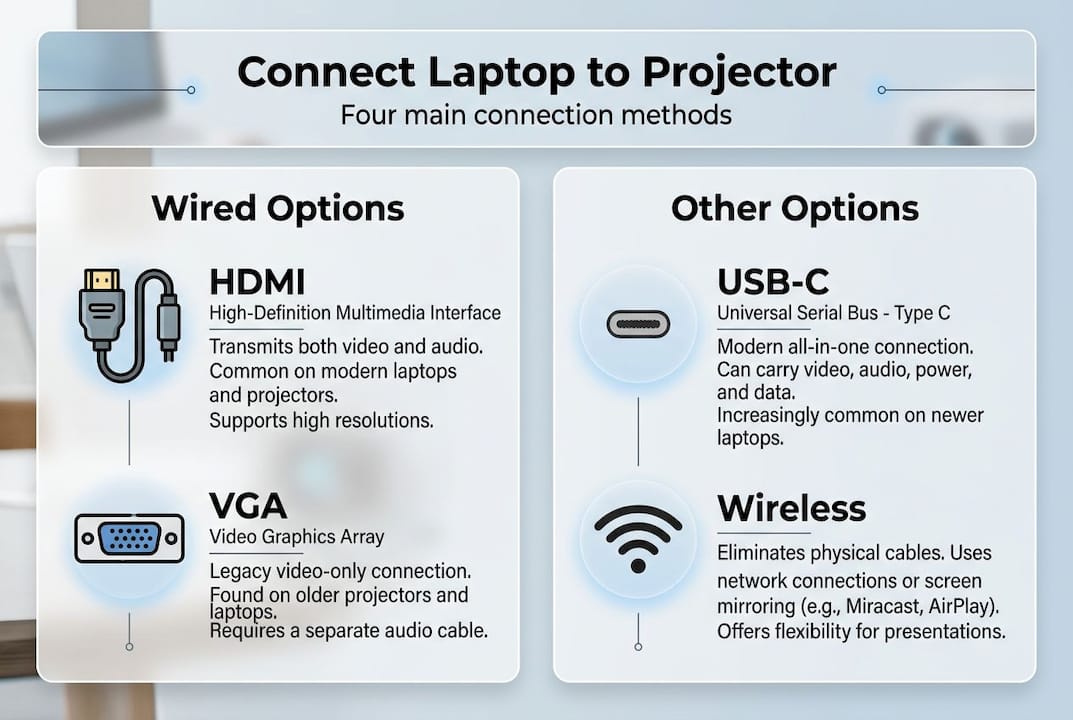
Here's a quick comparison of each connector type:
| Connector | Signal type | Max resolution | Carries audio | Common use |
|---|---|---|---|---|
| HDMI | Digital | 4K @ 60Hz | Yes | Home, business |
| VGA | Analog | 1920×1200 | No | Education, legacy |
| USB-C | Digital | 4K+ (if Alt Mode) | Yes | New laptops |
| Wireless | Digital | Up to 1080p | Yes | Casual, portable |
For most Malaysian users, the setup breaks down like this:
- Home entertainment: HDMI or USB-C to HDMI adapter
- Business presentations: HDMI first, VGA as backup
- School and education: VGA (older rooms) or HDMI (newer installations)
- Portable and outdoor: Wireless or USB-C
Knowing your HDMI vs VGA options before you arrive at a venue saves you from scrambling at the last minute.
Pro Tip: Carry a universal adapter kit that includes HDMI to VGA, USB-C to HDMI, and a mini DisplayPort adapter. You'll be ready for any room in Malaysia, old or new.
Tools and requirements checklist
Identifying your ports is step one. Step two is making sure you have the right cables and adapters in hand before the moment you need them.
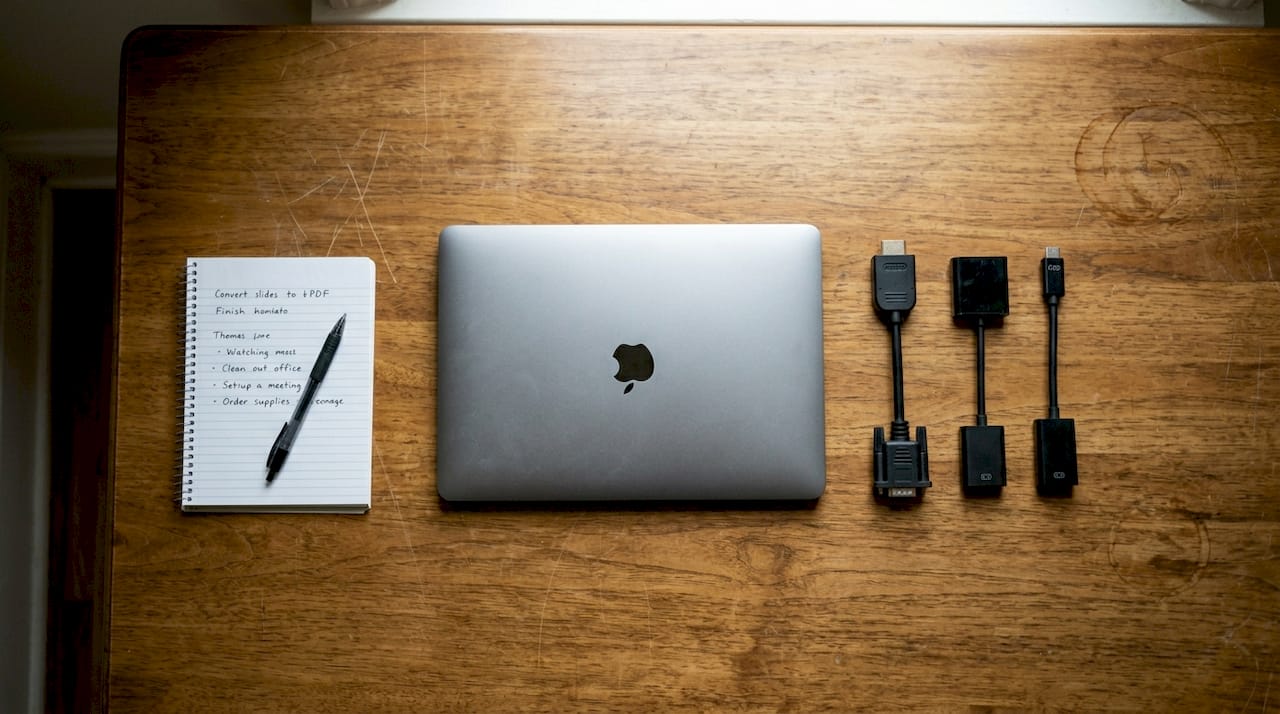
Here's how the requirements break down by scenario:
| Scenario | Required cable | Adapter needed | Audio cable |
|---|---|---|---|
| Home theater | HDMI (under 5m) | Usually none | No (HDMI carries audio) |
| Business presentation | HDMI or VGA | HDMI-VGA if needed | 3.5mm if VGA |
| School/education | VGA or HDMI | USB-C to VGA possible | 3.5mm for VGA |
| Portable/outdoor | USB-C or wireless | USB-C to HDMI | Bluetooth speaker |
Before you connect anything, run through this checklist:
- Confirm the cable type matches both laptop and projector ports
- Check cable length (keep HDMI cables under 5 meters)
- Pack the correct adapter for your laptop brand
- Verify the projector supports your laptop's output resolution
- Confirm power sources for both devices are available
- Bring a spare cable if the presentation is critical
In Malaysia's high humidity, signal degradation over long cables is a real risk. Stick to quality HDMI cables under 5 meters and store them in a dry bag when not in use.
For home setups, Epson projectors with built-in HDMI ports are popular in Malaysia and pair cleanly with most laptops. Check a detailed Epson projector review to see if the model you own or plan to buy supports your preferred connection type. If you're unsure which adapter to grab, the adapter selection guide covers the most common Malaysian combinations. Also, good projector maintenance habits like cleaning ports regularly prevent connection failures caused by dust and corrosion.
Step-by-step connection instructions
Once your cables and adapters are ready, follow these steps based on your connection type.
HDMI connection:
- Identify the HDMI port on both your laptop and projector
- Power on the projector first, then select the correct HDMI input source
- Plug in the HDMI cable firmly on both ends
- On Windows, press Win+P and choose Duplicate or Extend
- On Mac, go to System Settings > Displays and select your projector
VGA connection:
- Connect the VGA cable to both devices (screw in the connectors)
- Plug a 3.5mm audio cable from your laptop headphone jack to the projector
- Power on the projector and select the VGA input
- Use Win+P on Windows or System Settings > Displays on Mac
USB-C connection:
- Confirm your laptop supports DisplayPort Alt Mode
- Connect a USB-C to HDMI or USB-C to VGA adapter
- Plug the cable from the adapter into the projector
- Power on the projector and select the matching input
- Adjust display settings on your laptop as above
Wireless connection:
- Connect your wireless dongle (Miracast or Chromecast) to the projector's HDMI port
- On Windows, press Win+K to open the Cast menu
- On Mac, use AirPlay from the menu bar
- Follow the wireless setup guide for detailed pairing steps
Pro Tip: Always power on the projector before connecting any cable. This lets the projector detect the signal properly and reduces the chance of a "no signal" error.
For the best image quality, match your laptop's output resolution to the projector's native resolution. Most modern projectors in Malaysia run at 1920×1080 native resolution, so set your laptop display to 1080p for the sharpest picture. See the full HDMI vs VGA setup steps for side-by-side comparison of both methods.
Troubleshooting common projector connectivity issues
Even with the right cable and correct steps, things can still go wrong. Here's how to fix the most common problems fast.
Common issues and quick fixes:
- No signal on screen: Check that the projector input source matches your cable (e.g., HDMI 1 vs HDMI 2). Re-seat the cable firmly.
- Black screen after connecting: Press Win+Ctrl+Shift+B on Windows to reset the display driver instantly.
- Laptop goes to sleep mid-presentation: Disable sleep mode in your power settings before starting.
- Wrong resolution or stretched image: Go to Display Settings and manually set the resolution to 1920×1080 or 1280×720.
- USB-C not sending video: Your port may not support DisplayPort Alt Mode. Try a different port or use a powered USB-C hub.
- Wireless lag or stuttering: Wireless connections carry 20 to 100ms of latency, which is noticeable in video playback and unusable for gaming. Switch to wired for anything critical.
Pro Tip: If you're on Windows and the screen suddenly goes blank, Win+Ctrl+Shift+B resets the graphics driver in under two seconds without restarting your laptop.
Always test your full setup at least 15 minutes before any presentation or class. A dry run catches 90% of problems before they matter. Check why your laptop might not be projecting for a deeper breakdown of edge cases.
For issues related to heat causing the projector to shut off mid-session, the guide on projector overheating prevention covers ventilation and placement tips that apply directly to Malaysian indoor environments.
Best practices for stable projector connectivity in Malaysia
Malaysia's climate adds a layer of complexity that most generic guides ignore. High humidity, fluctuating temperatures, and dusty environments all affect cable and connector performance over time.
Follow these practices to keep your setup reliable:
- Use branded HDMI cables under 5 meters to prevent signal degradation in humidity
- Store cables coiled loosely in a sealed, dry bag between uses
- Inspect connector pins monthly for corrosion or bent contacts
- Always carry a backup adapter, especially for business travel
- Test your setup before every important event, not just the first time
- Prefer wired connections for boardrooms, classrooms, and events
Here's a direct comparison of wired versus wireless for Malaysian use cases:
| Factor | Wired (HDMI/VGA) | Wireless (Miracast/AirPlay) |
|---|---|---|
| Latency | Near zero | 20 to 100ms |
| Signal stability | Very high | Varies with Wi-Fi |
| Setup time | 1 to 2 minutes | 3 to 5 minutes |
| Best for | Presentations, classes, cinema | Casual streaming, mobility |
| Climate risk | Low with short cables | None |
For a full breakdown of the best connectivity setups in Malaysia, including room-by-room recommendations, that resource covers both home and commercial scenarios. Stocking up on essential projector accessories like quality adapters, cable organizers, and screen cleaners keeps your setup ready at a moment's notice. You can also explore the 7 must-have accessories list for a practical shopping checklist.
Our take: What most guides miss about projectors in Malaysia
Here's something most connection guides won't tell you: the projector model matters far less than the cable in your bag. We've seen high-end laser projectors fail to display anything because someone brought a cheap, long HDMI cable bought from a pasar malam. Meanwhile, a basic Epson unit connected with a short, quality cable worked perfectly every single time.
Malaysia's humidity is genuinely hard on connectors. Oxidation builds up on VGA pins and HDMI contacts faster here than in drier climates. That's not a scare tactic; it's something we hear from customers regularly. A cable that worked fine three months ago may fail today if it's been stored in a humid room.
Our advice is simple: treat your cables and adapters as seriously as you treat your projector. Pack backups. Test before every event. Use short, branded cables. The right accessory selection makes more difference to your daily reliability than any projector spec sheet.
Next steps: Upgrade your projector experience
Now that you know how to achieve solid projector connectivity, the right hardware makes everything faster and more reliable. Whether you're setting up a home cinema, equipping a classroom, or preparing for a boardroom presentation, having tested equipment on hand removes the stress entirely.

At ProjectorDisplay.com, we stock a wide range of projectors, adapters, cables, and screens suited for every Malaysian setup. Browse our projector installation guide for room-specific advice, or head straight to our projector accessories collection to fill any gaps in your kit. Fast shipping across Peninsular Malaysia and WhatsApp support mean you're never stuck waiting when a setup issue comes up.
Frequently asked questions
What is the best cable length for HDMI in Malaysia?
Keep your HDMI cable under 5 meters to avoid signal loss, which is especially important in Malaysia's humid climate where longer cables degrade faster.
Why is my laptop not showing on the projector?
The most common causes are a wrong input source selected on the projector, a loose cable, the laptop being in sleep mode, or a resolution mismatch between the laptop and projector settings.
Is wireless connectivity reliable for presentations?
Wireless connections carry 20 to 100ms latency and can stutter on busy networks, so wired HDMI or USB-C is the better choice for anything important.
What should I do if my USB-C connection doesn't work?
Check whether your laptop supports DisplayPort Alt Mode or Thunderbolt, since not every USB-C port is capable of sending a video signal to a projector.
How do I fix projector screen color or resolution issues?
Open your laptop's display settings and manually set the output resolution to match the projector's native resolution, typically 1920×1080 or 1280×720, for a clean, accurate image.
Recommended
- Step-by-step guide to wireless projector connectivity – Projector Display
- How to Connect Projector: Step-by-Step Guide for Malaysia 2025 – Projector Display
- How to Connect Projector: Step-by-Step Guide for Malaysia 2025 – Projector Display
- BenQ Projector How to Connect: Complete Setup Guide – Projector Display