
TL;DR:
- The Anycast M2 Plus is a compact wireless display dongle supporting Miracast, DLNA, and AirPlay for broad device compatibility. Its performance is limited by 2.4GHz Wi-Fi and power supply issues, with newer models offering dual-band support and firmware updates for improved stability. Proper setup, adequate power, and understanding its restrictions are essential for optimal use in home, educational, or business environments.
If you have ever plugged the Anycast M2 Plus into your TV or projector and stared at a blank screen wondering what went wrong, you are not alone. This compact wireless display dongle promises cord-free mirroring from your phone, tablet, or laptop, but the setup has a few gotchas that catch most first-time users off guard. This guide walks you through the device's real capabilities, how to get it running in different environments, common problems and how to fix them, and whether it still makes sense to buy in 2026 for home entertainment, education, or business use in Malaysia.
Table of Contents
- Key takeaways
- Anycast M2 Plus features and technical specs
- How to set up Anycast M2 Plus step by step
- Troubleshooting common Anycast M2 Plus problems
- Anycast M2 Plus vs. newer models in 2026
- Real-world applications in Malaysia
- My honest take on the Anycast M2 Plus
- Where to buy the Anycast M2 Plus in Malaysia
- FAQ
Key takeaways
| Point | Details |
|---|---|
| Supports three wireless protocols | Anycast M2 Plus uses Miracast, DLNA, and AirPlay for broad device compatibility across Android, iOS, and Windows. |
| Power supply matters more than Wi-Fi | Insufficient USB power from TV ports causes most disconnects. Use a wall adapter delivering at least 800mA. |
| 2.4GHz only limits performance | This model operates on 2.4GHz only, making it vulnerable to interference in crowded network environments. |
| HDCP content will not mirror | Netflix and similar protected content will show a black screen due to the lack of HDCP 2.2 support. |
| Newer models offer clear upgrades | The Anycast M9 Plus adds 5GHz dual-band support and OTA firmware updates for noticeably more stable performance. |
Anycast M2 Plus features and technical specs
The Anycast M2 Plus is a small HDMI dongle that turns any display with an HDMI port into a wireless receiver. That includes TVs, monitors, and projectors. What makes it appealing for Malaysian users is its low price point and support for multiple wireless protocols out of the box.
Here is what the hardware actually supports:
- Video output: Full HD 1080p at 30Hz, with automatic fallback to 720p on weaker connections
- Wireless protocols: Miracast (Android and Windows), AirPlay (iPhone and Mac), and DLNA for media file playback
- Device compatibility: Android 4.2 and above, iOS 7 and above, Windows 8.1 and above, and MacOS
- Wi-Fi band: 2.4GHz only on standard M2 Plus models
- Power input: Micro USB, requiring at least 800mA for stable operation
| Specification | Anycast M2 Plus |
|---|---|
| Max resolution | 1080p @ 30Hz |
| Wireless protocol | Miracast, AirPlay, DLNA |
| Wi-Fi band | 2.4GHz |
| Power requirement | USB, min. 800mA |
| HDCP support | HDCP 1.4 only |
| OTA firmware updates | No |
The 2.4GHz limitation is the one spec that deserves your attention before buying. In most Malaysian apartments and offices, the 2.4GHz band is already crowded with neighboring routers, smart home devices, and microwaves. That congestion directly affects mirroring stability. The EZCast dual-band receiver is one alternative worth noting if band congestion is a concern.
Pro Tip: When evaluating any wireless HDMI dongle, look past the marketing claims. The specs that actually matter are Wi-Fi band, minimum power draw, latency under load, and HDCP version. Those four numbers predict your real experience more accurately than any box description.
How to set up Anycast M2 Plus step by step
Getting the device running is straightforward once you know the sequence. Most confusion comes from people trying to connect before the dongle has fully booted. The setup process requires no complex installation and works across multiple operating systems, but the order of operations matters.
- Plug the dongle into your HDMI port. Insert the Anycast M2 Plus into any available HDMI input on your TV, projector, or monitor.
- Power the device via USB. Connect the included Micro USB cable to a power source. Use a wall adapter rated at 800mA or higher, not your TV's USB port.
- Switch your display input to the HDMI channel where the dongle is inserted. Wait for the Anycast splash screen to appear. This takes about 20 to 30 seconds.
- Connect your phone or laptop to the Anycast hotspot. The dongle broadcasts its own Wi-Fi network. Connect to it first using the password shown on screen.
- Enable screen mirroring on your device. On Android, use Cast or Smart View. On iPhone or iPad, open Control Center and tap Screen Mirroring. On Windows, press Win+K and select the device.
- Use the EZMira app if direct mirroring fails. Download EZMira from the Google Play Store or App Store as a fallback for devices that do not support native Miracast.
For classrooms and meeting rooms, the most reliable setup connects the dongle to a dedicated projector with a powered HDMI port and uses the EZMira app so different users can hand off the screen quickly. In a home setup, plugging directly into a wall adapter near your TV keeps things clean and eliminates the most common source of disconnects.
Pro Tip: If your display shows the Anycast setup screen but your phone cannot see the Wi-Fi hotspot, the dongle is likely underpowered. Swap the USB cable to a wall charger immediately. This single change resolves about 70% of connection complaints.
Troubleshooting common Anycast M2 Plus problems
Most issues with the Anycast M2 Plus trace back to two root causes: power and Wi-Fi interference. Before you blame the dongle or your router, check the power supply.
- Intermittent disconnects: TV USB ports often deliver less than 800mA, which is not enough for stable operation. Switching to a wall adapter is the fastest fix.
- Laggy or choppy video: The 2.4GHz-only design is vulnerable to interference from other networks. Change your router's 2.4GHz channel to one less crowded. Channels 1, 6, and 11 are the non-overlapping choices.
- Black screen when mirroring Netflix or streaming apps: The Anycast M2 Plus lacks HDCP 2.2 support, so protected streaming content will not display. Use it for your own photos, videos, presentations, and non-DRM apps instead.
- Device not found during pairing: Make sure both your phone and the dongle are on the same network, or confirm that you are connecting to the dongle's own hotspot rather than your home router.
- No firmware update available: Unlike newer models, the M2 Plus does not support OTA firmware updates. If the device starts behaving erratically after months of use, replacement is often more practical than troubleshooting.
Pro Tip: Before any important presentation or class session, test the full setup 15 minutes early. Discovering a power or network issue during a live session is far more stressful than catching it beforehand. A short extension cord and a 5W USB charger in your bag eliminates most on-site headaches.
Anycast M2 Plus vs. newer models in 2026
The Anycast M2 Plus still has a place in the market, but it is worth being clear about where it fits in 2026 relative to updated options.
| Feature | Anycast M2 Plus | Anycast M9 Plus |
|---|---|---|
| Wi-Fi band | 2.4GHz only | Dual-band (2.4GHz + 5GHz) |
| OTA firmware updates | No | Yes |
| HDCP version | 1.4 | 1.4 |
| Best use case | Light home or personal use | Office, classroom, crowded networks |
| Price range (Malaysia) | Budget friendly | Slightly higher |
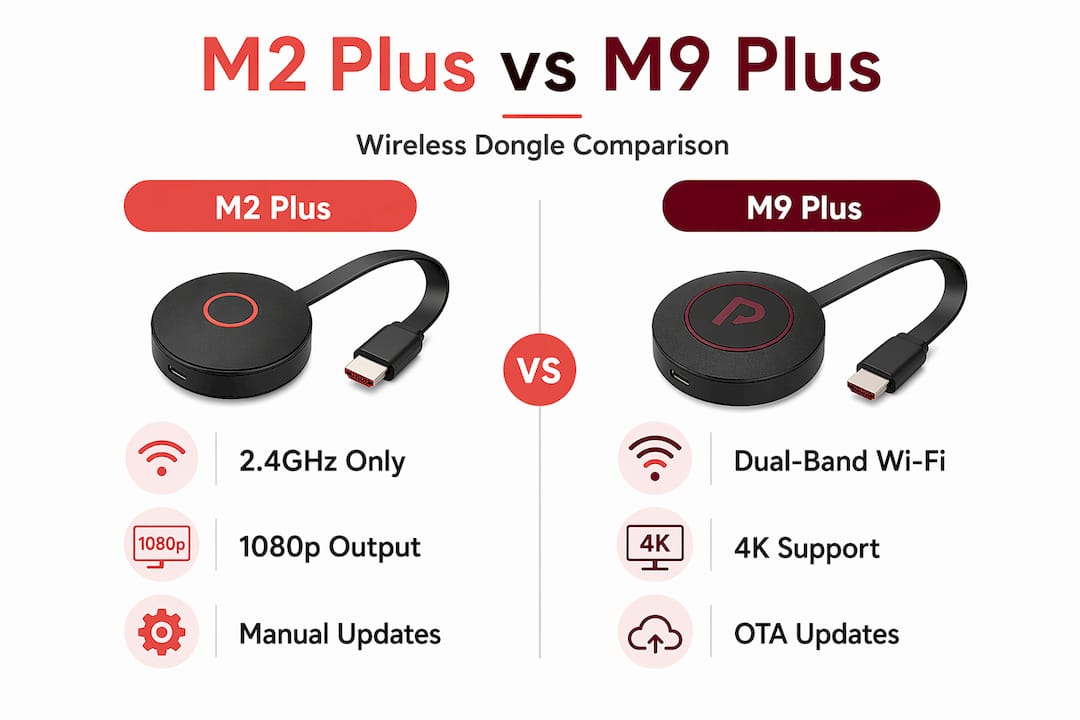
The M9 Plus addresses the two biggest weaknesses of the M2 Plus. Its dual-band and OTA update support make it significantly more stable in environments like Malaysian offices and school computer labs where multiple networks compete on 2.4GHz. You can compare the Anycast M9 Plus directly alongside the M2 Plus before deciding.
For casual home use where you stream your own content and your Wi-Fi is reasonably uncrowded, the M2 Plus still performs well and costs less. The upgrade makes sense if:
- You use it in a shared office or classroom with many nearby Wi-Fi networks
- Stability during live presentations is non-negotiable
- You want the option to receive bug fixes and performance patches over time
For a broader look at wireless screen mirroring options suited to Malaysia, the 2025 wireless mirroring guide covers the full landscape of available devices and use cases.
Real-world applications in Malaysia
The Anycast M2 Plus earns its keep across three distinct environments in Malaysia, each with slightly different usage patterns.
Home entertainment is where most buyers start. You can mirror movies and shows from your phone to a big screen TV, share photos from a family trip, or cast mobile games to a larger display. It works well for content that does not involve DRM-protected streaming apps.
Classrooms and schools represent one of the strongest use cases in Malaysia. Teachers can walk around the room while their laptop or tablet stays wirelessly connected to the projector. Students can take turns presenting from their own devices without plugging in cables. Malaysian classrooms frequently pair wireless dongles with fixed projection screens and ceiling-mounted projectors for a clean, permanent setup.

Business presentations and meetings benefit from the cable-free convenience, especially in conference rooms where multiple people need to share their screen. Pairing the Anycast M2 Plus with a reliable wireless projector in Malaysia and a quality projection screen creates a professional setup at a fraction of enterprise AV costs.
When choosing a projection screen for Malaysia setups, fixed-frame screens work best for permanent rooms, while pull-down or portable options suit classrooms and meeting rooms that serve multiple purposes. The dongle performs best when the projector or display has a dedicated power source for the USB connection.
My honest take on the Anycast M2 Plus
I have seen a lot of customers at Projectordisplay get frustrated with wireless dongles because they expect plug-and-play perfection from a budget device. My honest observation after working with these products in the Malaysian market is that the Anycast M2 Plus is genuinely good within its limits, but those limits are real and specific.
The power supply issue is the one I see most often go unaddressed. People spend 30 minutes reconfiguring their Wi-Fi when the actual fix is a five-ringgit USB adapter. Unstable power through TV USB ports is responsible for most of the "Wi-Fi keeps dropping" complaints I hear. Fix the power first, always.
The 2.4GHz limitation does not bother most home users, but I would not recommend this device for a high-traffic office or a school lab where a dozen networks are fighting for the same frequency space. Crowded 2.4GHz environments will degrade the experience noticeably, and no amount of troubleshooting will overcome a physics problem.
My advice: buy the M2 Plus if your budget is tight and your use case is casual. Budget slightly more for the M9 Plus if you present professionally or work in a dense network environment. Either way, verify your Wi-Fi setup and power source before your first critical use. The device rewards preparation.
— Projector
Where to buy the Anycast M2 Plus in Malaysia
Projectordisplay is one of Malaysia's most trusted sources for wireless display technology and projection equipment. Whether you need the Anycast M2 Plus dongle for personal use, a classroom setup, or a boardroom presentation, Projectordisplay stocks it alongside a full range of compatible projectors and screens.
From projektor murah options to premium wireless projector Malaysia setups, Projectordisplay carries brands including Epson projector Malaysia, BenQ projector Malaysia, Viewsonic projector Malaysia, Optoma projector Malaysia, and more. You will also find projector screen Malaysia options including fixed-frame, pull-down, and portable styles. Fast shipping across Peninsular Malaysia, secure checkout, and WhatsApp customer support make it easy to get the right gear for your setup. Explore the full catalog at Projectordisplay and pair your dongle with the right display solution today.
FAQ
What protocols does the Anycast M2 Plus support?
The Anycast M2 Plus supports Miracast, DLNA, and AirPlay, making it compatible with Android, iOS, Windows, and MacOS devices without additional drivers.
Why does my Anycast M2 Plus keep disconnecting?
The most common cause is insufficient power from your TV's USB port, which typically delivers less than 800mA. Plug the dongle into a wall USB charger rated at 800mA or higher to resolve most disconnects.
Can I use Anycast M2 Plus to stream Netflix?
No. The Anycast M2 Plus does not support HDCP 2.2, so DRM-protected content from Netflix, Amazon Prime Video, and similar apps will show a black screen or error message during mirroring.
How does Anycast M2 Plus compare to the M9 Plus?
The M9 Plus adds dual-band Wi-Fi (2.4GHz and 5GHz) and OTA firmware updates, making it more stable in crowded network environments. The M2 Plus is more affordable but limited to 2.4GHz only.
Where can I buy the Anycast M2 Plus in Malaysia?
You can purchase the Anycast M2 Plus from Projectordisplay, one of the best projector sellers in Malaysia, with fast Peninsular Malaysia shipping and full product support available via WhatsApp.
Recommended
- Wireless projector setup guide for tech-savvy Malaysians – Projector Display
- Wireless Screen Mirroring in Malaysia: 2025 Guide for Entertainment, Education, and Business – Projector Display
- Multi Room Audio Setup Guide: Stream Music Everywhere – Projector Display
- Anycast M9 Plus 128M Ezcast Miracast Any Cast Wireless DLNA AirPlay Mirror HDMI TV Stick Wifi Display Dongle Receiver for IOS Android – Projector Display