
TL;DR:
- Wireless projectors offer a cable-free experience but often face challenges like interference and weak signals. Understanding your projector's supported connection types and environmental factors is essential for successful setup and use. Upgrading your network, using dedicated wireless HDMI kits, and proper positioning help optimize performance in Malaysian environments.
Wireless projectors promise a cleaner, cable-free experience whether you're streaming movies in a Petaling Jaya living room, running a boardroom presentation in KL, or teaching a class in Penang. But this wireless projector setup guide exists because the reality is rarely as smooth as the marketing. Dropped connections, laggy screen mirroring, confused pairing menus, and networks that fight back are frustrations most people hit before they ever get a single frame on the wall. This guide covers the full picture: connection types, step-by-step setup, common fixes, and image tuning, all mapped to the real environments Malaysian users actually work in.
Table of Contents
- Understanding wireless projector technology and your setup requirements
- Step-by-step guide to connecting your wireless projector
- Troubleshooting common issues and optimizing your wireless projector experience
- Adjusting projector image and sound settings for the best viewing experience
- The practical truth about wireless projector setups in Malaysian environments
- Explore the best projectors and accessories in Malaysia for your wireless setup
- Frequently asked questions
Key Takeaways
| Point | Details |
|---|---|
| Know your projector | Check wireless capabilities and supported connection methods before setup. |
| Select the right method | Choose Wi-Fi Direct, Miracast, AirPlay, or Chromecast based on your device and use case. |
| Optimize your network | Use 5GHz Wi-Fi and minimize interference for better reliability and lower latency. |
| Prepare backups | Always have a wired HDMI cable as fallback for critical presentations or gaming. |
| Test ahead | Perform dry runs to catch issues before events and adjust settings for best image and sound. |
Understanding wireless projector technology and your setup requirements
To successfully set up your wireless projector, first understand the technology and requirements involved. Not all wireless projectors work the same way, and picking the wrong connection method for your use case causes most of the headaches people blame on the hardware itself.
Wireless connection types compared
There are four main wireless technologies used in projectors today:
- Wi-Fi (home network): Your projector and source device (laptop, phone, tablet) connect to the same router. Works for streaming apps and Chromecast-style casting. Dependent on router quality and network congestion.
- Wi-Fi Direct / Miracast: A peer-to-peer connection that skips the router entirely. Your Windows PC or Android phone talks directly to the projector. Lower network dependency, but shorter effective range.
- AirPlay: Apple's proprietary protocol for iPhones, iPads, and Macs. Requires either a built-in AirPlay receiver in the projector or an Apple TV connected to it.
- Bluetooth: Used almost exclusively for audio pairing with external speakers or headphones. It cannot handle the bandwidth needed for reliable video projection.
| Connection type | Best for | Typical range | Latency |
|---|---|---|---|
| Home Wi-Fi network | Streaming, Chromecast | 10 to 30+ meters | Moderate to high |
| Wi-Fi Direct / Miracast | Windows/Android screen mirroring | 5 to 10 meters | Low to moderate |
| AirPlay | Apple device mirroring | 10 to 20 meters | Low to moderate |
| Wireless HDMI kit | Gaming, live demos | 10 to 30 meters | Very low (~15-40 ms) |
| Bluetooth | Audio only | 10 meters | N/A for video |
Before touching a single setting, check your projector's spec sheet. Confirm which wireless modes it actually supports. Many budget projectors sold in Malaysia claim "wireless" but only include a USB Miracast dongle port, not built-in Wi-Fi. Most wireless setups follow a consistent workflow: verify supported wireless modes, then pair through the on-screen menu. Start there, not in the middle.
Environmental factors matter too. Malaysian apartment blocks and older office buildings with thick concrete walls kill Wi-Fi signals between floors. If your projector sits more than one room away from the router, expect interference. Microwaves, neighboring Wi-Fi networks, and other Bluetooth devices all compete for the 2.4GHz band. The wireless projector connectivity guide covers these environmental variables in detail if you want to dig deeper into placement strategy.
Step-by-step guide to connecting your wireless projector
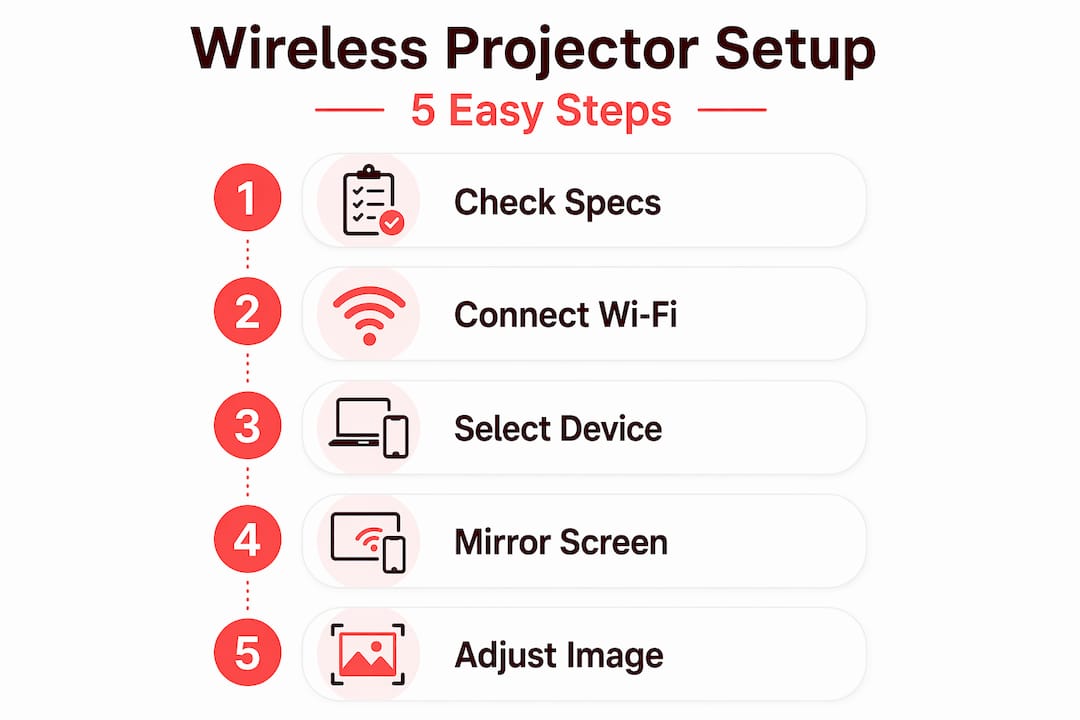
With your setup requirements ready, let's walk through connecting your devices step by step. The process differs slightly by connection method, but the core sequence stays the same.
For Wi-Fi network or Miracast (Windows and Android):
- Power on your projector and navigate to Settings > Network or Wireless in the on-screen menu.
- Select your connection type: Wi-Fi network (to join your router) or Wi-Fi Direct/Miracast (for peer-to-peer).
- If joining a home or office network, select your SSID and enter the password.
- On your Windows PC, open Action Center > Connect and select the projector from the device list. On Android, go to Settings > Connected Devices > Cast or use the quick settings panel.
- Enter the pairing code displayed on the projector screen if prompted.
- Test the connection by projecting a sample image or short video clip before your actual presentation or movie session.
For AirPlay (Apple devices):
- Confirm your projector supports AirPlay natively, or connect an Apple TV to the projector's HDMI port.
- Connect both your iPhone/Mac and the projector/Apple TV to the same Wi-Fi network.
- On your iPhone, swipe to Control Center and tap Screen Mirroring. On Mac, click the Control Center icon and select Screen Mirroring.
- Select the projector or Apple TV from the list and enter the AirPlay code if shown.
Connecting devices to wireless projector via manufacturer apps is worth exploring too. Epson iProjection, BenQ InstaShow, and similar apps available on the App Store and Google Play often give you better control, lower latency, and features like split-screen from multiple devices that the generic OS mirroring cannot match.
As wireless setup pairing typically works, you select the correct wireless setting and mirror until your device screen appears on the projector. Simple in concept, but getting there smoothly depends on doing these steps in order.
Pro Tip: Always connect both your source device and projector to the 5GHz band of your router rather than 2.4GHz. The 5GHz band has more available channels, less congestion from neighboring networks, and noticeably lower latency for screen mirroring. Most modern routers in Malaysian homes support dual-band, but both devices need to be within roughly 8 to 10 meters of the router for reliable 5GHz performance.
A few extra things that pay off:
- Update your projector's firmware before your first setup session, not mid-crisis
- Keep devices within 5 meters of each other for initial pairing, then move if needed
- Restart the projector and source device if pairing fails on the first attempt
- Check our wireless screen mirroring guide and phone mirroring tips for device-specific walkthroughs
For movie nights specifically, the Wi-Fi Bluetooth projector setup guide covers pairing Bluetooth speakers alongside your wireless projection for a proper home cinema feel.
Troubleshooting common issues and optimizing your wireless projector experience
If connection problems arise, here's how to troubleshoot and optimize your setup for seamless use. Most wireless projection failures trace back to three causes: interference, mismatched networks, and outdated firmware.
Common culprits and quick fixes:
- Dropped connections: Move the projector or router closer together. Walls, especially concrete ones common in Malaysian apartments, absorb 5GHz signals significantly.
- Can't find the projector on your device: Confirm both devices are on the same Wi-Fi network, including the same band (2.4GHz vs. 5GHz). This mismatch is the single most common cause of invisible-projector syndrome.
- Pixelated or stuttering image: Your network is congested. Use a Wi-Fi analyzer app (NetSpot on Mac, WiFi Analyzer on Android) to find the least crowded Wi-Fi channel, then manually set your router to that channel.
- Projector connects but image lags badly: Switch from home network casting to Miracast or Wi-Fi Direct, which bypasses router congestion entirely.
- Pairing code not appearing: Restart the projector in wireless mode and check that the wireless input source is selected, not HDMI or VGA.
Pro Tip: Download a free Wi-Fi analyzer app before your next setup. In Malaysian urban environments, the 2.4GHz band is almost always saturated with 10 to 20 overlapping networks. Switching to channel 36 or 149 on the 5GHz band consistently improves connection stability, especially in apartment blocks and co-working spaces in KL, PJ, and Penang.
Wireless casting failures are often intermittent: do a dry test run and keep an HDMI fallback ready for reliability-critical situations.
That dry run advice is not optional for professional settings. One failed wireless demo in front of a client costs more goodwill than any convenience the wireless setup saves. Always bring a cable.
Speaking of cables: wireless HDMI transmitter and receiver kits sit in an interesting middle ground. Wireless HDMI kits deliver roughly 15 to 40 ms of latency, comparable to a physical HDMI cable in practice, but their performance depends heavily on environment and range. They do not rely on your Wi-Fi network at all, which makes them excellent for live demos, gaming, or any scenario where a stutter would be embarrassing. The trade-off is cost and an additional device to carry.
Visit our wireless connection tips page for a deeper look at fixing specific projector models and network configurations common in Malaysia.
Adjusting projector image and sound settings for the best viewing experience
Once connected, fine-tune your projector's image and audio settings for optimal viewing. Getting a wireless connection is step one. Making it look and sound good is where most guides stop short.
Image tuning checklist:
- Focus: Use the physical focus ring on the projector lens until text edges look sharp, not just until the overall image looks acceptable. Zoom in on a text-heavy slide or a subtitled scene to judge accurately.
- Keystone correction: If your projector is not centered and level with the screen, the image will look trapezoidal. Use the projector's built-in keystone correction (digital) or, ideally, physically reposition and tilt the projector for better image quality. Digital keystone correction works but reduces resolution slightly.
- Image size: Adjust the zoom or move the projector closer or farther from the wall to fill your screen without bleeding over the edges.
- Brightness and contrast: Higher lumen projectors (3,000+ lumens) can handle lit Malaysian living rooms and office spaces. For darker home theater setups, lower brightness and increase contrast for deeper blacks. Adjust focus, keystone, brightness, and contrast after every major repositioning, not just during initial setup.
Audio options, ranked by quality:
- Built-in projector speakers: acceptable for presentations, weak for movies
- Bluetooth speaker paired to projector: significant upgrade, easy setup
- Soundbar connected via optical or HDMI ARC: ideal for living room setups
- Full surround sound system: best for dedicated home theaters
Pro Tip: Run through your full image and sound settings at least 30 minutes before any presentation or movie night. Room lighting changes throughout the day in Malaysia, especially in spaces with large windows, and a setting that looked perfect at noon can look washed out by afternoon. Build the adjustment time into your preparation, not your intro.
For specific accessories that improve your projection experience, including screen surfaces and mounting hardware, the projector accessories guide has practical recommendations for Malaysian room types and budgets.
The practical truth about wireless projector setups in Malaysian environments
Most wireless projector guides are written for ideal conditions: one device, one projector, a clean 5GHz network, and no neighbors. That is not Malaysia.
In a typical Malaysian high-rise condo, you are sharing airspace with 30 to 50 Wi-Fi networks. In a corporate office, IT departments often lock down devices from joining guest networks or restrict Miracast. In a school, the router may be two classrooms away with walls in between. These realities matter, and the honest truth is that Wi-Fi mirroring is a convenience technology, not a performance technology.
Wi-Fi mirroring is convenience-first. Wireless HDMI kits are for when latency and reliability genuinely justify the extra hardware. Knowing which category your situation falls into prevents a lot of frustration.
If you are in business, here is something generic guides will not tell you: the biggest risk in wireless projection is not the projector, it is the network. A Wi-Fi 6 router (802.11ax) with MU-MIMO support makes a measurable difference in dense office environments because it handles multiple device connections without degrading performance. Most Malaysian offices still run Wi-Fi 5 routers from three or four years ago. Upgrading the router, not the projector, is often the highest-impact change you can make.
For home users, the calculus is simpler. Movie nights and casual presentations handle mild latency fine. If you only stream from a laptop or phone to a projector once or twice a week, a solid home network and a good Miracast or AirPlay setup is all you need. Spending extra on a wireless HDMI kit is overkill unless you game on it or run live demos regularly.
The professionals who handle this best share one habit: they always bring an HDMI cable. Not because they expect to use it, but because having it means wireless failure is an inconvenience, not a disaster. Check our wireless projector insights page for real-world configuration examples that reflect this backup-first mindset.
Explore the best projectors and accessories in Malaysia for your wireless setup
Ready to upgrade your setup? ProjectorDisplay.com is Malaysia's trusted source for wireless-capable projectors from Epson, Acer, BenQ, and more, with options covering every use case from portable smart projectors for travel to full home theater laser models.

Browse a full range of projector screens in Malaysia designed to pair with your wireless projection, from pull-down screens for offices to ALR (ambient light rejecting) surfaces for bright Malaysian living rooms. Pick up wireless HDMI kits, Bluetooth speakers, and mounting accessories through the projector accessories guide to complete your setup the right way. Fast shipping across Peninsular Malaysia and WhatsApp support mean you get the right advice before buying, not after.
Frequently asked questions
Can I connect any projector wirelessly?
No, your projector must have built-in Wi-Fi or a wireless adapter port to connect wirelessly. Check your projector's spec sheet before purchasing a wireless setup.
Why does my wireless projector keep disconnecting?
Frequent disconnections usually come from weak Wi-Fi signals or interference. Moving the projector closer to the router or using a Wi-Fi extender often resolves persistent drop issues.
Is Bluetooth suitable for wireless projector video streaming?
No. Bluetooth handles audio well but lacks the bandwidth and low latency needed for video projection. Use Wi-Fi or Miracast for video.
How can I reduce latency in my wireless projector setup?
Use a dedicated wireless HDMI kit or connect both devices to a 5GHz Wi-Fi network. Wireless HDMI kits deliver roughly 15 to 40 ms of latency, though actual results depend on environment and physical distance.
Recommended
- Easy Projector WiFi Setup: Step-by-Step Guide for Malaysia – Projector Display
- How to Use Bluetooth With Projectors: Malaysia Guide – Projector Display
- Complete guide to wireless projector adapters in Malaysia – Projector Display
- Apa Itu Wireless Projektor? Panduan Lengkap 2025 untuk Pengguna Malaysia – Projector Display