
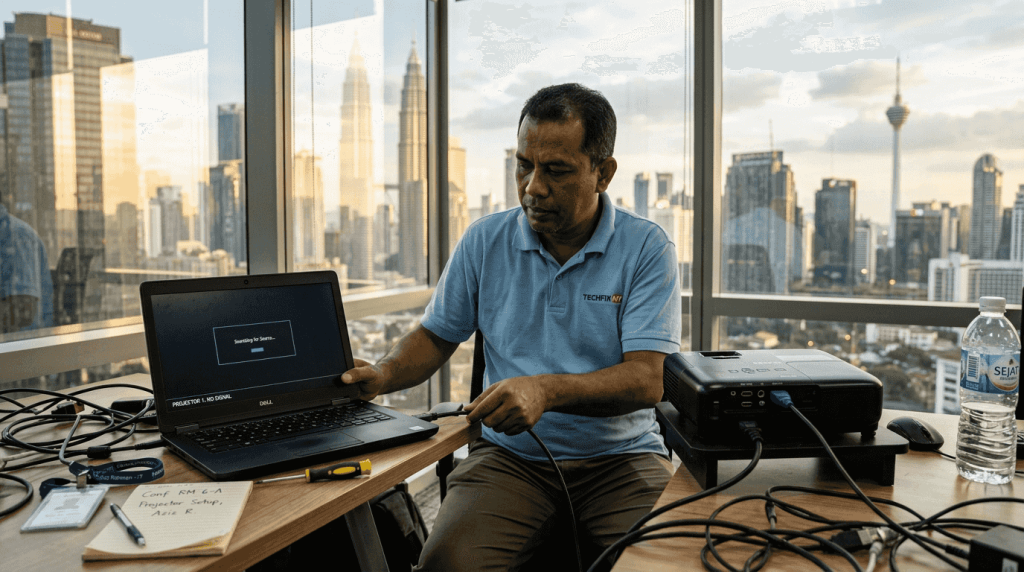
Choosing the right projector connectivity can mean the difference between seamless presentations and frustrating delays. HDBaseT 3.0 delivers latency under 1 millisecond, while some wireless options can introduce delays exceeding 300 milliseconds, enough to disrupt interactive classroom activities or business meetings. With Malaysian homes, schools, and offices increasingly relying on projectors for entertainment, education, and collaboration, understanding your connectivity options becomes essential. This guide walks you through wired and wireless technologies, compares latency performance across leading transmission methods, and helps you select the optimal setup for your specific Malaysian environment.
Table of Contents
- Understanding Key Projector Connectivity Technologies
- Why Latency Matters: Comparing HDBaseT 3.0, SwiftSync, And H.265 Compression
- Practical Connectivity Tips And Troubleshooting For Malaysian Users
- Choosing The Right Projector Connectivity For Home, Education, And Business In Malaysia
- Explore Top Projector Products And Installation Guides In Malaysia
- Frequently Asked Questions
Key takeaways
| Point | Details |
|---|---|
| HDBaseT 3.0 ultra-low latency | Delivers under 1 ms latency, perfect for real-time interactive applications in classrooms and meeting rooms |
| Wireless adds convenience | Wi-Fi and Bluetooth connections enable screen mirroring and audio streaming but may introduce higher latency |
| USB-C versatility | Single port handles video input, power delivery, and data transfer for modern devices |
| Latency impacts interactivity | Higher latency disrupts touch-based presentations and live demonstrations |
| Common issues have simple fixes | Most projector signal problems resolve through cable checks, source verification, and proper ventilation |
Understanding key projector connectivity technologies
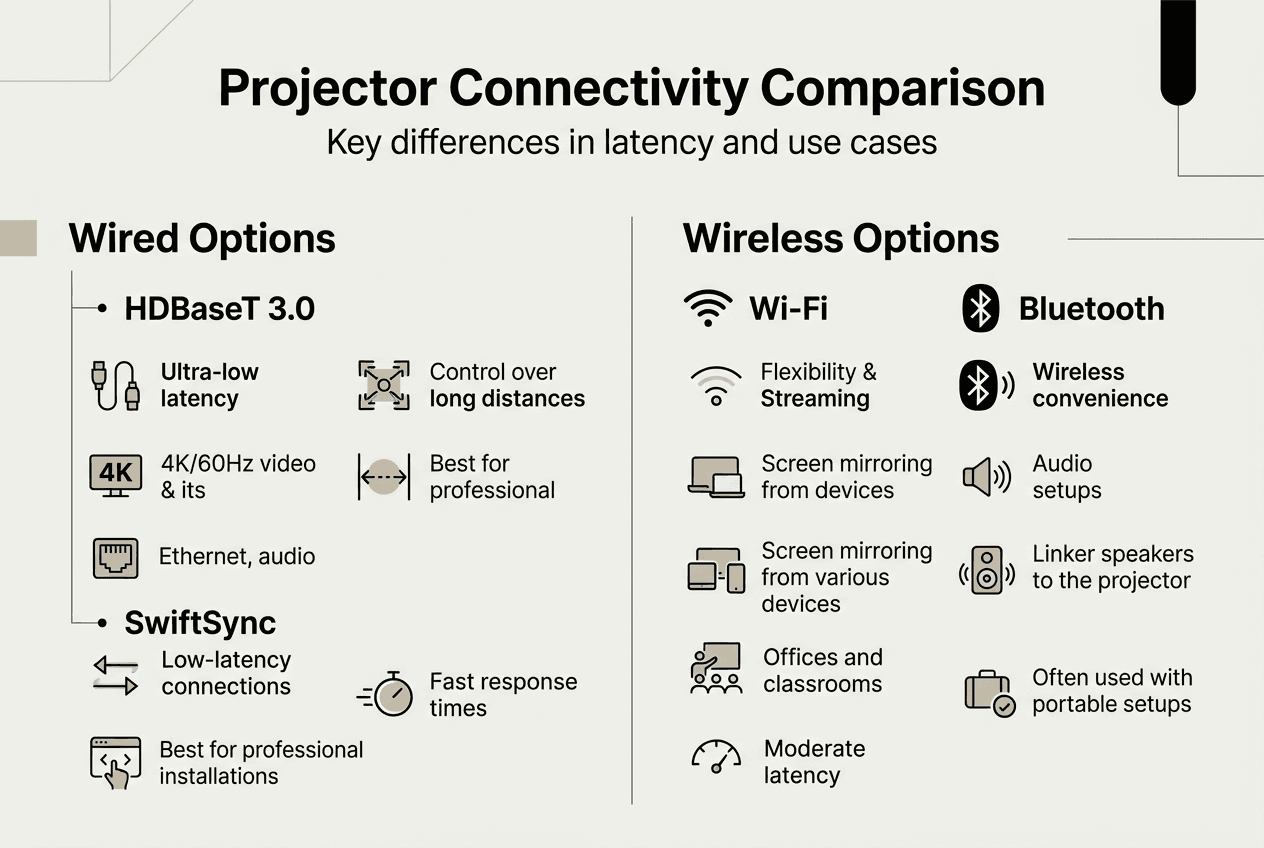
Projector connectivity falls into two main categories: wired and wireless. Each offers distinct advantages depending on your setup requirements, distance limitations, and latency tolerance.
Wired connections remain the gold standard for reliability and performance. HDMI cables dominate consumer and business projector setups, supporting high-definition video and audio through a single cable. However, standard HDMI cables face distance limitations around 15 meters before signal degradation occurs. HDBaseT extends HDMI signals up to 100 meters over Cat6 cables while maintaining quality, making it ideal for large conference rooms or auditoriums. USB-C ports support video input, power delivery, and data transfer, increasing projector versatility for modern laptops and mobile devices that have moved away from traditional video ports.
Wireless connectivity, such as Wi-Fi and Bluetooth, enhances projector usability by enabling screen mirroring and audio streaming without physical cables. Technologies like Miracast, Chromecast, and AirPlay let you project content from smartphones, tablets, and computers wirelessly. This convenience comes with trade-offs: wireless connections typically introduce higher latency compared to wired options and can suffer from interference in crowded network environments. For casual home viewing or simple presentations, wireless connectivity provides excellent flexibility. For interactive applications requiring immediate response, wired connections deliver superior performance.
Understanding these fundamental differences helps you match connectivity technology to your specific use case. A home theater prioritizes convenience and may benefit from wireless options, while a university lecture hall with interactive whiteboards demands the reliability and low latency of wired connections. Malaysian users should also consider local network infrastructure quality when evaluating wireless options, as older routers or congested networks can significantly impact projector wireless connection performance.
Why latency matters: comparing HDBaseT 3.0, SwiftSync, and H.265 compression
Latency, the delay between source signal and projected image, critically affects user experience in interactive environments. While a few milliseconds matter little for movie playback, they create noticeable lag when using touch-enabled displays, drawing on digital whiteboards, or demonstrating live software in business presentations.
Three prominent HDMI transmission technologies offer different latency profiles. HDBaseT 3.0 offers the lowest latency under 1 ms for HDMI transmission over long distances, making it the top choice for applications where real-time response matters. This technology transmits uncompressed video signals over Cat6 cables up to 100 meters, maintaining pristine image quality without introducing perceptible delay. Educational institutions using interactive projectors and corporate environments with touch-enabled displays benefit most from HDBaseT 3.0's instantaneous response.
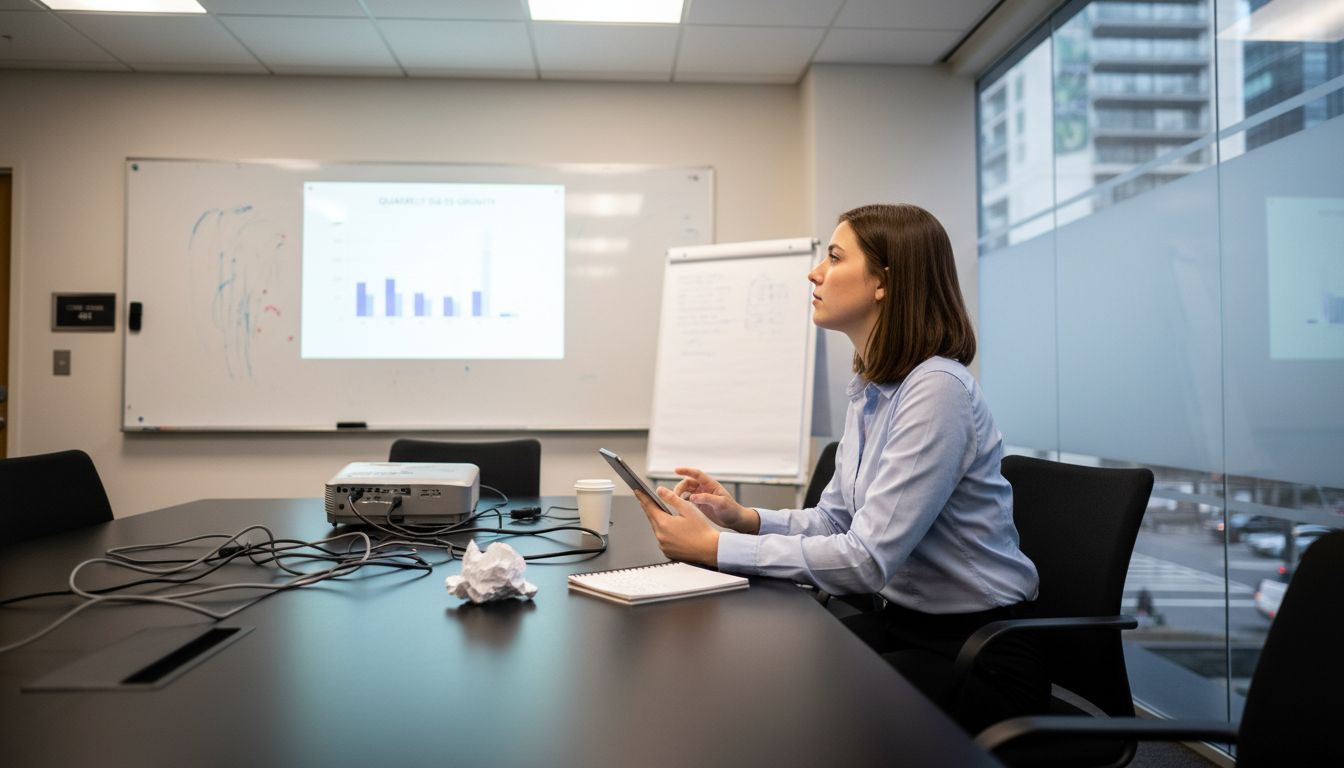
SwiftSync provides near-lossless image quality with moderate latency around 40 ms, suitable for meeting rooms and KVM control systems. This balanced approach compresses video lightly to reduce bandwidth requirements while keeping latency low enough for most business applications. The 40 ms delay remains imperceptible during standard presentations but becomes noticeable in highly interactive scenarios. SwiftSync works well for video conferencing setups and presentation rooms where some compression is acceptable to reduce infrastructure costs.
H.265 compression involves higher latency between 40 and 300 ms and some compression artifacts, better suited for bandwidth-limited scenarios. This technology prioritizes efficient data transmission over immediate response, making it practical for streaming content over constrained networks or extending signals across existing infrastructure without upgrades. The variable latency depends on compression settings and network conditions, with higher compression ratios producing longer delays.
Pro Tip: Test latency sensitivity by tapping or drawing on your source device while watching the projected image. If you notice lag, prioritize HDBaseT 3.0 or direct HDMI connections over compressed wireless options.
The table below summarizes key differences:
| Technology | Latency | Image Quality | Best Use Case |
|---|---|---|---|
| HDBaseT 3.0 | <1 ms | Uncompressed | Interactive classrooms, touch displays |
| SwiftSync | ~40 ms | Near-lossless | Meeting rooms, presentations |
| H.265 | 40-300 ms | Compressed | Bandwidth-limited streaming |
Choosing the right transmission technology requires honest assessment of your latency tolerance and primary use cases. Malaysian schools implementing interactive learning should invest in HDBaseT 3.0 infrastructure, while small businesses conducting standard presentations can save costs with SwiftSync or even wireless options. Understanding these trade-offs prevents purchasing connectivity solutions that underperform for your specific needs. For detailed connection methods, consult our how to connect projector guide.
Practical connectivity tips and troubleshooting for Malaysian users
Selecting optimal projector connectivity starts with identifying your primary use case. Home entertainment setups prioritize convenience and flexibility, making wireless connections or USB-C ideal for connecting streaming devices, gaming consoles, and laptops. Educational environments demand reliability and low latency for interactive whiteboards and student presentations, favoring HDBaseT or direct HDMI connections. Business meeting rooms fall somewhere between, balancing convenience with professional reliability through SwiftSync or quality wireless solutions.
Consider your device ecosystem when choosing connectivity options. Modern Malaysian offices increasingly use USB-C equipped laptops, making USB-C projector inputs valuable for single-cable connections that handle video, audio, and sometimes power delivery. Older equipment may require HDMI or VGA adapters, so verify port compatibility before purchasing. Wireless protocols vary by device manufacturer: Apple products work seamlessly with AirPlay, Android devices support Miracast, and cross-platform environments benefit from Chromecast compatibility.
Most projector problems such as no signal or overheating have simple solutions and are common across Malaysian homes and offices. Start troubleshooting connectivity issues by checking cable connections at both ends, ensuring cables are fully seated in ports. Verify your source device is set to the correct output mode, as laptops often require manual activation of external displays through function keys or display settings. Switch input sources on the projector to match your connection type, as projectors with multiple inputs need manual selection.
Common problems and quick fixes include:
- No signal displayed: Check cable connections, verify source output is active, select correct projector input, restart both devices
- Intermittent connection: Replace damaged cables, clean port contacts, avoid cable runs near electrical interference sources
- Poor image quality: Ensure cable specifications match resolution requirements, use shorter cable lengths when possible, verify source output resolution settings
- Wireless connection drops: Move closer to access point, reduce network congestion by limiting connected devices, update projector firmware
- Overheating shutdowns: Ensure adequate ventilation clearance around projector, clean air filters regularly, avoid blocking exhaust vents
Pro Tip: Keep a USB drive with your projector's latest firmware downloaded from the manufacturer's website. Many connectivity and performance issues resolve through firmware updates, and having the file ready saves time during critical presentations.
Malaysian users should account for local environmental factors when setting up projector connectivity. High humidity in coastal areas can affect cable connections over time, requiring periodic inspection and cleaning. Older buildings may have electrical systems that introduce interference with wireless signals, making wired connections more reliable. For comprehensive setup guidance tailored to Malaysian conditions, review our home projector buying guide and projector screen placement malaysia resources.
Choosing the right projector connectivity for home, education, and business in Malaysia
Decision-making frameworks help match connectivity technologies to specific Malaysian environments and use cases. Start by listing your primary usage scenarios and the devices you'll connect most frequently. This assessment reveals whether you need maximum flexibility, lowest latency, longest cable runs, or simplest setup.
Follow these prioritized steps to select optimal connectivity:
- Identify your primary use case and latency requirements: Interactive classroom teaching demands HDBaseT 3.0 or direct HDMI for under 1 ms response, while home movie watching tolerates wireless convenience despite higher latency
- Assess your device compatibility and available ports: Modern USB-C laptops benefit from USB-C projector inputs, older equipment requires HDMI or VGA support, mixed environments need multiple input options
- Determine installation complexity and cable distance needs: Permanent installations over 15 meters require HDBaseT infrastructure, portable setups favor wireless or short HDMI cables, temporary meeting rooms work well with wireless dongles
- Evaluate your network infrastructure quality: Strong, modern Wi-Fi networks support reliable wireless projection, older or congested networks make wired connections more dependable
- Consider your budget and upgrade timeline: HDBaseT installations cost more upfront but deliver superior long-term performance, wireless options minimize installation costs but may require periodic upgrades as protocols evolve
The following table maps common Malaysian scenarios to recommended connectivity options:
| Environment | Primary Need | Recommended Connectivity | Alternative Option |
|---|---|---|---|
| Home theater | Convenience, flexibility | Wireless (Chromecast, AirPlay) | USB-C for laptops |
| Interactive classroom | Low latency, reliability | HDBaseT 3.0 or direct HDMI | USB-C for student devices |
| Corporate meeting room | Professional reliability | SwiftSync or quality wireless | USB-C for BYOD support |
| University lecture hall | Long distance, low latency | HDBaseT 3.0 infrastructure | Wireless backup for guests |
| Small business presentation | Cost-effective, simple | Wireless with HDMI backup | USB-C for modern laptops |
Wireless connectivity simplifies setup and reduces clutter but requires compatible protocols like Miracast or Chromecast. Before committing to wireless solutions, verify that your projector supports the protocols used by your devices. Universal wireless dongles can bridge compatibility gaps but add cost and complexity. USB-C ports increase projector versatility, supporting multiple device types with a single connection, making them increasingly valuable as laptop manufacturers eliminate traditional video ports.
Malaysian buyers should also consider local support and warranty coverage when selecting projectors based on connectivity features. Premium connectivity options like HDBaseT 3.0 typically appear in higher-end models with better local support networks. Budget projectors may offer basic HDMI and wireless connectivity sufficient for home use but lack advanced features needed for professional environments. Explore various types of projectors malaysia to understand how connectivity options align with projector categories and price points, ensuring you select a model that meets both your technical requirements and budget constraints.
Explore top projector products and installation guides in Malaysia
Now that you understand projector connectivity technologies and how to choose the right options for your needs, it's time to explore products that deliver these features. Whether you need ultra-low latency HDBaseT connections for interactive classrooms, versatile USB-C ports for modern devices, or reliable wireless connectivity for flexible home entertainment, the right projector awaits.

Projector Display serves as Malaysia's top projector seller, offering extensive selections across portable, laser, short-throw, and smart projector categories. Each product listing details connectivity options, helping you match technical specifications to your requirements. Access our comprehensive projector installation guide 2026 for step-by-step setup instructions optimized for Malaysian environments. Take advantage of current projector sale products to secure premium connectivity features at competitive prices while stocks last.
Frequently asked questions
What is HDBaseT and why is it important for projectors?
HDBaseT is a wired transmission technology that sends HDMI signals over Cat6 ethernet cables up to 100 meters while maintaining uncompressed video quality. It delivers latency under 1 millisecond, making it essential for interactive applications like digital whiteboards, touch-enabled displays, and live demonstrations where immediate response matters. The technology also carries power, USB, and control signals over the same cable, simplifying installation in permanent setups.
Can I use wireless connections for professional presentations?
Wireless connections work well for standard professional presentations where slight latency doesn't impact the experience. However, they may introduce delays between 40 and 300 milliseconds depending on network conditions and compression methods, which becomes noticeable during interactive demonstrations or when using presentation remotes. For critical business presentations, keep an HDMI cable as backup in case wireless connectivity encounters interference or compatibility issues.
How does USB-C enhance projector connectivity?
USB-C ports combine video input, power delivery, and data transfer through a single reversible connector. This means you can connect modern laptops to projectors using one cable that handles everything, eliminating the need for separate power adapters and video cables. USB-C also supports newer display protocols like DisplayPort Alt Mode, enabling 4K video transmission while charging your laptop simultaneously, making it increasingly valuable as manufacturers phase out traditional video ports.
What are common troubleshooting steps for projector connectivity issues?
Start by checking that cables are firmly connected at both the projector and source device, as loose connections cause most signal problems. Verify your laptop or device is set to extend or duplicate its display to the external projector through display settings. Select the correct input source on the projector menu to match your connection type. If problems persist, restart both devices, try a different cable to rule out cable failure, and ensure your projector has adequate ventilation to prevent overheating shutdowns that can appear as connectivity problems.
Recommended
- How to Connect Projector: Step-by-Step Guide for Malaysia 2025 – Projector Display
- How to Connect Projector: Step-by-Step Guide for Malaysia 2025 – Projector Display
- Wifi vs HDMI untuk Projektor: Pilihan Terbaik di Malaysia – Projector Display
- Types of Projectors: Guide for Malaysia Users 2025 – Projector Display