

Finding the ideal mini projector can be tricky for Malaysia's home theater fans who crave portability and flawless screen mirroring. Compact projectors let you share movies from your smartphone, tablet, or laptop on a big screen, creating immersive experiences anywhere. This guide explains how to select the right equipment, configure wireless connections, and optimize your viewing setup, focusing on compatibility and connectivity options that elevate your digital entertainment.
Table of Contents
- Step 1: Prepare Your Mini Projector And Devices
- Step 2: Connect To Wi-Fi And Configure Settings
- Step 3: Enable Screen Mirroring On Your Source Device
- Step 4: Pair Devices And Initiate The Connection
- Step 5: Verify Streaming Quality And Adjust Display
Quick Summary
| Important Insight | Explanation |
|---|---|
| 1. Choose Compatible Projector Technologies | Ensure your mini projector supports Miracast, AirPlay, Chromecast, or HDMI for optimal connectivity with your devices. |
| 2. Confirm Wi-Fi Connectivity Settings | Both the mini projector and source device must be connected to the same Wi-Fi network for seamless screen mirroring. |
| 3. Enable Screen Mirroring Correctly | Follow specific steps for each device type to initiate screen mirroring, ensuring smooth content sharing. |
| 4. Adjust Projector Settings for Optimal Visuals | Fine-tune brightness, focus, and resolution settings based on your room's lighting for a better viewing experience. |
| 5. Troubleshoot Common Streaming Issues | Identify and resolve streaming problems by checking signal strength, adjusting settings, or positioning devices closer together. |
Step 1: Prepare Your Mini Projector and Devices
Screen mirroring transforms your mini projector into a powerful entertainment hub, allowing seamless content sharing from smartphones, tablets, and laptops. This step focuses on selecting the right equipment and establishing the perfect wireless or wired connection for your viewing experience.
Choosing the right mini projector requires careful evaluation of several key factors. You'll want to consider compatibility and connectivity options that match your specific devices. Look for projectors supporting multiple mirroring technologies like:
- Miracast for Windows devices
- AirPlay for Apple products
- Chromecast for Android smartphones
- HDMI for direct connections
Before initiating screen mirroring, verify your devices meet these essential requirements:
- Ensure your smartphone/laptop supports wireless screen mirroring
- Check your mini projector's wireless connectivity features
- Confirm both devices are on the same WiFi network
- Update device software to latest versions
- Have necessary adapters or cables ready for backup
Pro tip: Always keep your mini projector's firmware updated to maintain optimal wireless performance and compatibility.
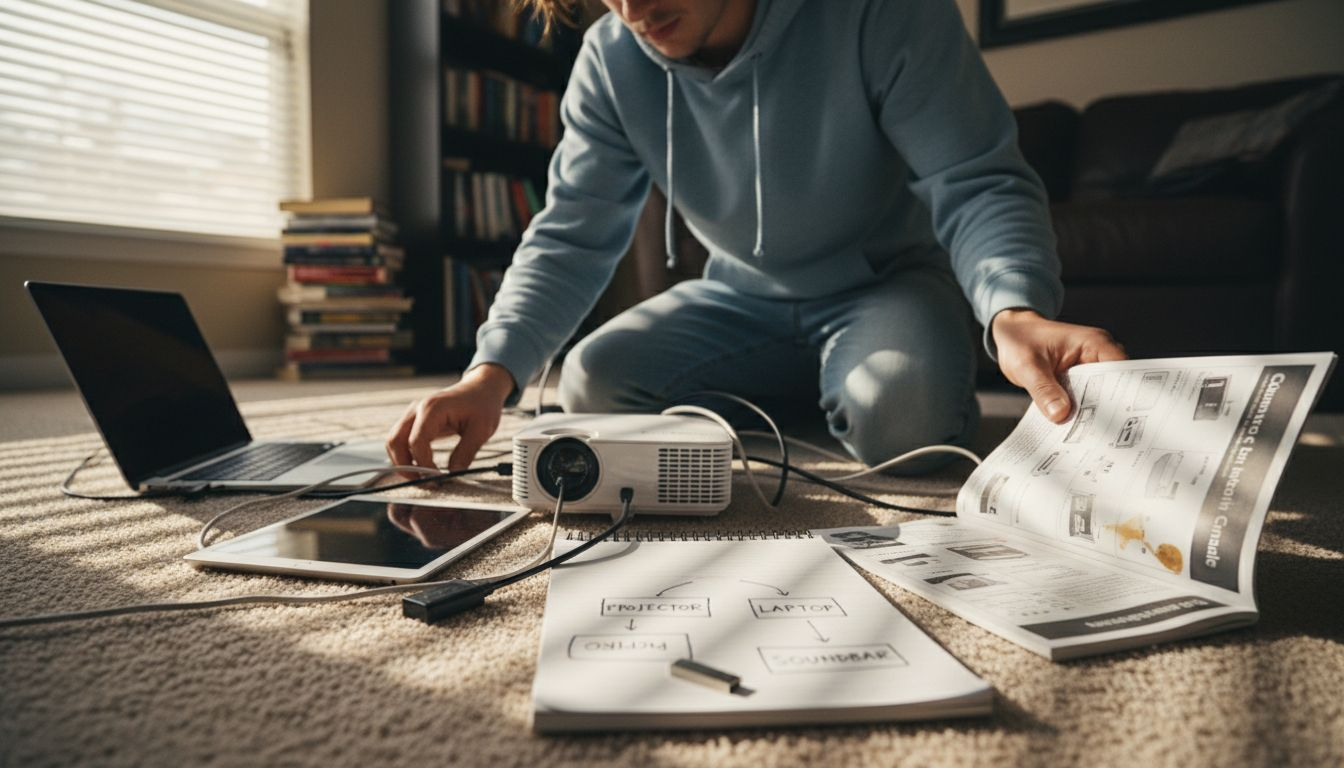
Connectivity isn't just about wireless options. Many mini projectors offer multiple connection methods to suit different scenarios. USB-C, HDMI, and wireless protocols provide flexibility for various devices and presentation needs.
Here's a quick comparison of screen mirroring technologies for mini projectors:
| Technology | Supported Devices | Connection Type | Typical Use Case |
|---|---|---|---|
| Miracast | Windows, Android | Wireless (Wi-Fi) | Streaming from laptops, phones |
| AirPlay | Apple products | Wireless (Wi-Fi) | Sharing from iPhone or Mac |
| Chromecast | Android, Chrome OS | Wireless (Wi-Fi) | Casting apps, browsers |
| HDMI | Most laptops, consoles | Wired (HDMI cable) | Stable HD video, presentations |
Pro tip: Keep a universal adapter in your tech bag to ensure seamless connections across different devices and projector models.
Step 2: Connect to Wi-Fi and Configure Settings
Connecting your mini projector to Wi-Fi is the crucial bridge between your device and seamless wireless streaming. This step transforms your portable projector into a smart, connected entertainment system that can effortlessly mirror content from multiple devices.
To establish a reliable wireless connection, you'll need to navigate wireless network settings carefully. Follow these systematic steps to configure your mini projector's network connection:
- Access the projector's settings menu
- Locate the Wi-Fi configuration section
- Select your home or office network
- Enter the network password
- Confirm and save the connection settings
Each mini projector might have slightly different interface layouts, but the core process remains consistent. Look for icons representing wireless networks or connection settings in the main menu.
Wireless connections require both your phone and projector to be on the same network for optimal performance.
After successfully connecting to Wi-Fi, verify the connection by checking the network status indicator. Some projectors display a small wireless icon to confirm active internet connectivity. Pay attention to signal strength and consider repositioning your projector or router if the connection seems unstable.
Pro tip: Always keep your projector's firmware updated to ensure compatibility with the latest wireless streaming technologies and network security protocols.
Step 3: Enable Screen Mirroring on Your Source Device
Screen mirroring turns your mini projector into a powerful display platform, allowing you to share content from smartphones, tablets, and laptops with just a few simple taps. This step will guide you through the process of wirelessly connecting your source device to ensure a seamless streaming experience.
To enable screen mirroring effectively, you'll need to navigate your device's specific settings. The process varies depending on your device type:
For Android Devices:
- Open Settings menu
- Select Connection or Display options
- Tap Cast or Wireless Display
- Choose your projector from available devices
For Apple Devices:
- Swipe down to open Control Center
- Tap Screen Mirroring button
- Select your projector's name
- Enter pairing code if prompted
For Windows Laptops:
- Click Connect in Action Center
- Select Projector option
- Choose wireless display
- Confirm connection
Ensure both your source device and projector are connected to the same Wi-Fi network for successful mirroring.
Some mini projectors might require additional setup in their internal settings. Check your projector's user manual for specific wireless connection instructions tailored to its model.
Pro tip: Always update your device's operating system to ensure the most reliable and secure screen mirroring capabilities.
Step 4: Pair Devices and Initiate the Connection
The final stage of screen mirroring transforms your tech setup from disconnected to dynamically linked, allowing your content to flow seamlessly between devices. Successful pairing means turning your mini projector into an extension of your digital workspace or entertainment center.
Pairing your devices wirelessly requires precision and understanding of your specific device ecosystem. The connection process varies slightly depending on your source device, but follows a consistent pattern:
For Android Devices:
- Confirm Miracast is enabled
- Select Cast or Wireless Display
- Wait for projector to appear
- Tap to connect
- Accept any pairing requests
For Apple Devices:
- Verify AirPlay compatibility
- Open Screen Mirroring menu
- Choose projector name
- Enter pairing code if required
- Confirm connection
Wireless mirroring depends on both devices being on the same network and having compatible screen sharing technologies.
Some projectors might display a unique PIN or connection code on the screen. Enter this code on your source device to complete the pairing process. If connection fails, double-check your Wi-Fi settings and ensure both devices are within reasonable wireless range.
Pro tip: Keep your device and projector firmware updated to minimize compatibility issues and ensure smooth wireless connections.
Step 5: Verify Streaming Quality and Adjust Display
With your devices connected, the next critical phase is ensuring a crystal-clear, smooth streaming experience that transforms your mini projector from a simple device to an immersive visual platform. Understanding how to fine-tune your display can make the difference between a mediocre and magnificent viewing experience.
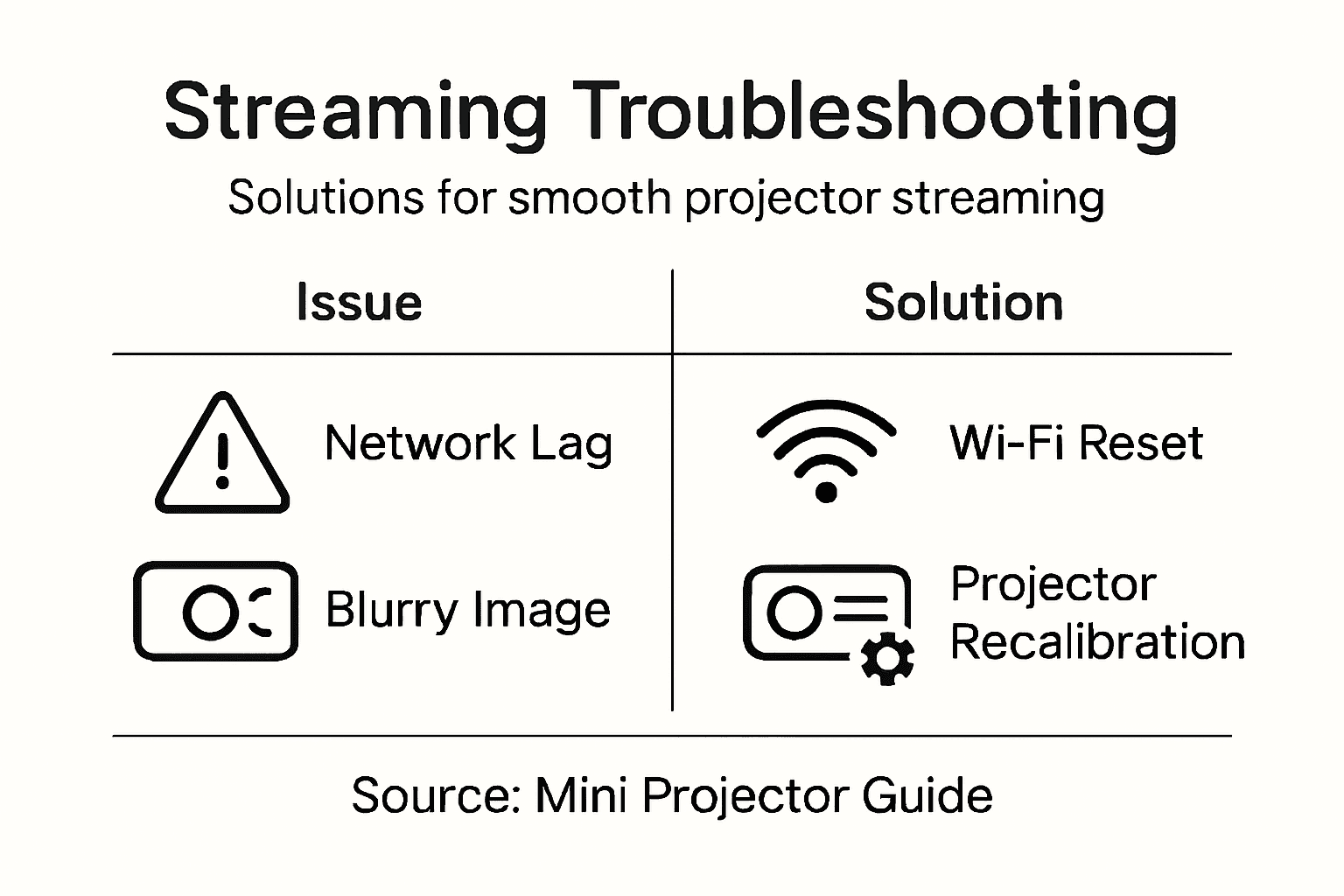
Testing streaming performance requires a systematic approach to optimize every visual aspect. Start by evaluating these key display parameters:
Projector Display Settings:
- Adjust brightness for room lighting conditions
- Use keystone correction to align image geometry
- Fine-tune focus for sharp image clarity
- Select appropriate resolution settings
Network and Device Optimization:
- Check Wi-Fi signal strength
- Minimize background device applications
- Position devices closer to reduce latency
- Restart devices if streaming seems unstable
Streaming quality depends on the weakest link in your technological chain – optimize every component.
If you encounter persistent streaming issues, troubleshoot by checking network bandwidth, updating device firmware, or temporarily switching to a wired connection. Some mini projectors offer built-in diagnostic tools that can help identify streaming performance bottlenecks.
The following table summarizes common streaming quality issues and troubleshooting tips:
| Issue | Possible Cause | Recommended Solution |
|---|---|---|
| Lag or buffering | Weak Wi-Fi signal | Move closer, upgrade router |
| Poor image clarity | Wrong projector settings | Adjust focus, resolution, keystone |
| Connection drops | Network interference | Restart devices, reduce traffic |
| No sound on projector | Incompatible format | Change audio source/settings |
Pro tip: Invest in a high-speed, stable Wi-Fi router to dramatically improve wireless streaming performance and reduce potential connection interruptions.
Elevate Your Screen Mirroring Experience with Expert Projection Solutions
Struggling to achieve seamless streaming with your mini projector? Managing compatibility, wireless connections, and display settings can be challenging, but it does not have to be. At ProjectorDisplay.com, we understand the importance of having the right tools to enhance your screen mirroring setup. Whether you need a projector with robust wireless connectivity, a high-quality projection screen for stunning visuals, or a reliable sound system to complement your viewing, we have you covered.

Discover a wide selection of portable and smart projectors designed for flawless wireless streaming and easy device pairing. Equip yourself with the perfect accessories like projector bags or cases for convenient transport or upgrade your audio setup with our premium sound systems for immersive sound clarity. Don't wait to transform your mini projector into a full entertainment hub. Visit ProjectorDisplay.com now and choose the ideal gear to start streaming with confidence today.
Frequently Asked Questions
How do I prepare my mini projector for screen mirroring?
To prepare your mini projector for screen mirroring, ensure that your projector and source devices are compatible with the mirroring technology you plan to use, such as Miracast, AirPlay, or Chromecast. Verify that both devices are connected to the same Wi-Fi network and that any necessary adapters or cables are on hand for backup.
What should I do if my mini projector does not connect to Wi-Fi?
If your mini projector is not connecting to Wi-Fi, double-check the network settings in your projector's menu. Access the Wi-Fi configuration section, select your network, and enter the correct password to establish a connection. Restart the projector and router if connectivity issues persist.
How can I enable screen mirroring on my Android device?
To enable screen mirroring on your Android device, open the Settings menu and select the Connection or Display options. Tap on Cast or Wireless Display, then choose your projector from the available devices to initiate the connection.
What steps should I take to pair my devices for screen mirroring?
To pair your devices for screen mirroring, ensure that both your source device and mini projector are on the same Wi-Fi network. For Android devices, select Cast or Wireless Display, while Apple devices require the Screen Mirroring function. Follow any prompts for PIN or code entry to finalize the connection.
How do I troubleshoot streaming quality issues with my mini projector?
To troubleshoot streaming quality issues, start by reviewing your projector's display settings and ensuring optimal resolution, brightness, and focus. Also, check your Wi-Fi signal strength and move your projector closer to the router if issues arise. Restarting both your projector and source device can often resolve connectivity problems.
What adjustments can I make to improve my viewing experience?
To enhance your viewing experience, adjust the projector's brightness based on room lighting, utilize keystone correction to align the image, and ensure the focus is sharp for clarity. Regularly inspect Wi-Fi strength and reduce interference by minimizing the number of connected devices.
Recommended
- Mirror Phone to Projector: Easy Ways for Malaysians 2025 – Projector Display
- Wireless Screen Mirroring in Malaysia: 2025 Guide for Entertainment, Education, and Business – Projector Display
- Best Wireless Screen Mirroring Projector Guide 2025 – Projector Display
- Wireless Screen Mirroring in Malaysia: 2025 Guide for Entertainment, Education, and Business – Projector Display