

TL;DR:
- Wireless laptop presentations involve transmitting screen content over hardware or software solutions without cables. Hardware systems, such as dongles and built-in wireless projectors, offer faster setup and greater security, especially for external or sensitive presentations. Software protocols depend on Wi-Fi quality and are slower but suitable for casual or internal meetings.
Wireless presentations from a laptop are defined as the real-time transmission of your screen content to an external display, projector, or screen without any physical cable connection. The two main categories are hardware dongles and native OS wireless protocols such as Miracast on Windows and AirPlay on macOS. Modern systems connect and transmit screens in under 15 seconds over 5GHz bands, with latency as low as 0.1 seconds. That speed makes cable-free presenting practical for real meetings, not just demos. Whether you are a trainer, educator, or business professional in Malaysia, understanding both approaches lets you pick the right method for your room and device.
What do you need to start wireless presentations from a laptop?
The right hardware and a quick compatibility check are the two things that determine whether your setup works on the first try or wastes 10 minutes of meeting time.
Hardware options
Three main hardware categories cover most use cases.
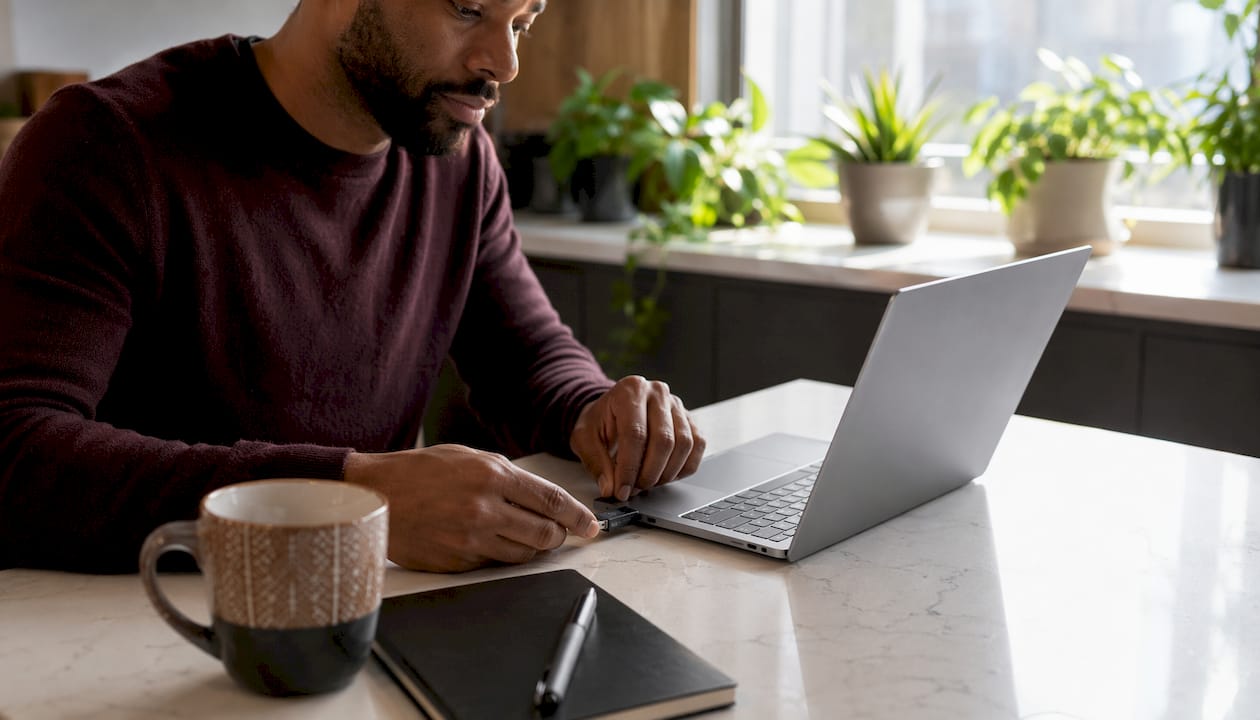
- Hardware dongles and presentation buttons: These plug into the display or projector via HDMI, then pair with a USB transmitter button on your laptop. Hardware-based systems require no apps, drivers, or network logins, making them true plug-and-play. That matters in a room full of guests who cannot access your corporate Wi-Fi.
- Miracast adapters: These are HDMI dongles that receive Miracast signals directly from Windows laptops. They work without a router because they create a direct peer-to-peer Wi-Fi connection.
- Smart projectors with built-in wireless receivers: Many wireless projectors in Malaysia now include native Miracast, AirPlay, or proprietary casting built into the projector firmware itself.
Compatibility check: the USB-C trap
Not all laptops support USB-C with DisplayPort Alt Mode, which is a key requirement for many dongle-based presentation buttons. This is the single most common reason a dongle fails to work out of the box. Before you buy, check your laptop's USB-C specification in the manufacturer's documentation. If your port only supports USB data and charging, the hardware button will not transmit video.
Network requirements
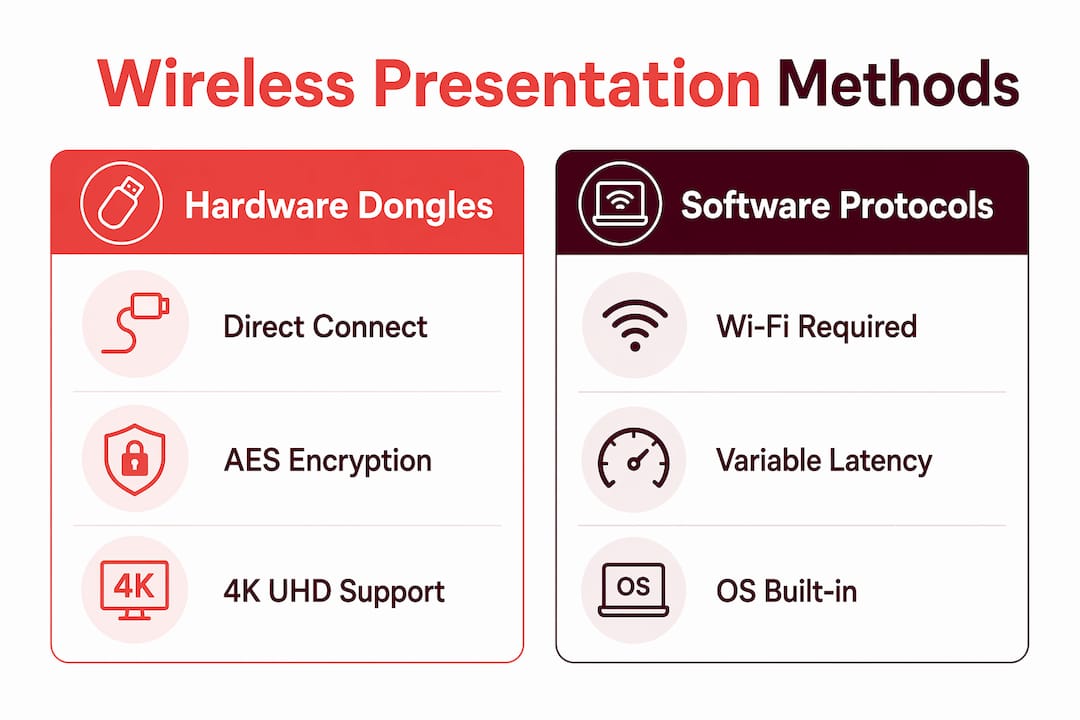
Software-based protocols like Miracast and AirPlay depend on your Wi-Fi network quality. A 5GHz band connection is strongly preferred over 2.4GHz because it carries more bandwidth and suffers less interference. In enterprise environments, Miracast over Infrastructure (MS-MICE) routes video traffic over the wired network backbone, which reduces wireless congestion. For hardware dongles, no network is needed at all since the connection is direct and encrypted.
Pro Tip: Before any important meeting, test your connection method in the actual room. Conference room Wi-Fi and office Wi-Fi often behave differently, especially in buildings with many competing signals.
Entry-level hardware systems start at around $200 and support resolutions up to 4K UHD with AES 128-bit encryption. That combination of quality and security makes them a serious option for corporate environments, not just casual use. For a full overview of compatible projector options, Projectordisplay's wireless business projector guide covers the current market well.
How do you connect your laptop to a display wirelessly?
The exact steps depend on your method. Both hardware and software paths are straightforward once you know what to expect.
Hardware dongle setup
- Plug the receiver into the display. Connect the dongle's HDMI end into your projector or screen's HDMI port. Power it via USB if required.
- Insert the transmitter button into your laptop. Use the USB-A or USB-C transmitter that came with the kit. The button pairs automatically with the receiver unit.
- Press the button to start casting. A single press begins the wireless transmission. Most systems show a confirmation on screen within a few seconds.
- Adjust display mode if needed. Use Windows key + P on Windows or the display settings on macOS to choose between duplicate, extend, or second-screen-only modes.
- Press again to stop. One more press ends the session cleanly, ready for the next presenter.
Miracast on Windows
Open the Action Center (Windows key + A), then select "Cast" or "Connect." Windows will scan for nearby Miracast receivers. Select your display from the list, and the connection completes in seconds. If your display does not appear, confirm that both devices are on the same Wi-Fi network or that the display supports direct Miracast peer-to-peer mode.
AirPlay on macOS
Click the Control Center icon in the menu bar, then select "Screen Mirroring." Choose your AirPlay-compatible display or Apple TV from the list. AirPlay requires both devices to be on the same Wi-Fi network. For best results, use a 5GHz network and position your laptop within a reasonable range of the router.
ChromeOS casting
Open the system tray, select "Cast," and choose your target display. ChromeOS supports casting to Miracast receivers and Chromecast-enabled displays natively.
Pro Tip: When switching between multiple presenters in a meeting, hardware dongles are faster. Each person simply picks up the button, plugs it in, and presses. Software protocols require each new user to reconnect through the OS, which adds 20–30 seconds per switch.
Wireless freedom transforms presenters into dynamic facilitators, allowing them to move around the room and engage directly with the audience rather than standing behind a laptop. This shift in physical dynamic noticeably improves audience attention in classrooms and training sessions. For a detailed walkthrough of projector connectivity, Projectordisplay's step-by-step connectivity guide covers the full process.
What causes problems when streaming presentations wirelessly?
Most wireless presentation failures come from a short list of predictable causes. Knowing them in advance saves real time.
- Wrong Wi-Fi band: Connecting over 2.4GHz instead of 5GHz causes lag and dropped frames, especially in crowded offices. Always confirm your laptop is on the 5GHz band before presenting.
- USB-C port without DisplayPort Alt Mode: As noted earlier, this is the most common hardware incompatibility. The dongle button simply will not work if the port lacks video output capability.
- Network authentication walls: Corporate networks often require a login page or certificate before granting access. Software-based protocols like Miracast fail silently in these environments because the display and laptop cannot reach each other across the network barrier.
- Bluetooth interference: Bluetooth operates on the 2.4GHz band and can interfere with 2.4GHz Wi-Fi. Turning off Bluetooth during a presentation on a congested network reduces interference.
- Driver and app conflicts: Software-based BYOM (Bring Your Own Meeting) apps sometimes conflict with native OS casting protocols. Hardware-only designs eliminate these bottlenecks by removing app dependencies entirely.
The most reliable wireless presentation setup is one that does not depend on the room's network at all. Hardware dongles that create direct, encrypted connections outside the corporate network reduce both security exposure and latency in ways that software protocols simply cannot match.
Miracast over Infrastructure is the preferred standard in dense environments because it routes video traffic over the wired network, bypassing wireless congestion. If your organization uses a managed IT environment, ask your IT team whether MS-MICE is enabled on your display receivers. For guidance on protecting your data during wireless sessions, Projectordisplay's projector security best practices page covers encryption standards and network isolation in detail.
Hardware dongles versus software protocols: which is right for you?
The choice between hardware and software methods comes down to four factors: speed, security, setup complexity, and your room's network environment.
| Factor | Hardware dongles | Software protocols (Miracast, AirPlay) |
|---|---|---|
| Setup time | Under 15 seconds, plug-and-play | 30–90 seconds, requires network access |
| Network dependency | None, direct peer-to-peer | Requires shared Wi-Fi network |
| Security | AES 128-bit encryption, network-isolated | Depends on network security posture |
| Resolution support | Up to 4K UHD at 30–60 fps | Typically 1080p; 4K varies by device |
| Cost | From around $200 for entry-level kits | Free, built into OS |
| Best for | Enterprise, multi-presenter, sensitive data | Casual meetings, home, small teams |
4K UHD at 30–60 fps means detailed spreadsheets, high-resolution images, and video content display without quality loss. That matters in financial reviews, design presentations, and medical training environments where image clarity is not optional. Software protocols are a practical choice for home users, small teams, and anyone presenting over a trusted private network. Hardware dongles are the better call for enterprise settings, guest presenters, or any room where network access is restricted or unreliable. For professionals exploring wireless projector options in Malaysia, Projectordisplay's wireless projector connectivity guide explains AES encryption and device compatibility in depth.
Key takeaways
Wireless laptop presentations work reliably when you match your connection method to your room's network environment and verify hardware compatibility before the meeting starts.
| Point | Details |
|---|---|
| Check USB-C compatibility first | Confirm your laptop's USB-C port supports DisplayPort Alt Mode before buying a hardware dongle. |
| Use 5GHz Wi-Fi for software protocols | Miracast and AirPlay perform significantly better on 5GHz bands than on 2.4GHz. |
| Hardware dongles suit enterprise settings | Direct, encrypted connections bypass corporate networks and reduce both latency and security risk. |
| 4K UHD is achievable wirelessly | Entry-level hardware systems support 4K UHD with AES 128-bit encryption from around $200. |
| Multi-presenter meetings need hardware | Hardware buttons allow faster presenter switching than software-based reconnection workflows. |
Why I think most professionals underestimate the hardware dongle
Most professionals I speak with default to Miracast or AirPlay because they are free and already built into the OS. That logic makes sense until the moment a guest presenter walks in with a laptop that cannot access the corporate Wi-Fi, or a network authentication wall silently blocks the connection. The meeting stalls. Someone calls IT. Fifteen minutes disappear.
Hardware dongles solve this problem completely. The connection is direct, encrypted, and independent of any network. Direct wireless connections bypass the corporate network, which means a guest presenter with any laptop can walk in, plug in the button, and be on screen in under 15 seconds. No IT ticket, no guest Wi-Fi password, no waiting.
The security argument is equally strong. AES 128-bit encryption on a point-to-point connection is a fundamentally different security posture than casting over a shared office network. For anyone presenting financial data, client information, or confidential strategy, that difference is not trivial.
My honest recommendation: use software protocols for internal, low-stakes meetings where everyone is already on the same trusted network. Invest in a hardware system for any room that hosts external guests, sensitive content, or back-to-back multi-presenter sessions. The upfront cost is real, but the time saved and the security gained justify it quickly. Hybrid work in 2026 means more guest presenters, more device diversity, and more pressure on meeting rooms to just work. A hardware dongle is the most reliable answer to that pressure.
— Projector
Wireless presentation solutions at Projectordisplay
Projectordisplay is Malaysia's trusted source for projectors, projection screens, and wireless display equipment suited for offices, classrooms, and large venues. Whether you need a wireless projector in Malaysia for a boardroom, a training center, or a trade exhibition, the catalog covers portable, laser, short-throw, and smart projector options with built-in wireless connectivity.
Projectordisplay stocks display solutions that support AES-encrypted wireless connections and 4K-capable projection for large rooms where image quality and reliability are non-negotiable. The team is available via WhatsApp for product inquiries, and fast shipping covers Peninsular Malaysia. If you are building or upgrading a wireless presentation setup, browse the full projector range at Projectordisplay to find the right fit for your space and budget.
FAQ
How fast does a wireless laptop presentation connect?
Modern wireless presentation systems connect in under 15 seconds over 5GHz bands, with latency as low as 0.1 seconds. Hardware dongles typically connect faster than software-based protocols because they require no network authentication.
Do I need Wi-Fi to present wirelessly from my laptop?
Hardware dongles create a direct peer-to-peer connection and require no Wi-Fi network. Software protocols like Miracast and AirPlay require both your laptop and the display to be on the same Wi-Fi network.
Why won't my USB-C dongle work with my laptop?
Your USB-C port may lack DisplayPort Alt Mode, which is required for hardware presentation buttons to transmit video. Check your laptop's USB-C specification in the manufacturer's documentation before purchasing a dongle-based system.
Is wireless presentation secure for confidential content?
Hardware dongle systems use AES 128-bit encryption and operate outside the corporate network, making them significantly more secure than software protocols over shared Wi-Fi. For sensitive presentations, a hardware-based system is the recommended choice.
What resolution can I get with a wireless laptop presentation?
Hardware wireless systems support up to 4K UHD at 30–60 fps, which is sufficient for detailed spreadsheets, video, and high-resolution graphics. Software protocols typically cap at 1080p, though performance varies by device and network quality.