
TL;DR:
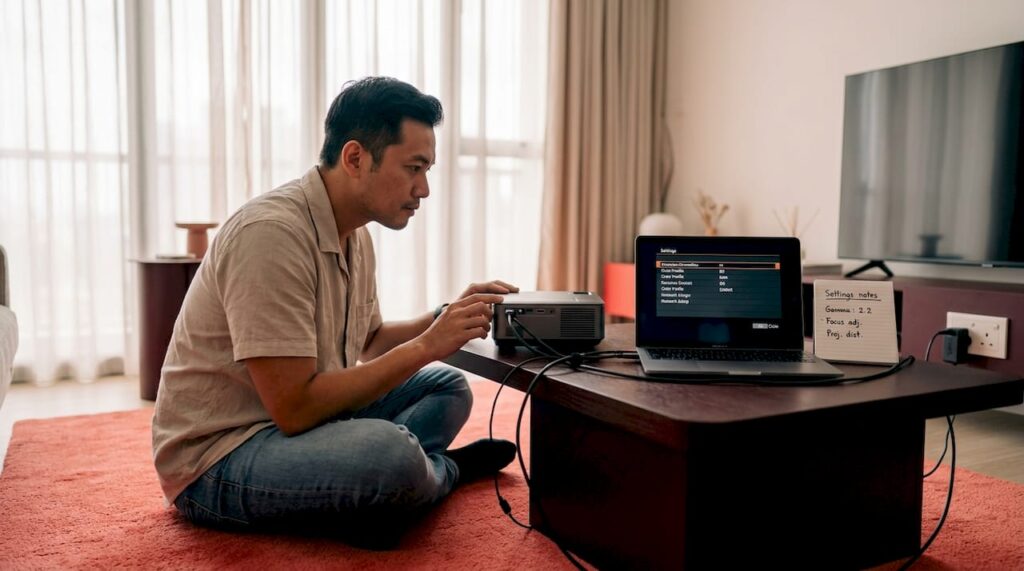
- Projector compatibility issues often result from signal mismatches, HDCP errors, or incorrect settings, leading to blank screens or distorted images. Most problems can be quickly resolved by matching resolutions, checking cables, updating firmware, and physically aligning the projector properly. Persistent issues should be escalated to support after systematic troubleshooting, ensuring smoother setup and reliable streaming and display performance.
You plug in your laptop, dim the lights, and get ready to watch a movie or deliver a presentation. Then the projector shows a blank screen. No warning, no clear reason. Just nothing. This happens more often than most people realize, and the frustrating part is that most guides just tell you to "check your cables" without explaining what to actually look for. Whether you're setting up a home theater, running a classroom, or presenting to clients in Kuala Lumpur, projector compatibility issues are specific, diagnosable problems with real, working solutions.
Table of Contents
- Common projector compatibility issues and their causes
- How to fix resolution, refresh rate, and aspect ratio issues
- HDCP errors and blocked streaming: What you must check
- Input lag, keystone correction, and physical alignment: Optimizing for performance
- When to escalate: Support, resets, and expert help
- Our perspective: Why compatibility issues persist (and what most guides miss)
- Upgrade your setup: Projector solutions for Malaysia
- Frequently asked questions
Key Takeaways
| Point | Details |
|---|---|
| Match resolutions | Always set your source device to match the projector's native resolution for stable images. |
| Check HDCP | Streaming issues often stem from HDMI or HDCP version conflicts—verify all links in your setup. |
| Avoid keystone overuse | Rely more on proper projector positioning than digital corrections to preserve clarity and lower input lag. |
| Optimize for performance | Activating 'Game Mode' and minimizing digital processing reduces input lag for gaming and presentations. |
| Escalate effectively | If all else fails, collect details and consult official support or a professional for persistent problems. |
Common projector compatibility issues and their causes
Now that you're ready to tackle these frustrations, let's break down what projector compatibility issues look like and why they happen. The symptoms vary, but the causes almost always come from a mismatch somewhere in the signal chain between your source device, the cable, and the projector itself.
Here are the most common symptoms and what usually triggers them:
- Blank or black screen: Resolution mismatch, HDCP handshake failure, or incorrect input selected
- Cropped or stretched image: Aspect ratio conflict or incorrect scaling mode
- Color distortion or flickering: Damaged cable, poor HDMI connector, or signal interference
- "HDCP Error" message: Protected content being blocked due to outdated hardware in the chain
- Blurry or soft image: Incorrect focus, digital keystone overcorrection, or native resolution mismatch
- Unstable or rolling image: Refresh rate incompatibility between source and projector
Understanding the terminology helps you communicate the issue clearly and fix it faster. HDCP (High-bandwidth Digital Content Protection) is a copy-protection protocol that runs behind the scenes on every HDMI connection. If any one component in your setup does not support the required HDCP version, the whole chain breaks down. Input lag is the delay between your source device sending a signal and the projector actually displaying it, measured in milliseconds. Keystone correction is a software or hardware adjustment that digitally distorts the image to compensate for projector tilt. And native resolution is the fixed pixel grid inside your projector, which determines the sharpest possible image it can produce.
A resolution or refresh rate mismatch is one of the most common causes of blank screens, cropped images, and unstable display behavior, particularly when a source tries to push a resolution the projector cannot properly handle. Separately, HDCP incompatibility anywhere in your projector, cable, or source chain will block protected streaming content entirely, producing a black screen or an HDCP error message.
For a quick reference, here's a summary of typical symptoms and their root causes:
| Symptom | Most likely root cause |
|---|---|
| Blank screen at startup | Resolution mismatch or wrong input selected |
| HDCP error or black screen | HDCP version mismatch in source, cable, or projector |
| Cropped or stretched image | Aspect ratio conflict (e.g., 4:3 vs. 16:9) |
| Color shift or flickering | Damaged or low-quality HDMI cable |
| Blurry image | Focus off or heavy digital keystone correction |
| Input lag or delayed response | High image processing or wrong performance mode |
You can also check our broader overview of common projector issues if you want to see how these symptoms appear across different projector types and environments in Malaysia.
How to fix resolution, refresh rate, and aspect ratio issues
With these root causes in mind, you can now focus on step-by-step fixes for the most common technical mismatches. These adjustments take less than five minutes and resolve a large proportion of display problems without needing to touch any hardware.
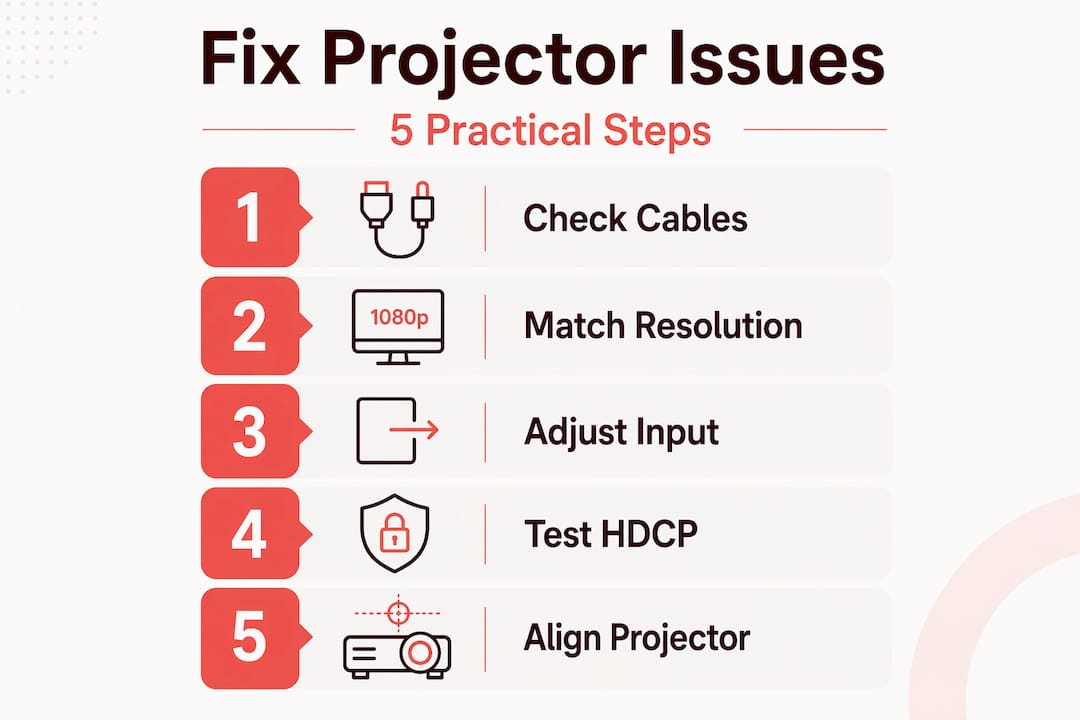
- Check your projector's native resolution. Look in the projector's specifications or manual. Most mid-range projectors in Malaysia support 1920×1080 (Full HD). Setting your source device to exactly that resolution avoids scaling issues.
- Match your source output to the projector's native resolution. On Windows, go to Display Settings > Resolution and select the projector's native resolution. On macOS, go to System Preferences > Displays > Resolution. On Android TV sticks or media boxes, look under Display or Screen settings.
- Set the refresh rate to 60Hz. A resolution or refresh rate mismatch commonly causes blank screens and unstable images. Most projectors handle 60Hz at Full HD reliably. Avoid 120Hz or 144Hz unless your projector explicitly supports them.
- Check the aspect ratio setting on both devices. If the image looks stretched vertically or cut off on the sides, set your source to 16:9 and your projector's display mode to "Full" or "Native" rather than "Auto" or "Zoom."
- Swap the HDMI cable. Poor-quality or damaged cables are responsible for more display issues than people expect. Use a cable rated for your intended resolution. For 4K signals, you need a Premium High Speed HDMI cable or higher. Compatible HDMI hardware matters more than people assume.
- Test a different HDMI port. Both on the projector and the source device. A faulty port causes intermittent signal loss, which looks identical to a cable problem.
Pro Tip: If you frequently switch between a laptop and a media player, label your HDMI cables with the device they connect to. Mixing up cable quality between inputs creates confusing inconsistencies that are hard to trace. Understanding HDMI versions and compatibility for projectors will also tell you which HDMI version you actually need for your use case.
For gaming and interactive setups, reducing input lag is an additional priority beyond just getting a clean image.
HDCP errors and blocked streaming: What you must check
After you've solved display size or clarity, focus on what's next if protected content or streaming services refuse to play. HDCP errors are especially common when streaming Netflix, Disney+, or playing Blu-ray content through a projector. The HDCP handshake happens automatically across every device in the chain: your streaming stick or laptop, the cable, the HDMI switch (if any), and the projector. If one component does not meet the required HDCP version, the content is blocked.
"For business, home entertainment, and education use, HDCP incompatibility in the projector–source–cable chain can block streaming playback, producing black screens or an 'HDCP Error' message."
Here's a quick reference for HDCP version requirements across popular streaming services:
| Service | Minimum HDCP version | Notes |
|---|---|---|
| Netflix (HD) | HDCP 2.2 | Required for HD and 4K content |
| Netflix (SD fallback) | HDCP 1.4 | Limited resolution only |
| Disney+ | HDCP 2.2 | Enforced for all content |
| YouTube | HDCP 1.4 | Most content; 4K may require 2.2 |
| Blu-ray (4K UHD) | HDCP 2.2 | Mandatory across entire chain |
Practical steps to resolve HDCP errors:
- Remove any HDMI splitters or switches from the chain. These are a frequent weak link. Even branded splitters sometimes fail HDCP 2.2 negotiation.
- Replace older HDMI cables. HDCP 2.2 requires cables that physically support 18 Gbps bandwidth. Older cables rated for HDCP 1.4 are not always labeled.
- Connect your streaming device directly to the projector without any intermediate hardware.
- Update your projector's firmware. Some older projectors received HDCP 2.2 support through firmware updates. Check the manufacturer's website.
- Use an EDID management tool if you are dealing with complex AV setups or multiple display sources. EDID (Extended Display Identification Data) tells your source device what the display supports. A mismatch here forces the source to select an incompatible output mode.
For deeper guidance on which HDMI version you need for your specific setup, the HDMI version compatibility guide covers the details clearly.
Pro Tip: If you're in a school or office in Malaysia using a shared AV setup with multiple HDMI inputs, test each cable and port combination independently. HDCP failures in shared setups are almost always caused by one weak link that nobody has replaced in years.
Input lag, keystone correction, and physical alignment: Optimizing for performance
Once content plays without errors, you'll maximize usability and experience by managing input lag and clarity, which is key for both entertainment and business use. These two factors are often overlooked in standard troubleshooting guides, but they make a significant difference in real-world use.
Input lag matters enormously for gaming and for interactive classroom presentations where a teacher is annotating a live screen. Input lag benchmarks vary by resolution and refresh rate. High-performance projectors in dedicated game modes can reach single-digit milliseconds, with the NexiGo Aurora Pro MKII measured at 9 ms at 1080p/240Hz. General-purpose projectors typically land between 17 to 50 ms, which is fine for movies or slideshows but noticeable during fast-action gaming.
Key strategies for minimizing input lag:
- Enable Game Mode or Low Latency Mode if your projector has one. This disables post-processing steps that delay the image.
- Connect via HDMI rather than wireless mirroring. Wireless connections add 30 to 100 ms of lag in many setups.
- Set your source device to exactly the projector's native resolution. Upscaling or downscaling inside the projector adds processing time.
- Avoid enabling noise reduction, motion smoothing, or HDR tone-mapping unless you specifically need them.
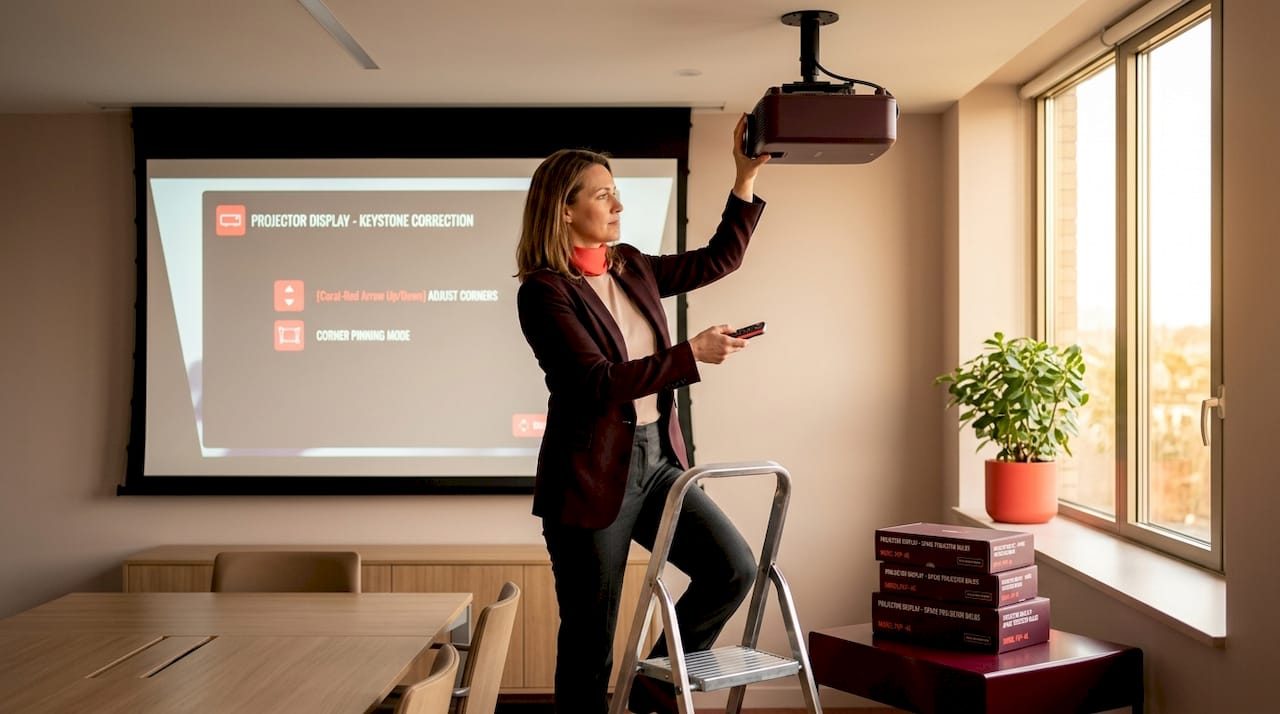
Keystone correction is a separate issue. Digital keystone correction reduces image clarity and can increase effective latency because the processor is manipulating every frame in real time. For performance-sensitive use like gaming or live instruction, physical alignment is almost always the better choice.
Physical alignment strategies that outperform digital correction:
- Use a ceiling mount or adjustable tripod stand to center the projector directly in front of the screen.
- Slightly raise the front feet of the projector instead of using a steep vertical keystone setting.
- For wall-mounted screens, confirm the screen height matches the projector's throw angle before finalizing the installation.
Understanding keystone correction and when to use it versus when to avoid it is a skill that genuinely improves your final image quality. The full keystone correction guide gives you the practical details for getting your geometry right. For setups you're planning from scratch, projector installation tips walks through the planning process room by room.
When to escalate: Support, resets, and expert help
If all previous steps fail to resolve the issue, this is how you take the next step confidently. Not every problem is solvable with settings adjustments, and knowing when to escalate saves you hours of frustrating trial and error.
Before contacting support, work through this checklist:
- Document your complete setup: projector model, source device, cable type, operating system version, and streaming platform.
- Note the exact error message or describe the symptom precisely (e.g., "black screen on Netflix only, not on local video files").
- Test with a different source device if possible. If the second device works fine, the problem is with the first source, not the projector.
- Try a factory reset on the projector. This clears any corrupted settings without affecting hardware.
- Check for firmware updates on both the projector and the source device.
Manufacturer and community support escalation is reasonable after systematic checks. Structured troubleshooting for blank, fuzzy, or distorted symptoms typically includes focus, color, resolution, picture size checks, and a factory reset before escalating to hardware service.
A factory reset is appropriate when: the projector had a software update that introduced instability, you've inherited or purchased a second-hand unit with unknown settings, or you've changed your setup significantly and settings are conflicting.
Professional service is appropriate when: the image problem only appears in certain inputs regardless of settings, the projector produces artifacts or flickering that are visible even on a plain signal, or physical damage is visible on the lens or housing.
Keeping your projector in good working order also reduces the frequency of these issues. Regular projector maintenance covers lamp care, dust management, and ventilation, all of which affect signal stability over time.
Our perspective: Why compatibility issues persist (and what most guides miss)
Most mainstream troubleshooting guides treat projector compatibility as a settings problem. Change this menu option, update that driver, and you're done. After working with projector setups across Malaysia in home theaters, classrooms, and boardrooms, the reality is more nuanced and, frankly, more interesting.
The single biggest reason compatibility issues persist is the "plug and play" myth. Consumers are told that HDMI just works. It mostly does, until it doesn't, and when it doesn't, the failure mode is nearly invisible. There's no error code that says "your cable is HDCP 1.4 but your streaming service requires 2.2." There's just a black screen.
The second overlooked factor is the cable itself. Cables are sold as commodities, but they carry critical protocol data alongside video signals. A cable that works fine for a laptop presentation might fail HDCP handshake for Netflix on the same projector. Investing in quality, correctly rated cables is not excessive. It is the cheapest fix available.
Third, and most counterintuitive, physical setup solves problems that no software menu can touch. Real-world installation planning before mounting or positioning a projector eliminates keystone distortion, focus inconsistency, and throw distance errors before they become problems. The time you spend aligning correctly once is always less than the time you spend correcting it digitally over and over.
Finally, firmware matters more than most users realize. Projector manufacturers push updates that add HDCP support, fix handshake bugs, and expand resolution compatibility. A projector that was incompatible with a service six months ago may work perfectly today. Check for updates before assuming a hardware replacement is necessary.
Upgrade your setup: Projector solutions for Malaysia
Ready to future-proof your projector setup? Getting the right compatible hardware from the start, whether a new projector, a better screen, or HDMI accessories that actually support your use case, removes most compatibility headaches before they start.

ProjectorDisplay.com carries a curated range of projectors for home theater, education, and business in Malaysia, with full specifications so you know exactly what HDCP version, resolution, and connectivity you're getting. Beyond projectors, you'll find quality projector screens matched to different throw distances and room sizes, making it easier to get a clean, correctly scaled image from day one. If your setup involves sensitive business data or shared environments, the projector security practices guide is worth reading before you connect. Fast shipping across Peninsular Malaysia and WhatsApp support mean you get help quickly when you need it.
Frequently asked questions
Why does my projector display a black screen when connected to my laptop?
A black screen is usually caused by a resolution mismatch or HDCP incompatibility. A resolution or refresh rate mismatch is one of the leading causes of blank screens when the source pushes an output the projector cannot negotiate reliably.
How do I know if my projector supports HDCP for Netflix streaming?
Check your projector's spec sheet for HDCP 2.2 support, and confirm that your cable and source device also meet the requirement. HDCP incompatibility anywhere in the chain, not just the projector, can block streaming playback entirely.
What is input lag, and why does it matter for projectors?
Input lag is the delay between your device sending a signal and the projector displaying it. Benchmarks show that low-latency modes on performance projectors can reach under 10 ms, while standard modes run higher, making lag reduction critical for gaming and interactive use.
Can keystone correction fix all projector image problems?
No. Digital keystone correction reduces image sharpness and adds processing latency, so physical alignment almost always delivers a better result for clarity and performance-sensitive applications.
When should I contact support for projector compatibility issues?
Contact support after you've completed systematic troubleshooting, including a factory reset, firmware check, and cable swap. Structured escalation with a clear description of your setup and exact symptoms gets you to a resolution faster.
Recommended
- Projector FAQ Malaysia: Your Complete Guide to Smart Buying – Projector Display
- Using projectors for presentations: practical guide for Malaysia – Projector Display
- Malaysia Projector Buying Guide: Features, Tips & Choices – Projector Display
- Projector connectivity options Malaysia: best setup 2026 – Projector Display