

Most remote working professionals in Malaysia spend over eight hours a day at their desks, yet few realize that poor ergonomic setups can cut productivity by up to 35 percent. Whether you are running presentations through projection technology or juggling multiple screens, an uncomfortable workspace takes its toll. Learning how to create a space that blends comfort and efficiency—just like top American work environments—means fewer aches, clearer visuals, and a seamless workflow.
Table of Contents
- Step 1: Assess Workspace Needs And Available Space
- Step 2: Select Ergonomic Furniture And Display Solutions
- Step 3: Arrange Projector, Screen, And Accessories Efficiently
- Step 4: Adjust Lighting And Minimize Glare Issues
- Step 5: Test Setup For Ergonomic Alignment And Comfort
- Step 6: Maintain Workspace For Ongoing Ergonomics
Quick Summary
| Key Point | Explanation |
|---|---|
| 1. Assess Your Workspace Requirements | Evaluate your workspace dimensions and needs to create a layout that maximizes comfort and productivity. |
| 2. Select Adjustable Ergonomic Furniture | Choose furniture that supports your body and work style, ensuring you can maintain a healthy posture while working. |
| 3. Optimize Equipment Placement | Position projectors and screens at appropriate heights to minimize strain and enhance viewing comfort during presentations. |
| 4. Manage Lighting to Reduce Glare | Adjust workspace lighting to eliminate glare and improve visibility, using task lights and controlling ambient light effectively. |
| 5. Regularly Maintain Your Setup | Schedule periodic assessments of your workspace to identify changes needed for ongoing ergonomic support and comfort. |
Step 1: Assess workspace needs and available space
Creating an ergonomic workspace starts with understanding your unique environment and requirements. By systematically evaluating your workspace layout and personal needs, you can design a setup that maximizes comfort and productivity.
Begin by measuring your physical workspace dimensions precisely. Pull out a measuring tape and record the length and width of your work area. Consider critical workspace elements recommended by ergonomic guidelines, which include desk size, chair positioning, and available room for movement. Pay attention to natural light sources, electrical outlets, and potential obstacles that might impact your workspace arrangement.
Next, analyze your specific work tasks and equipment requirements. Do you need multiple monitors? Will you be using a projector for presentations? Sketch a rough layout that accounts for all your technological needs while maintaining enough open space for comfortable movement. Remember that an effective workspace isn't just about cramming in equipment, but creating a fluid environment that supports your professional activities.
Pro Tip: Photograph your current workspace from multiple angles to help you visualize potential improvements and track your ergonomic transformation.
Step 2: Select ergonomic furniture and display solutions
Choosing the right ergonomic furniture and display solutions is crucial for creating a workspace that supports your health and productivity. This step involves selecting equipment that adapts to your body and work style, minimizing strain and maximizing comfort.
Start by focusing on your chair, which is the foundation of your workspace. Look for chairs with multiple adjustability features that allow precise customization of seat height, lumbar support, armrest position, and tilt mechanism. Your ideal chair should support the natural curve of your spine, with adjustable elements that let you maintain a neutral posture throughout your workday. Pay special attention to chairs that offer dynamic support and can accommodate your specific body type and work preferences.
When selecting display solutions, prioritize monitors that can be easily positioned to maintain proper spinal alignment and reduce eye strain. Choose monitors with adjustable stands that allow you to position the screen at eye level, typically an arm's length away. Consider monitor arms or stands that provide flexible positioning, enabling you to switch between sitting and standing configurations. If you frequently use projectors for work, select models with adjustable mounting options that allow precise angle and height adjustments.

Pro Tip: Test furniture in person whenever possible and spend at least 15 minutes sitting in a potential chair to truly assess its comfort and support.
Here's a summary of core ergonomic features and their benefits when selecting office furniture and displays:
| Ergonomic Feature | How It Works | Impact on Comfort/Productivity |
|---|---|---|
| Adjustable Chair Height | Matches seat height to user | Maintains feet flat, reduces fatigue |
| Lumbar Support | Supports lower back curvature | Reduces lower back strain |
| Armrest Adjustability | Aligns arms at comfortable angle | Less shoulder and wrist tension |
| Monitor Height Control | Keeps screen at eye level | Minimizes neck tilt and eye strain |
| Flexible Monitor Position | Allows movement and tilt | Supports sitting and standing setups |
Step 3: Arrange projector, screen, and accessories efficiently
Arranging your workspace projection setup requires strategic planning to maximize functionality and minimize physical strain. Your goal is to create an environment where technology supports your work without causing unnecessary physical stress.
Carefully position your projector and screen to optimize viewing angles and minimize ergonomic risks. Mount your projector at a height that allows the screen to be positioned directly in front of you, typically at eye level and an arm's length away. This placement reduces neck strain and prevents awkward body positioning. Consider using adjustable mounting systems that allow precise angle modifications, ensuring the projected image falls within your natural line of sight without requiring you to tilt your head up or down.
When integrating accessories, focus on creating a streamlined workspace that supports seamless interaction. Arrange cables neatly to prevent tripping hazards and visual clutter. Position peripheral devices like wireless presenters, remote controls, and connecting adapters within easy reach. If you use multiple display devices, ensure they are arranged to minimize unnecessary movement and maintain a neutral body posture throughout your work session.
Pro Tip: Invest in cable management solutions and velcro straps to keep your projection setup clean and organized, reducing potential distractions and workspace complications.
Step 4: Adjust lighting and minimize glare issues
Managing workspace lighting is critical for reducing eye strain and creating a comfortable visual environment. Your goal is to create balanced illumination that supports clear visibility without causing visual discomfort.
Strategically control lighting sources to minimize screen glare and visual fatigue. Position your workspace to avoid direct sunlight or overhead lighting that creates reflections on your projector screen or display surfaces. Use adjustable window coverings like blinds or translucent curtains to diffuse natural light. If overhead lighting creates significant glare, consider using task lighting with adjustable positioning that provides focused illumination without creating harsh reflections.
When working with projectors, pay special attention to screen positioning and ambient light control. Adjust your screen's angle and consider using anti-glare screen protectors that reduce unwanted light reflection. Experiment with screen brightness and contrast settings to find the optimal balance that provides clear visibility without causing eye strain. For rooms with variable lighting conditions, invest in projectors with high lumens and good contrast ratios that can perform well in different ambient light environments.
Pro Tip: Install dimmable LED lights or use bias lighting behind your display to reduce eye strain and improve overall visual comfort without creating direct glare.
This table outlines recommended lighting adjustments for common workspace challenges:
| Lighting Issue | Suggested Adjustment | Expected Benefit |
|---|---|---|
| Excess glare | Use blinds or curtains | Reduces eye strain |
| Overhead reflections | Add task lighting, reposition screen | Improves screen visibility |
| Dim workspace | Install adjustable LED desk lamp | Enhances focus and comfort |
| Uneven brightness | Position screens away from windows | Minimizes visual discomfort |
Step 5: Test setup for ergonomic alignment and comfort
Validating your ergonomic workspace setup requires a systematic approach to ensure your new configuration truly supports your physical well being. Your goal is to confirm that every element of your workspace promotes comfort and prevents potential strain.
Conduct a comprehensive ergonomic assessment by carefully observing your body's positioning and comfort during typical work activities. Start by sitting in your workspace and performing your standard work tasks. Pay close attention to how your body feels microscopic tension or discomfort in your shoulders, neck, back, and wrists. Check that your chair supports your lower back, your feet rest flat on the floor, and your arms maintain a relaxed position while using input devices or interacting with your projector setup.
Carry out detailed tests for each workspace component. Verify your monitor and projector screen height allows you to maintain a neutral head position without tilting up or down. Ensure your keyboard and mouse are positioned to keep your wrists straight and relaxed. Simulate different work scenarios like typing, presenting, and reading to confirm your setup provides consistent comfort across various activities. If you notice any awkward movements or persistent discomfort, make incremental adjustments to your chair, screen positioning, or accessory placement.
Pro Tip: Record a short video of yourself working to objectively analyze your posture and movement patterns from an external perspective.
Step 6: Maintain workspace for ongoing ergonomics
Ergonomic workspaces are not static environments but dynamic systems that require continuous attention and periodic reassessment. Your goal is to create a proactive approach to workspace health that evolves with your changing work needs and physical requirements.
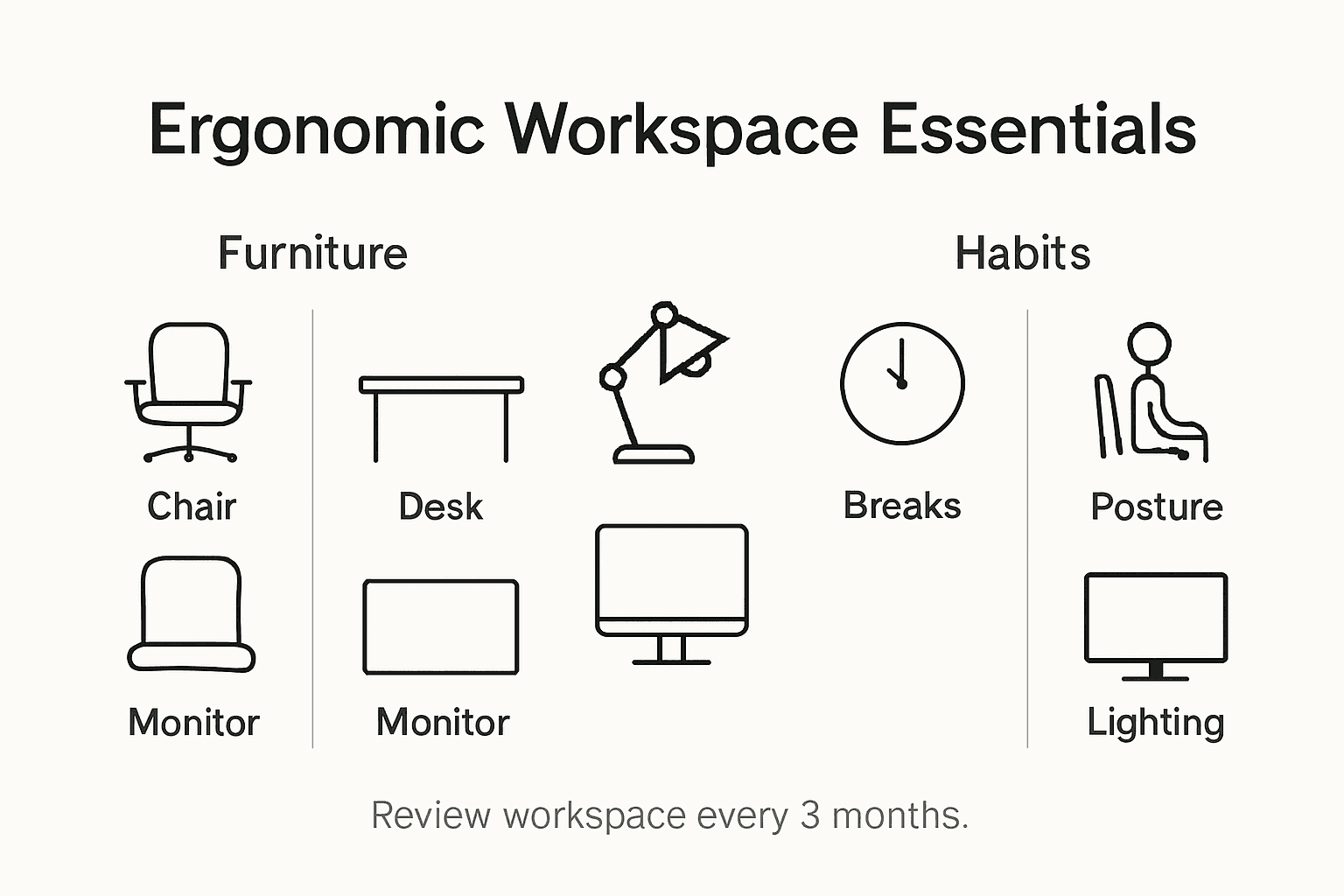
Implement a systematic approach to ongoing workspace maintenance and monitoring. Schedule quarterly self assessments where you critically examine your workspace setup, looking for signs of wear on equipment, changes in your physical comfort, and potential areas of improvement. Pay attention to subtle shifts in your body's response to your current configuration. Check for emerging discomfort in your shoulders, wrists, or back that might indicate the need for equipment adjustments or replacement.
Establish a personal ergonomic maintenance routine that includes regular equipment inspections and personal physical awareness. Examine your projector mounts, chair mechanisms, and desk surfaces for stability and functional integrity. Keep track of your body's responses during extended work sessions, noting any recurring strain or tension. Be prepared to make incremental adjustments to your workspace setup as your work habits, technology, and physical needs change over time.
Pro Tip: Set quarterly reminders on your calendar to systematically review and refresh your ergonomic workspace configuration.
Enhance Your Ergonomic Workspace with Quality Projection Solutions
Designing a truly ergonomic workspace requires thoughtful planning of your projector and display setup to minimize strain and boost productivity. This guide highlights key challenges like maintaining proper spinal alignment, reducing eye strain, and managing glare when incorporating technology into your work environment. Achieving comfort means choosing display solutions that are adjustable, well-positioned, and integrated smoothly with your furniture and lighting.
Step up your ergonomic setup today by exploring our wide selection of projectors and accessories at ProjectorDisplay.com. Whether you need portable projectors for flexible positioning or sturdy Projector Bags and Cases for protecting your equipment on the go you will find options tailored to your workflow. Plus, complement your audiovisual experience and reduce distractions with premium Sound Systems designed for clarity and ease of use.

Don't settle for discomfort or inefficient setups when better solutions are just a click away. Visit ProjectorDisplay.com now to upgrade your ergonomic workspace with reliable, high-quality projection technology. Make your comfort and productivity a priority today.
Frequently Asked Questions
How do I assess my workspace needs for an ergonomic setup?
Begin by measuring your workspace dimensions and identifying critical elements like desk size and chair positioning. Sketch a layout considering your work tasks and equipment needs while ensuring enough room for movement.
What features should I look for in ergonomic furniture?
Focus on chairs with adjustable height, lumbar support, and armrest positioning to maintain a neutral posture. Choose desks and monitors that can be adjusted for optimal viewing and reducing strain during work.
How can I efficiently arrange my projector and screen for ergonomics?
Position your projector and screen at eye level and an arm's length away to minimize neck strain. Use adjustable mounts to fine-tune the angle of the projection and keep peripheral devices within easy reach for seamless interaction.
What lighting adjustments can reduce glare and eye strain in my workspace?
Control lighting by positioning your workspace away from direct sunlight and using adjustable window coverings. Consider adding task lighting with focused illumination and anti-glare screens to improve visibility and comfort.
How do I test my ergonomic setup for comfort?
Conduct an ergonomic assessment by observing your body during work tasks to identify discomfort in areas like your shoulders and wrists. Make incremental adjustments to your chair, screen, and accessories to achieve optimal comfort throughout different activities.
How do I maintain my ergonomic workspace over time?
Implement a routine by conducting quarterly self-assessments of your workspace setup. Monitor for any discomfort and inspect equipment for stability, making adjustments as needed to adapt to changes in your work habits or physical needs.
Recommended
- Complete Guide to Ergonomic Office Furniture – Projector Display
- Work From Home Essentials for Better Productivity – Projector Display
- How to Prevent Eye Strain Naturally with Display Devices – Projector Display
- 7 Creative Workspace Ideas to Boost Productivity and Focus – Projector Display
- Large Yoga Mat (6'X 4'), Extra Wide Workout Mat for Men and Women, Yog – Voket