
TL;DR:
- Wireless BYOD projection allows device content sharing without cables using protocols like Miracast, AirPlay, or Google Cast. Hardware adapters extend existing projectors' wireless capabilities, supporting multi-device environments and requiring stable Wi-Fi networks with 20–50 Mbps bandwidth. Proper network setup is essential for reliable, secure, and seamless wireless presentation experiences in offices and classrooms.
Wireless BYOD projection is the technology that lets you share content from your own device to a projector or display without a single cable, using built-in protocols or dedicated adapters. The industry term for this is wireless screen sharing or wireless presentation, and it covers everything from casting a laptop in a Kuala Lumpur boardroom to streaming a lesson from a tablet in a Malaysian classroom. Protocols like Miracast, AirPlay, and Google Cast power most of these connections, while hardware dongles like Chromecast, Apple TV, and the Microsoft Wireless Display Adapter fill the gaps for projectors without native wireless support. Understanding how wireless BYOD projection works gives you the foundation to choose the right setup for your home, school, or office.
How wireless BYOD projection works: core technologies explained
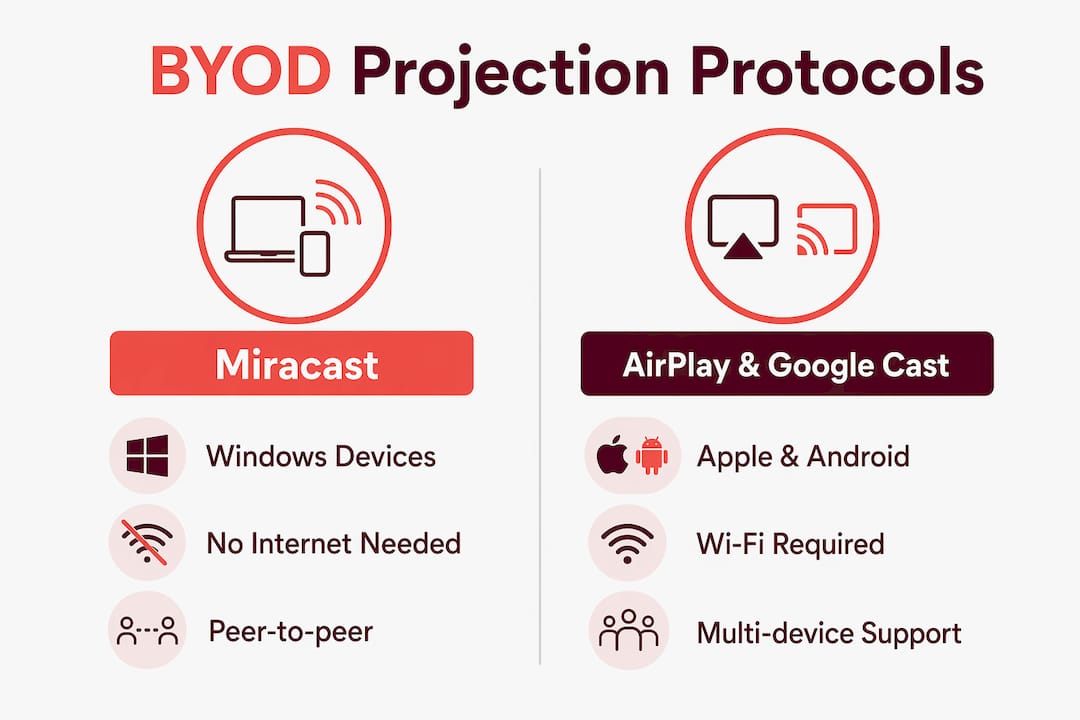
Wireless BYOD projection runs on three main built-in protocols, each tied to a specific device ecosystem. Miracast, AirPlay, and Google Cast are the dominant standards. Miracast handles Windows and Android devices using Wi-Fi Direct, a peer-to-peer connection that does not require a router. AirPlay serves Apple devices and typically relies on a shared Wi-Fi network, though it also supports a peer-to-peer mode. Google Cast, used by Chromebooks and Android devices, generally requires both devices to be on the same Wi-Fi network.
Each protocol has a different strength. Miracast works without internet access, making it useful in remote or temporary setups. AirPlay delivers reliable performance for MacBooks and iPhones, which are common in Malaysian universities and creative agencies. Google Cast integrates tightly with Chrome browsers, so it works across Windows, Mac, and Chromebook devices without extra software.
Not every projector supports these protocols natively. Wireless HDMI dongles like Chromecast, Apple TV, and the Microsoft Wireless Display Adapter plug into a projector's HDMI port and add wireless capability at a fraction of the cost of replacing the unit. This is the most practical upgrade path for offices and classrooms in Malaysia that already own LCD projectors or Epson projectors without built-in wireless.
Vendor-agnostic receivers like ScreenBeam support multiple protocols simultaneously. Solutions like Barco ClickShare Conference and Crestron AirMedia go further, connecting personal devices to room peripherals like microphones, speakers, and cameras. That level of integration is what separates a basic wireless display setup from a full BYOD wireless display technology solution.
| Technology | Best for | Connection method | Multi-device support |
|---|---|---|---|
| Miracast | Windows, Android | Wi-Fi Direct (no router needed) | Limited |
| AirPlay | Apple devices | Wi-Fi network or peer-to-peer | Moderate |
| Google Cast | Chrome, Android | Same Wi-Fi network | Moderate |
| Wireless HDMI dongle | Any device with HDMI source | HDMI port on projector | Single presenter |
| ScreenBeam / ClickShare | Mixed device environments | Wi-Fi network | High |
Pro Tip: If your meeting room has a mix of Windows laptops, MacBooks, and Android phones, choose a receiver like ScreenBeam or Barco ClickShare that supports all three protocols. Single-protocol receivers will frustrate at least one person in every meeting.
How to set up a wireless BYOD projection system
Setting up wireless BYOD projection follows a clear sequence. Getting the network right before touching any device saves hours of troubleshooting later.
- Connect the receiver. Plug your wireless adapter or dongle into the projector's HDMI port. Power it via the projector's USB port or an external power brick, as most dongles require USB or external power to operate.
- Select the correct input source. Switch the projector to the HDMI input where the dongle is connected. This step is the most commonly skipped and the most common cause of a blank screen.
- Connect devices to the same network. For AirPlay and Google Cast, both the receiver and the presenting device must be on the same Wi-Fi network. For Miracast, Wi-Fi Direct creates its own connection, so no router is needed.
- Initiate the cast from your device. On Windows, use the Connect panel (Windows key + K). On a Mac, use AirPlay from the menu bar. On Android, use Screen Cast or Quick Connect. On iOS, use Screen Mirroring from Control Center.
- Apply QoS settings for professional environments. Network segmentation and Quality of Service settings prioritize media traffic and prevent video lag during presentations. This step is non-negotiable in schools or boardrooms with many simultaneous users.
- Deploy a managed casting server for multi-user scenarios. When multiple presenters need to share screens at the same time, a managed casting server handles device discovery and traffic routing without collisions.
- Test before the meeting or class. Verify resolution, audio output, and switching speed. A 5-minute test prevents a 20-minute delay in front of an audience.
A stable wireless BYOD setup requires 20–50 Mbps of throughput per active presentation session. That figure matters for IT teams sizing bandwidth in Malaysian offices or schools with multiple classrooms running wireless projection simultaneously.
Pro Tip: Use the 5 GHz Wi-Fi band instead of 2.4 GHz for wireless projection. The 5 GHz band has less interference from neighboring networks and handles video streams more reliably, especially in dense office buildings or school campuses.
For a deeper look at wireless projector adapters available locally, Projectordisplay covers the full range of options suited to the Malaysian market.
What are the benefits and limitations of wireless BYOD projection?
Wireless BYOD projection eliminates connector incompatibilities and cable clutter, delivering a plug-and-play experience for Windows, Mac, iOS, and Android devices alike. That single benefit removes the most common friction point in Malaysian meeting rooms: the frantic search for the right adapter before a presentation starts. Flexibility is the second major gain. Any presenter can walk in with their own device and share content without reconfiguring the room.
Key benefits:
- Platform-agnostic compatibility. Works across Windows, macOS, iOS, and Android without requiring a specific cable type.
- Reduced setup time. Wireless BYOD projection greatly reduces meeting setup time compared to wired alternatives.
- Support for room peripherals. Advanced solutions connect personal devices to cameras, microphones, and speakers, enabling full BYOM (Bring Your Own Meeting) experiences.
- Cost-effective upgrades. Adding a dongle to an existing Epson projector or BenQ projector costs far less than replacing the unit with a wireless-native model.
Key limitations:
- Network dependency. Poor Wi-Fi causes lag and dropped connections. Successful deployments rely on Wi-Fi stability, device discovery, and WPA2 encryption as baseline requirements.
- Protocol inconsistency. Miracast has inconsistent latency and limited macOS and iOS support, which creates problems in mixed-device classrooms.
- Interactive features require extra steps. Touchback capabilities for interactive projectors require vendor software beyond standard casting protocols. Standard wireless casting only shares the screen.
- Security exposure. Open or poorly configured networks create interception risks. WPA2 encryption and network isolation are the minimum protection for business environments. Projectordisplay's guide on projector security practices covers this in detail.
How does wireless BYOD compare with wired and smart projectors?
Wired connections offer the lowest latency and the fewest interference risks. A direct HDMI cable between a laptop and a ViewSonic projector or Optoma projector delivers a stable signal with no network dependency. The trade-off is cable clutter, fixed presenter positions, and the recurring adapter problem when someone brings a device with a USB-C port instead of HDMI.
Wireless BYOD solves the flexibility problem but introduces network complexity. Wireless HDMI solutions provide low-latency one-to-one video transmission but lack multi-device casting and interactive touchback without additional integrations. They suit single-presenter scenarios like auditoriums or labs. Multi-user wireless systems like ScreenBeam or Barco ClickShare handle collaborative environments but require managed infrastructure.
Smart projectors, such as those from Hisense, JMGO, or Samsung, include built-in Android operating systems, Wi-Fi, and app stores. They reduce the need for external dongles entirely. The cost is higher, and IT teams must manage firmware updates and app permissions as additional responsibilities.
| Factor | Wired BYOD | Wireless BYOD | Smart projector |
|---|---|---|---|
| Cost | Low | Low to medium | Medium to high |
| Ease of use | Moderate (adapter issues) | High | High |
| Latency | Very low | Low to medium | Low |
| Multi-device support | No | Yes (with managed system) | Yes |
| Security | High | Medium (requires WPA2) | Medium |
| Best for | Labs, fixed setups | Boardrooms, classrooms | Home theater, flexible rooms |
For large venues, the choice between wired and wireless depends on presenter count and room layout. Projectordisplay's breakdown of projectors for large venues covers the hardware side of that decision in detail.
Key Takeaways
Wireless BYOD projection works by transmitting screen content from personal devices to a projector using protocols like Miracast, AirPlay, or Google Cast, with network quality and receiver hardware determining overall performance.
| Point | Details |
|---|---|
| Three core protocols | Miracast, AirPlay, and Google Cast each serve different device ecosystems and connection methods. |
| Dongles extend older projectors | Chromecast, Apple TV, and Microsoft Wireless Display Adapter add wireless capability without replacing existing hardware. |
| Network quality is foundational | Stable Wi-Fi with 20–50 Mbps per session and WPA2 encryption are minimum requirements for reliable performance. |
| Interactive features need extra software | Standard casting protocols share screens only; touchback and peripheral control require vendor-specific integrations. |
| Wired vs. wireless trade-off | Wired connections offer lower latency; wireless BYOD offers flexibility and multi-device support for collaborative spaces. |
Wireless BYOD projection: where the technology is heading
Wireless BYOD projection has moved from a convenience feature to a core infrastructure requirement, and I think most Malaysian businesses and schools are still underestimating what that shift demands. The technology itself is mature. Miracast, AirPlay, and Google Cast work reliably when the network is properly configured. The failure point is almost always the network, not the protocol.
What I see consistently is organizations buying capable hardware, like a good Panasonic projector or a Barco ClickShare unit, and then running it on a shared, unmanaged Wi-Fi network. The result is lag, dropped connections, and frustrated users who blame the projector. The projector is not the problem. Investing in proper network segmentation and QoS configuration before the hardware arrives is the right sequence.
The next wave of wireless BYOD is moving toward zero-latency conferencing, where your device controls not just the screen but also the room camera, microphone, and speaker system. That is the BYOM model, and it is already shipping in products from Barco and Crestron. Malaysian enterprises that want to stay current should plan for this level of integration now, not after the next office renovation.
For schools, the priority is vendor-agnostic receivers and managed casting servers. A classroom with 30 students on a mix of Chromebooks, iPhones, and Android tablets needs a system that handles all three protocols without manual switching. Investing in that infrastructure today means the future of projectors in Malaysian classrooms is genuinely collaborative, not just a digital replacement for a whiteboard.
— Projector
Wireless BYOD projection solutions at Projectordisplay
Projectordisplay stocks a full range of projectors and accessories built for wireless BYOD setups across Malaysia, from portable units for home use to high-lumen laser projectors for large venues.

Whether you need a wireless projector Malaysia buyers trust for office presentations or a best classroom projector for a school in Penang or Johor Bahru, Projectordisplay carries options from leading brands including Epson, BenQ, ViewSonic, Barco, and Optoma. The platform also carries wireless adapters and dongles that upgrade existing projectors without a full replacement. For large-room deployments, the guide on why projectors outperform screens in large spaces is a practical starting point. Browse the full catalog at Projectordisplay or reach out via WhatsApp for a product recommendation tailored to your setup.
FAQ
What is wireless BYOD projection?
Wireless BYOD projection is a method of sharing a personal device's screen to a projector or display without cables, using protocols like Miracast, AirPlay, or Google Cast, or via wireless HDMI dongles.
Do I need a new projector for wireless BYOD?
No. Adding a dongle like Chromecast, Apple TV, or the Microsoft Wireless Display Adapter to any projector's HDMI port enables wireless projection without replacing the existing unit.
How much Wi-Fi bandwidth does wireless projection need?
A stable wireless BYOD session typically requires 20–50 Mbps of throughput per active presenter. IT teams should apply QoS settings to prioritize that traffic on shared networks.
Is wireless BYOD projection secure?
Wireless BYOD projection carries network-level security risks. WPA2 encryption and network isolation are the baseline requirements to protect presentation content in business or educational environments.
Which protocol works best in a mixed-device classroom?
Google Cast and AirPlay perform more reliably than Miracast in educational settings. For classrooms with Windows, iOS, and Android devices, a vendor-agnostic receiver like ScreenBeam handles all three protocols from a single unit.