
TL;DR:
- Wireless projection in Malaysia offers a flexible alternative to tangled cables, but requires proper device and network compatibility. Reliable methods like Miracast and AirPlay provide low latency for presentations, while Chromecast is better suited for media streaming. In high-stakes scenarios, a wired HDMI connection remains the gold standard for zero latency and maximum dependability.
Tangled cables, adapters that won't fit, and a laptop tethered to the wall have killed more than a few important presentations and movie nights in Malaysia. Whether you're running a client pitch in a KL boardroom or setting up a backyard movie night in Penang, the moment you trip over an HDMI cable is the moment you lose your audience. Wireless projection solves that problem entirely, but only if you know which method to use, how to set it up correctly, and what to realistically expect from your network and hardware in local conditions.
Table of Contents
- What you need before you start
- Step-by-step guide: Setting up wireless projection
- Troubleshooting and common mistakes
- What to expect: Performance in real-world Malaysian setups
- Expert perspective: What most guides miss about going wireless
- Upgrade your experience with the latest wireless projection solutions
- Frequently asked questions
Key Takeaways
| Point | Details |
|---|---|
| Check for compatibility | Ensure your device and projector support the same wireless standard before setting up. |
| Optimize your network | A strong 5GHz or mesh Wi-Fi network is key for smooth, lag-free wireless projection. |
| Match method to purpose | Choose AirPlay for lowest latency, Miracast for Windows/Android, and Chromecast for media streaming. |
| Troubleshoot smartly | Resolve most issues by updating firmware, checking Wi-Fi bands, or switching to a backup wired connection. |
| Stay updated on tech | Watch for new trends such as WiFi6 and LiFi that may offer improved performance in Malaysia soon. |
What you need before you start
After recognizing the limitations of wired setups, it's crucial to understand the hardware and network requirements for a successful wireless projection experience. Jumping in without checking compatibility is the number one reason users end up frustrated.
Device compatibility
Your first checkpoint is whether your devices support a wireless casting protocol. The four main protocols you'll encounter in Malaysia are:
- Miracast: Built into Windows 10/11 and most Android devices. No external app required.
- AirPlay: Exclusive to Apple devices including MacBooks, iPhones, iPads, and Apple TV.
- Chromecast: Works across Android, iOS, Windows, and macOS via the Google Home app or Chrome browser.
- Wi-Fi Direct: Available on select Android phones and some smart projectors for a direct peer-to-peer connection without a router.
Here's a quick reference table so you know exactly which method to reach for:
| Device / OS | Compatible wireless method |
|---|---|
| Windows 10/11 | Miracast, Chromecast (via browser) |
| macOS / iOS | AirPlay |
| Android | Miracast, Chromecast, Wi-Fi Direct |
| iPadOS | AirPlay |
| Linux | Chromecast (via Chrome) |
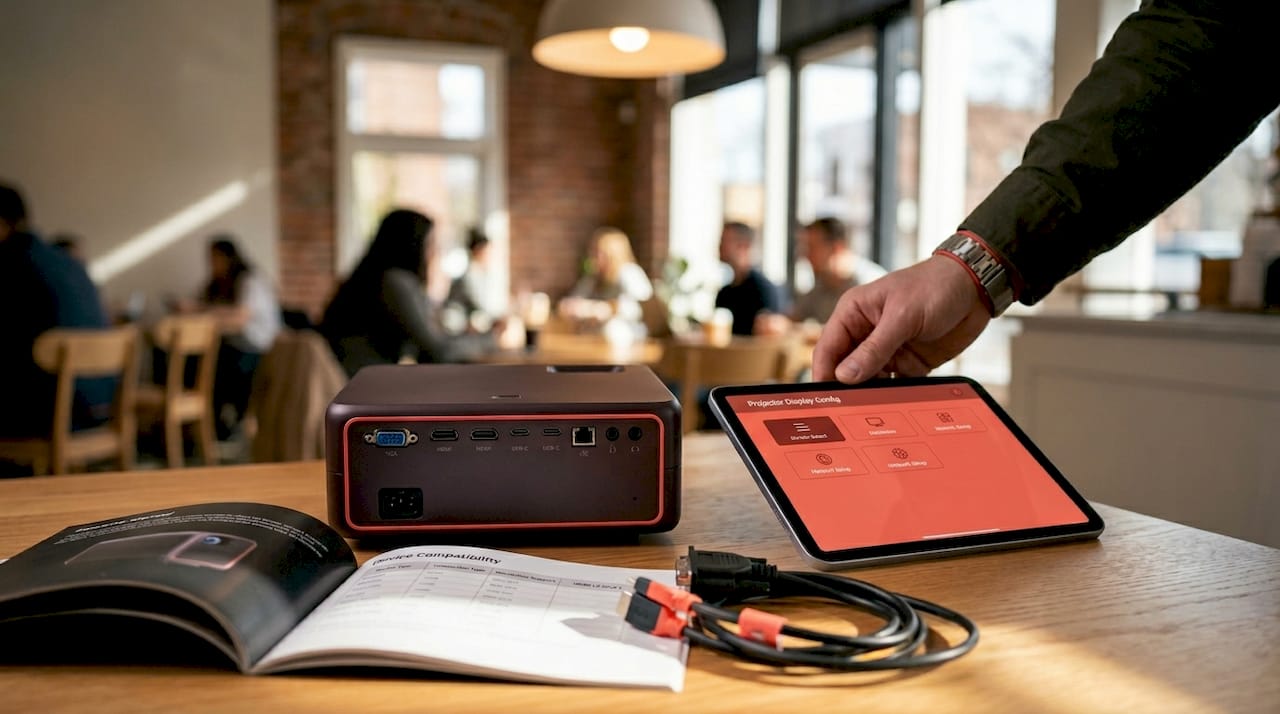
Projector side: Not every projector supports all protocols natively. The Epson Lifestudio series is a strong example of what modern wireless-ready hardware looks like in Malaysia, supporting Miracast, AirPlay, Chromecast, and iProjection in a single unit, priced between RM2,989 and RM5,099. If your projector lacks built-in wireless, wireless projector adapters can bridge the gap affordably.
Network requirements
Here's where Malaysian environments present a unique challenge. Older office buildings and multi-floor homes in Malaysia are built with thick concrete walls that block 2.4GHz Wi-Fi signals significantly. For reliable wireless projection, you need:
- A 5GHz Wi-Fi band to reduce interference and boost throughput
- A mesh Wi-Fi network if your space spans multiple floors or has dense walls
- At least 20 Mbps of stable bandwidth dedicated to the projection stream
- A router positioned in the same room as the projector when possible
Pro Tip: Always ensure both your projector's firmware and your device's mobile OS are fully updated before your setup session. Outdated firmware is a silent killer of wireless connections, often causing random drops or failed pairings that look like hardware problems.
For a broader look at how projection solutions for Malaysian businesses handle these network challenges, it's worth reviewing what current enterprise-grade options offer in terms of built-in Wi-Fi management.
Step-by-step guide: Setting up wireless projection
Once you have the right devices and network setup, follow these step-by-step instructions to project wirelessly, no matter which platform you use.
Setting up Miracast (Windows/Android)
- On your projector, navigate to the input source menu and select Wireless or Screen Mirroring.
- On your Windows PC, press Windows + K to open the Connect panel.
- Select your projector from the device list. Accept any pairing prompt on the projector.
- On Android, go to Settings > Connected Devices > Cast and tap your projector name.
Setting up AirPlay (macOS/iOS)
- Connect both your Apple device and projector to the same Wi-Fi network.
- On iPhone or iPad, swipe down the Control Center and tap Screen Mirroring.
- On macOS, click the AirPlay icon in the menu bar (or System Settings > Displays > Add Display).
- Select your projector or AirPlay receiver from the list.
Setting up Chromecast
- Plug a Chromecast dongle into the projector's HDMI port (or use a built-in Chromecast projector).
- Open the Google Home app on your phone or use Chrome on a laptop.
- Tap Cast my screen (Android) or click the Cast button in Chrome.
- Select the Chromecast device name from the list.
Setting up Wi-Fi Direct
- On your projector, enable Wi-Fi Direct mode and note the network name and password displayed.
- On your Android device, go to Settings > Wi-Fi Direct and connect to the projector's network.
- Open your casting app or display settings to begin mirroring.
Here's a comparison to help you choose the right method from the start:
| Method | Compatibility | Typical latency | Best use case |
|---|---|---|---|
| AirPlay | Apple only | 60 to 120ms | Presentations, keynotes |
| Miracast | Windows, Android | 80 to 150ms (up to 900ms in poor conditions) | Live demos, slides |
| Chromecast | Cross-platform | 100 to 450ms+ under load | Video streaming |
| Wi-Fi Direct | Android, select devices | 400 to 700ms | Quick file sharing |
Notice that Chromecast is excellent for streaming Netflix or YouTube to a projector but performs poorly when used for mirroring your entire screen during a live presentation. This is a critical distinction most users overlook.
Pro Tip: Use Miracast for live Windows demos, AirPlay for Apple-based presentations, and Chromecast only for video playback. Avoid using Chromecast for real-time slide presentations. The latency difference is very noticeable to your audience.
For a localized deep-dive into setup options, the Malaysian wireless projector guide breaks down specific device models available in Malaysia and their native casting support.
Troubleshooting and common mistakes
Even with proper setup, issues can arise. Here's how to tackle the most common obstacles and avoid wasting time during critical moments.
Common issues and quick fixes
- "No device found" error: Check that both devices are on the same Wi-Fi network and band. Miracast requires both devices on the same subnet.
- Laggy video or choppy display: Switch from 2.4GHz to 5GHz band. Move the router or projector closer together.
- Audio sync issues: Restart the mirroring session. On Miracast, try toggling hardware acceleration off in display settings.
- Dropped connections mid-session: Reduce the number of active devices on your network. Use a dedicated guest network for projection.
- Screen resolution mismatch: Manually set your display output to match the projector's native resolution (1080p or 720p) before casting.
- Projector not appearing in device list: Power cycle the projector, recheck firmware version, and re-enable wireless mode from the projector menu.
The concrete wall problem in Malaysia
This is a real and recurring issue in Malaysian office buildings and condominiums. Thick reinforced concrete walls absorb and scatter Wi-Fi signals dramatically. A 5GHz signal that delivers 200 Mbps in the same room can drop to under 20 Mbps through a single concrete wall. If you're setting up wireless projection across floors or through heavy walls, a mesh Wi-Fi system is not optional. It's necessary.
Performance note: Chromecast tab mirroring adds 90 to 130ms of additional latency on top of base network latency, and real-world tests confirm that Chromecast consistently fails to achieve sub-500ms performance in most conference room environments, making it a poor choice for interactive presentations.
For high-stakes environments, consider upgrading your hardware entirely. The best presentation projectors available in Malaysia today include built-in Wi-Fi management tools that prioritize casting traffic. Knowing your projector types in Malaysia also helps you match the projector technology to your specific room layout and wireless needs.
What to expect: Performance in real-world Malaysian setups
Knowing how to set up and troubleshoot is essential, but it's just as important to understand what level of performance you can realistically achieve in real Malaysian environments.
Latency benchmarks you should know
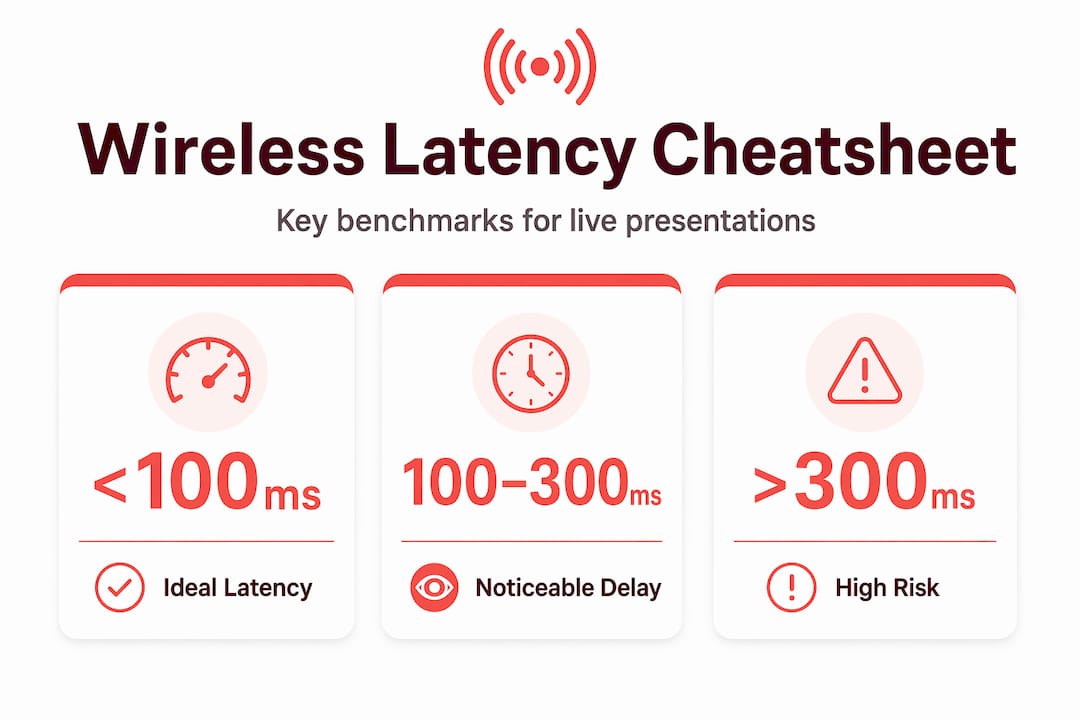
The golden rule: sub-100ms latency is ideal for presentations and interactive demos. Over 300ms will visibly break the experience for both you and your audience. Anything above 500ms feels like the slides are haunted.
| Method | Real-world latency | Reliability | Best suited for |
|---|---|---|---|
| AirPlay | Sub-10ms AV sync, 60 to 120ms total | High (Apple ecosystem) | Presentations, demos |
| Miracast | 80 to 150ms typical | Medium (vendor inconsistency) | Slides, business use |
| Chromecast | 100 to 450ms, up to 500ms+ in rooms | Low for mirroring | Media streaming only |
| Wireless HDMI | 50 to 80ms | Very high | Movies, casual use |
| Wi-Fi Direct | 400 to 700ms | Variable | Quick sharing |
Wireless HDMI kits deserve more attention in Malaysia. At 50 to 80ms latency, they're virtually unnoticeable for movies and casual use, and they eliminate network dependency entirely because they create their own dedicated radio link between transmitter and receiver.
What's changing in 2026
The projector landscape is evolving fast. The Epson Lifestudio portable projectors with built-in Google TV represent a shift toward all-in-one wireless-native devices that don't require a separate casting dongle or app. WiFi6 smart projectors are starting to appear in the market, supporting AirPlay and Miracast simultaneously with much lower congestion in busy network environments.
LiFi (Light Fidelity) is an emerging technology that uses light waves instead of radio waves to transmit data. It's extremely low-interference and theoretically solves the concrete wall problem completely. However, LiFi requires direct line-of-sight and specialized hardware, so it's still a niche option, not a mainstream replacement for Wi-Fi projection. Keep an eye on it for 2027 and beyond.
The best move right now for Malaysian businesses and home users is to pair a WiFi6-capable router with a smart projector that supports multiple casting protocols. This combination handles most scenarios without compromise. Explore the latest top business wireless solutions to see what's currently available locally.
Expert perspective: What most guides miss about going wireless
Most wireless projection guides stop at setup instructions and latency charts. But there's a more nuanced reality that only becomes obvious after you've actually deployed wireless projection in real Malaysian boardrooms, classrooms, and living rooms.
The biggest misconception is that wireless is universally better. It isn't. Wireless is more convenient, but it introduces variables that wired connections never have: network congestion, firmware compatibility, protocol handshakes that fail silently, and battery drain on the casting device. When you're showing a single critical demo to ten clients, convenience is not your top priority. Reliability is.
There's also an important distinction between casting and mirroring that most people conflate. Casting (what Chromecast does best) sends a URL or media stream to the projector and lets it handle playback independently. Your phone is freed up. Mirroring (what Miracast and AirPlay do) duplicates everything on your screen to the projector in real time. Mirroring is more demanding on your device's CPU and battery, but it gives you full control over every pixel on screen. Casting versus mirroring serves completely different needs, and choosing wrong costs you in both performance and usability.
The smart features built into modern projectors have started to blur this line, with some units offering hybrid modes that switch between casting and mirroring depending on the content type. That's genuinely useful.
Here's the uncomfortable truth: wired HDMI is still the gold standard for zero-latency, mission-critical applications. Gaming, live video production, and high-stakes demos that cannot afford a single dropped frame still benefit from a physical connection. The smart approach is not to choose wireless over wired but to know when each is appropriate. Wireless for flexibility and everyday use. Wired when the stakes are too high to gamble on a Wi-Fi drop.
Pro Tip: Always carry a physical HDMI cable to any high-stakes presentation or event. Use wireless as your primary setup, but have the cable ready as a 30-second backup if something goes wrong. This single habit will save you from embarrassment more than any app or firmware update ever will.
Upgrade your experience with the latest wireless projection solutions
Now that you know how to make wireless projection work for you, the next step is having the right hardware in your hands.

At ProjectorDisplay.com, we stock a curated selection of wireless-ready projectors, wireless projector deals for all budgets, and accessories specifically suited for Malaysian homes and businesses. Whether you need a portable unit for on-the-go presentations or a fixed smart projector for your conference room, you can browse our full projector catalog to find your match. For everything else you need to complete your setup, our projector accessories guide covers adapters, screens, mounts, and more. Fast shipping within Peninsular Malaysia and WhatsApp support make the whole process simple.
Frequently asked questions
Which wireless projection method has the lowest latency for presentations?
AirPlay consistently delivers the lowest latency for presentations, with benchmarks of 60 to 120ms compared to Miracast at 80 to 150ms and Chromecast at 100 to 450ms or higher under load, making it the top choice for Apple users in business settings.
Do thick concrete walls in Malaysian offices affect wireless projection quality?
Yes, concrete walls and multi-floor layouts are a significant source of Wi-Fi signal interference in Malaysian buildings, and switching to a 5GHz mesh Wi-Fi network is the most reliable fix for this problem.
Is Chromecast reliable for live presentations in large Malaysian conference rooms?
Chromecast is not well-suited for real-time presentations because real-world tests show it consistently fails to achieve sub-500ms performance in conference rooms, which creates noticeable lag during interactive demos and slide transitions.
Are there any new wireless projection technologies emerging in 2026?
WiFi6 smart projectors are entering the market with better congestion handling and multi-protocol support, while LiFi remains a niche technology with line-of-sight requirements that limit its practical use in most presentation environments.
When should I use a wired connection instead of wireless projection?
Use a wired HDMI connection for gaming, live video production, or any high-stakes scenario where zero-latency reliability is non-negotiable, and treat wireless as your everyday convenience layer rather than a replacement for wired in critical applications.