
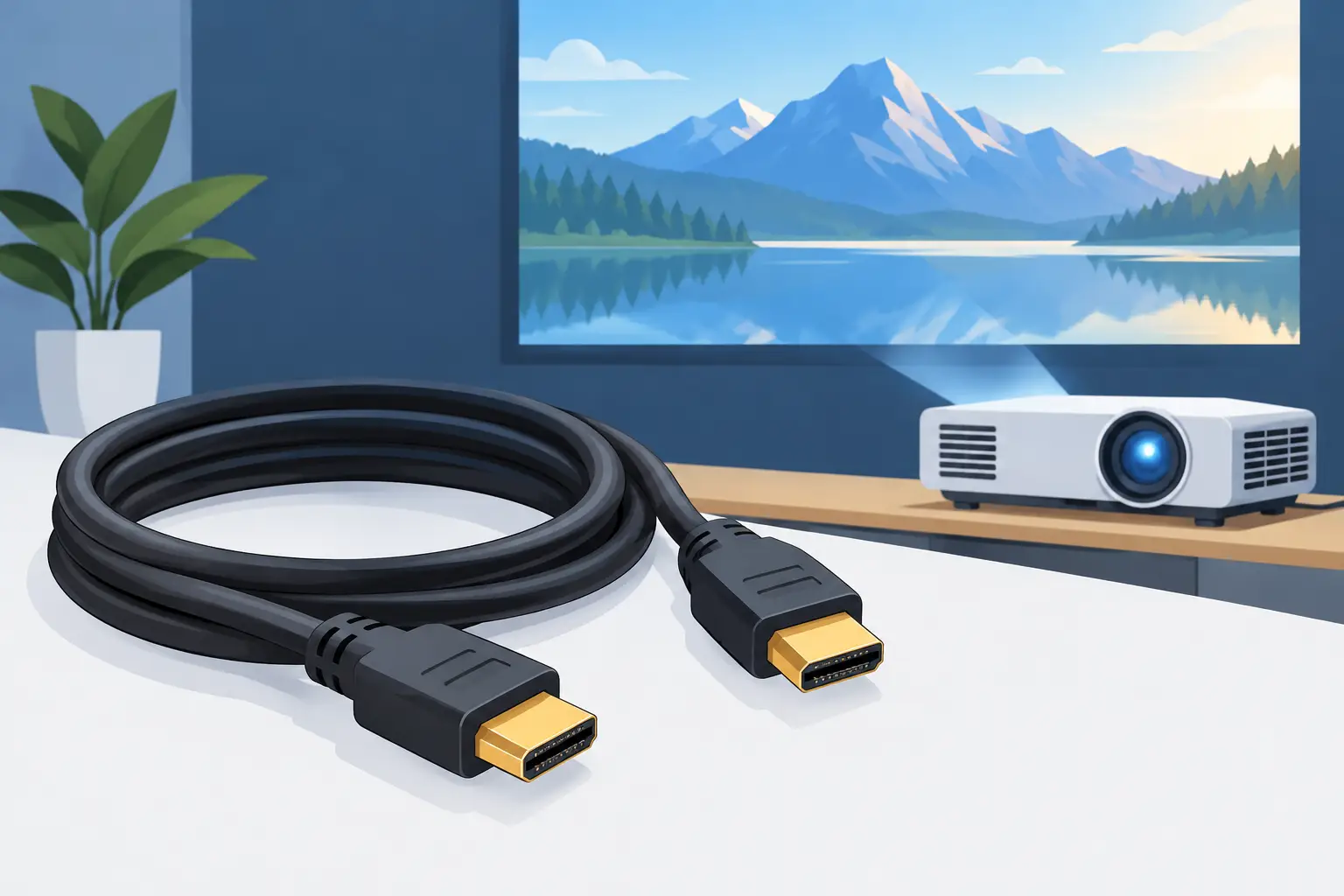
A projector can be rated for sharp 4K resolution and vivid HDR color, yet still show dropouts, black screens, or a reduced image mode because of one overlooked connection. The right HDMI 2.0 cable for projector use must carry the full signal your source and projector are trying to exchange, especially when the run crosses a living room, ceiling, classroom, or meeting space.
For a basic 1080p presentation, almost any decent HDMI cable may work. For 4K streaming, console gaming, HDR movies, or a long ceiling installation, cable selection becomes much more specific. Here is how to buy confidently without paying for features your projector cannot use.
What an HDMI 2.0 Cable for Projector Use Supports
HDMI 2.0 equipment is built around a maximum bandwidth of 18 Gbps. In practical terms, that can support 4K video at up to 60Hz, along with HDR formats and multichannel audio when the connected devices support them. This makes it a strong match for many Full HD and 4K home theater projectors, office display systems, classrooms, streaming boxes, and current-generation media players.
A cable does not improve a projector’s native resolution, brightness, contrast, or color performance. It simply needs to transmit the signal reliably. If a projector has a 1080p native panel, an HDMI 2.0 cable will not turn it into a 4K projector. But it can still be useful if you expect to upgrade the projector later or need dependable compatibility with modern source devices.
There is one technical detail worth knowing: HDMI cables are not officially assigned version numbers in the same way that ports are. A cable sold as an "HDMI 2.0 cable" should ideally be specified or certified for 18 Gbps operation. Look for Premium High Speed HDMI Cable certification when you need reliable 4K at 60Hz performance. That label is more meaningful than packaging claims that simply say "HDMI 2.0."
Match the Cable to the Signal You Actually Need
Start with the source device and projector input. A laptop used for PowerPoint slides, a document camera, or a 1080p cable box has modest bandwidth needs. A 4K Apple TV, gaming console, Blu-ray player, or PC can demand much more, particularly when HDR is enabled.
For 4K at 60Hz, the picture settings matter. A 4K HDR signal using higher color depth and full 4:4:4 chroma can push close to the 18 Gbps limit. Some combinations may work only with a lower color setting, such as 4:2:2 or 4:2:0. For movies, this is usually not a visible concern. For PC desktop use, spreadsheets, or detailed text, 4:4:4 is preferable because it preserves sharper text edges.
A quality 18 Gbps cable is the sensible choice for these common scenarios:
- 4K movies and streaming at up to 60Hz
- HDR content from a compatible player or console
- 1080p gaming at high refresh rates supported by the projector
- Office and classroom presentations from modern laptops
- Home theater connections that send audio back through ARC
If your projector and console support 4K at 120Hz, Variable Refresh Rate, or other HDMI 2.1 features, an HDMI 2.0-rated cable is not the right long-term choice. Buy an Ultra High Speed HDMI Cable instead. It costs more, but it avoids replacing the cable when you want the higher-bandwidth feature your equipment supports.
Cable Length Is Usually the Deciding Factor
A short cable between a streaming stick and a portable projector is easy. A cable routed from an AV receiver to a ceiling-mounted projector is where problems begin. As cable length increases, signal loss becomes more likely, especially at 4K 60Hz HDR.
For short runs, a well-made passive 18 Gbps cable is normally all you need. Around 6 to 10 feet is a simple, low-risk installation. At 15 feet, quality becomes more important. Beyond roughly 25 feet, results depend heavily on cable construction, source output strength, projector input sensitivity, and the formats being sent.
For a long run across a room or through a ceiling, consider an active HDMI cable or an active optical HDMI cable. Active copper cables include signal electronics and are often directional, so check the labels carefully before installation. The end marked "Source" connects to the laptop, receiver, media player, or console. The "Display" end connects to the projector.
Active optical HDMI cables are especially useful for longer home theater, training room, and conference room installations. They are thinner and lighter than many long copper cables, and they handle high-bandwidth 4K signals over greater distances more reliably. The trade-off is cost and care during installation. Do not sharply bend them, crush them under a mount, or pull the connector forcefully through tight conduit.
Choose the Right Build for Your Installation
The connector may look identical from one cable to another, but build quality affects how well it holds up behind walls, inside cable trays, and around ceiling mounts. A flexible jacket is useful for portable projectors and temporary event setups. For a permanent installation, focus on a cable with solid strain relief at the connector and a jacket designed to tolerate routing without damage.
Avoid choosing solely by a very thick cable or gold-colored connector. Thickness does not guarantee 18 Gbps performance, and gold plating mainly helps resist corrosion rather than improve picture quality. Certification, tested bandwidth, realistic length ratings, and a trusted seller are better buying criteria.
If the cable will be installed in a wall or ceiling cavity, check local building and electrical requirements before purchasing. In-wall-rated cable may be required for certain installations. It is also wise to leave a little service loop near the projector mount. A cable pulled completely tight puts unnecessary strain on the HDMI port when the projector needs adjustment or maintenance.
Do Not Forget the Rest of the Signal Chain
An HDMI cable only performs as well as the devices around it. Splitters, switches, AV receivers, HDMI extenders, adapters, and wireless display systems can all limit the final signal. A system may have an 18 Gbps cable but still fall back to 1080p if an older switch or receiver cannot pass 4K HDR.
HDCP is another frequent cause of frustration. This copy-protection system is used by Netflix, Disney+, UHD Blu-ray, and other premium content services. If one device in the chain has an HDCP compatibility issue, you may see a black screen or an error message even though the projector menu appears normally. Test the source directly with the projector before troubleshooting every component at once.
Laptop users should also pay attention to USB-C adapters. A low-cost USB-C-to-HDMI adapter can become the weak link, limiting refresh rate or HDR support. Choose an adapter that explicitly supports the resolution and refresh rate required by your projector setup.
Signs Your Projector HDMI Cable Is Not Keeping Up
Cable faults are not always obvious. A complete black screen is one symptom, but intermittent issues are more common. Watch for brief flickers, image sparkles, random signal loss, audio cutting out, a projector repeatedly reconnecting, or a device that works at 1080p but fails at 4K HDR.
Before replacing equipment, reduce the source output to 1080p or disable HDR temporarily. If the connection becomes stable, bandwidth is likely the issue. Test with a shorter known-good cable if possible. Also check that each connection is fully seated. HDMI connectors can look connected while remaining slightly loose, especially behind a projector mounted close to the ceiling.
Do not coil excess cable tightly around power adapters or route it alongside mains power for long distances when you can avoid it. HDMI is digital, so it does not gradually become softer like an analog signal, but interference and physical strain can still contribute to unreliable handshakes or dropouts.
A Practical Buying Decision
For a portable Full HD projector, a short, certified High Speed HDMI cable is often enough. For a 4K projector running movies, streaming, or presentations at 60Hz, choose a Premium High Speed cable rated for 18 Gbps. For a long ceiling run, prioritize an active or active optical cable that is rated for the exact distance and resolution you plan to use.
Buy for the installation you have, but leave sensible room for the source devices you expect to add. A dependable cable is a small part of the total projector budget, yet it protects the visual experience you invested in. Once the image is stable, crisp, and running in the correct mode, you can focus on what matters most: the screen, the content, and the people watching it.