
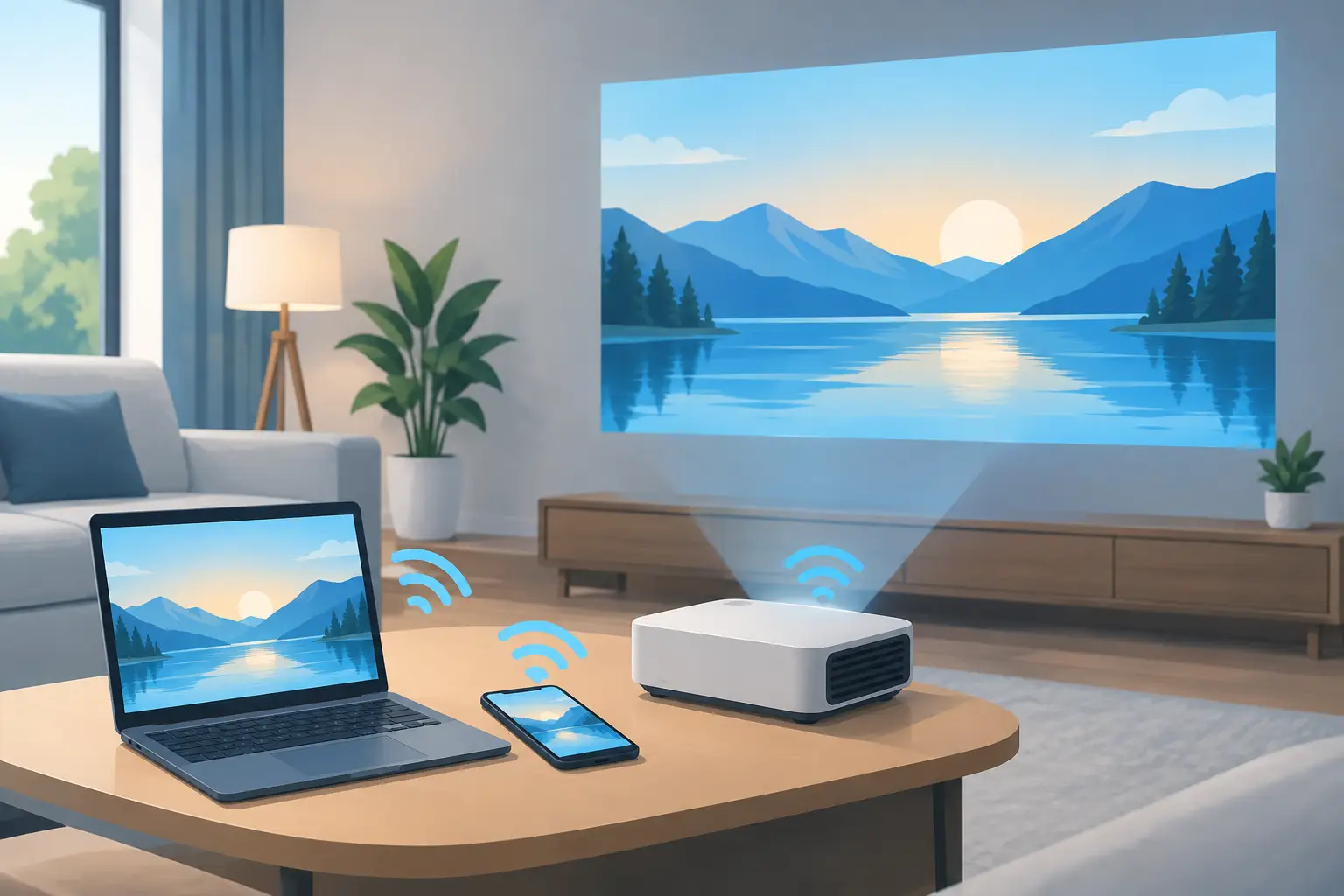
A cable stretched across the living room or meeting table can turn a clean projector setup into a trip hazard fast. Learning how to connect projector wirelessly gives you more flexibility to place the projector where the image looks best, not where the HDMI port happens to reach. Whether you are streaming a movie, presenting slides, or teaching from a laptop, the right wireless method depends on your projector, source device, and expectations for video quality.
Wireless projection is convenient, but it is not one single feature. Some smart projectors connect directly to Wi-Fi and run streaming apps. Others support AirPlay, Miracast, or Chromecast. Many standard office and home-theater projectors need a wireless display dongle connected to an HDMI input. Knowing which option you have prevents the most common setup mistake: trying to cast from a phone to a projector that does not support the same wireless standard.
Start by Checking Your Projector’s Wireless Features
Before changing settings on your phone or laptop, check the projector’s specifications or on-screen menu. Look for terms such as Wi-Fi, wireless display, screen mirroring, AirPlay, Miracast, Chromecast built-in, Android TV, or LAN projection.
A smart Android projector may connect to your home or office Wi-Fi and play content through installed apps. That is useful for Netflix, YouTube, and other streaming services, although app availability and playback quality vary by model. A business projector may instead use a manufacturer app to receive presentations from a Windows laptop, Mac, Android device, or iPhone.
If your projector has HDMI but no built-in wireless function, it can still be used wirelessly with an HDMI dongle or wireless presentation receiver. This is often the most practical upgrade for existing Full HD, 4K, laser, short-throw, and classroom projectors.
Also confirm that the projector has an available HDMI port and a USB port or nearby power outlet if the dongle needs power. Most compact streaming devices require both HDMI and USB power to operate reliably.
How to Connect a Projector Wirelessly With Wi-Fi
For projectors with built-in Wi-Fi, begin by connecting the projector to the same wireless network as your source device. Open the projector’s Settings menu, select Network or Wi-Fi, choose the network, and enter the password. Then connect your phone, tablet, or laptop to that exact network.
Using the same network is usually required for AirPlay, Chromecast, and many manufacturer-specific projection apps. Guest Wi-Fi networks can cause trouble because they often isolate devices from each other for security. If your phone can browse the internet but cannot see the projector, check whether one device is on a guest network, mobile data, or a different Wi-Fi band.
A 5 GHz connection is generally better for video streaming because it offers higher speed and less congestion than 2.4 GHz at close range. However, 2.4 GHz may reach farther through walls in larger classrooms, offices, or homes. If the projector is far from the router, network stability matters more than choosing the newest band.
Connect From Windows With Miracast or Wireless Display
Many Windows laptops support Miracast, which lets the laptop mirror or extend its screen without an HDMI cable. On the projector, select the Screen Mirroring, Wireless Display, or Miracast input. On a Windows computer, press Windows + K and select the projector or wireless receiver from the device list.
Choose whether to duplicate your display or extend it. Duplicating is ideal for training, teaching, and client presentations because the projected image matches the laptop screen. Extending is better when you want to keep notes, video controls, or private documents on your laptop while the audience sees only the presentation.
Miracast can work through a direct device-to-device connection on compatible equipment, so it may not always need the same Wi-Fi network. Compatibility differs between laptop Wi-Fi chips, operating systems, and receivers. If your projector does not appear, update the laptop’s wireless and graphics drivers, then restart both devices.
Connect From a Mac, iPhone, or iPad With AirPlay
For Apple devices, AirPlay is usually the simplest option. Your projector must support AirPlay directly, or it must have an AirPlay-compatible receiver connected through HDMI. Put the projector on the correct HDMI or AirPlay input, then make sure the Apple device and receiver are on the same Wi-Fi network.
On an iPhone or iPad, open Control Center and choose Screen Mirroring. Select the projector or receiver name, then enter the code shown on the projected image if prompted. On a Mac, open Control Center in the menu bar and select Screen Mirroring.
AirPlay is excellent for photos, slides, web pages, and casual video. For high-action gaming or time-sensitive demonstrations, a wired HDMI connection may still be the better choice because wireless casting can introduce a small delay.
Use Chromecast or an HDMI Wireless Dongle
Chromecast is a popular option when a projector has HDMI but lacks smart features. Connect the Chromecast or compatible streaming dongle to an HDMI port, connect its USB power cable, and select that HDMI source on the projector. Complete the device setup through its companion app, then use the Cast icon in supported mobile apps or Chrome on a computer.
This method works especially well for streaming content because the Chromecast can receive the stream directly from the network rather than mirroring every action on your phone. Your phone becomes a remote control, which helps preserve battery life and usually produces a more stable image.
A dedicated wireless HDMI kit is another option for boardrooms, classrooms, and installations where the presenter needs to move around. These kits use a transmitter connected to the laptop and a receiver connected to the projector. They can be more reliable than screen mirroring for presentations, but check their supported resolution, range, and latency before buying. Not every kit handles 4K video, and many are designed primarily for 1080p slides and video.
Set Up Wireless Projection for Better Results
Wireless connection is only half the job. Image quality, sound, and response time are affected by the entire setup. Position the projector at the correct throw distance and use optical zoom or lens shift where available before relying heavily on digital keystone correction. Excessive keystone can reduce visible detail, especially with small text in spreadsheets or lesson materials.
For home viewing, place the Wi-Fi router or mesh node close enough to the projector and streaming device to maintain a strong signal. For offices and schools, ask the IT team whether the network allows casting between devices. Enterprise networks may block discovery protocols used by AirPlay and Chromecast, even when both devices have internet access.
Sound deserves its own plan. A projector’s built-in speaker is convenient for a small room, but an external soundbar, Bluetooth speaker, or AV receiver will deliver a fuller experience. Keep in mind that Bluetooth audio can add delay, particularly when video is being mirrored wirelessly. If voices do not match the picture, use the projector’s audio delay setting if available, or connect audio by cable.
Common Wireless Projector Problems and Fixes
If the projector is not visible on your device, restart the projector, source device, and router first. Then verify that both devices are on the same network and that the projector is on the correct wireless input. A simple reboot resolves many discovery issues.
When the image stutters or drops out, reduce the distance from the router, disconnect unused devices from the network, and stop large downloads or cloud backups. Streaming in Full HD requires more consistent bandwidth than displaying a slide deck. A 4K stream demands even more, so a quality HDMI cable may be preferable for a dedicated home-theater installation.
If there is no sound, check the selected audio output on the phone or laptop. Devices sometimes continue sending audio to Bluetooth earbuds, laptop speakers, or another remembered device. If the projected image is cropped, adjust the display aspect ratio and resolution from the source device rather than using projector zoom as the first fix.
For protected streaming services, screen mirroring may show a black image while menus remain visible. This is usually content protection, not a faulty projector. Use the service’s supported app on a smart projector or cast through an approved streaming device instead.
Choose the Right Connection for the Room
For occasional home movies, a smart projector with Wi-Fi or an HDMI streaming dongle keeps the setup simple. For a meeting room where several people present, a wireless presentation receiver or a projector with business-grade wireless software offers faster handovers. In a classroom, reliability should come first: keep an HDMI cable available as a backup even when wireless display is the daily method.
ProjectorDisplay.com can help match a projector, wireless display dongle, screen, mount, and audio solution to the way your room will actually be used. The best wireless setup is not necessarily the one with the most features. It is the one that lets your audience see, hear, and share without stopping the session to troubleshoot.