
TL;DR:
- Connecting laptops to projectors requires matching the correct cable or wireless method to ensure image and sound quality. HDMI is the standard wired option, supporting up to 4K and compatible with Windows and macOS, while USB-C outputs video only when properly supported. Wireless projection offers flexibility but can experience latency and signal drops, so having a wired backup is essential for critical presentations.
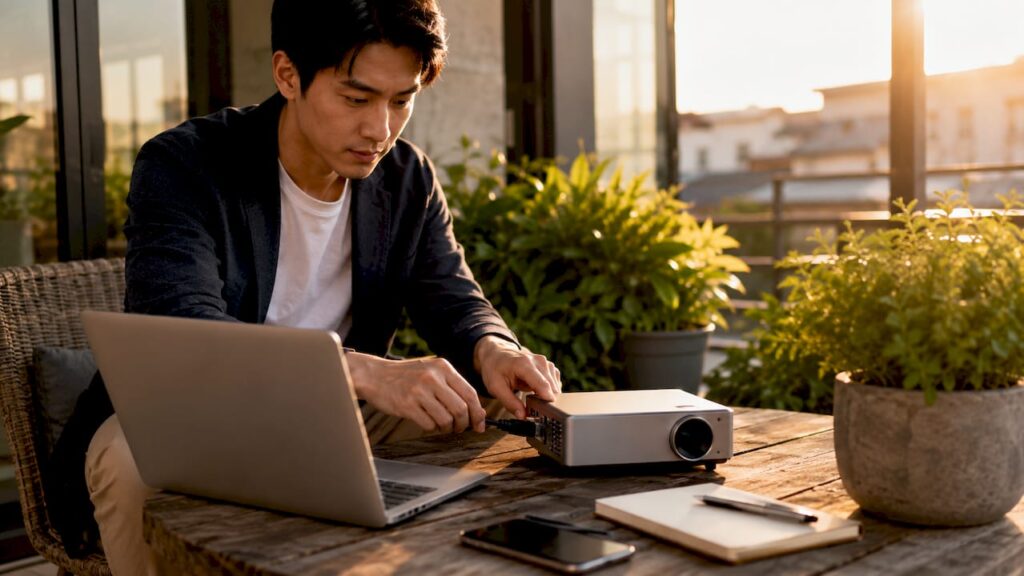
Integrating projectors with laptops is defined as connecting a laptop's video output to a projector's input using wired or wireless methods to display content on a large surface. The right connection type determines image quality, audio output, and reliability. Whether you are a teacher setting up a classroom projector in Malaysia, a professional running a boardroom presentation, or a home user building a cinema setup, the process follows the same core logic: match your laptop's port to the projector's input, configure your display settings, and test before the moment matters. This guide covers every method, from HDMI to Miracast, with troubleshooting steps built in.
What are the main wired methods for integrating projectors with laptops?
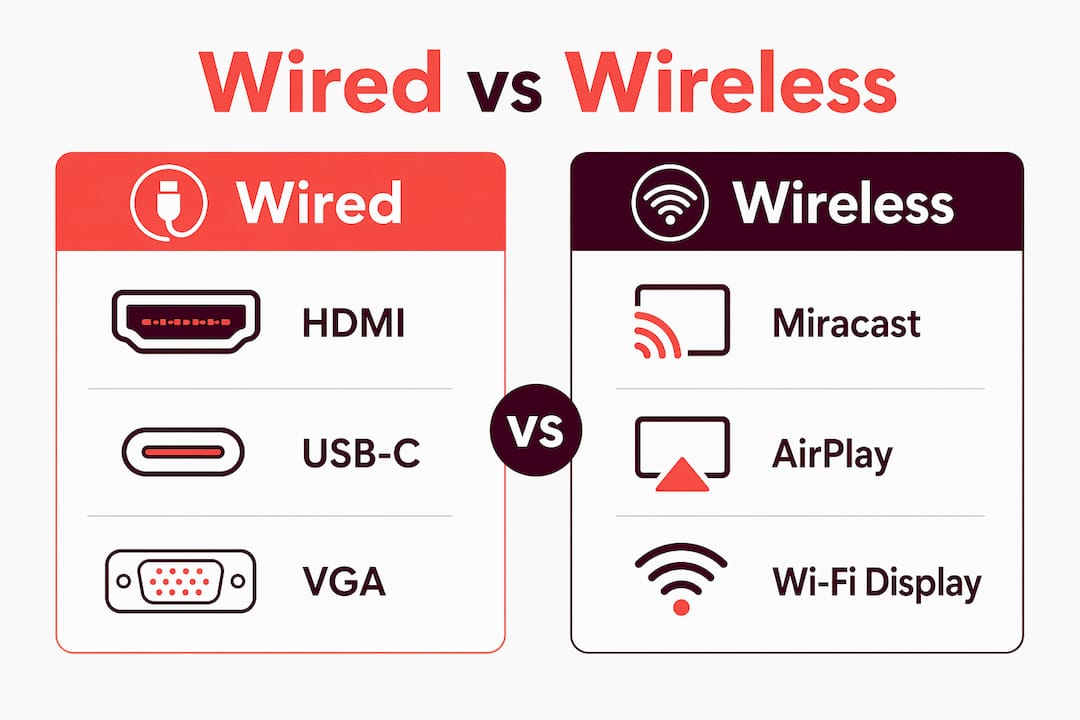
HDMI is the standard wired connection for laptop to projector setups in 2026. It carries both audio and video in a single cable, supports up to 4K resolution, and works on Windows and macOS without any drivers. For most users buying a projector in Malaysia, HDMI is the first cable to reach for.
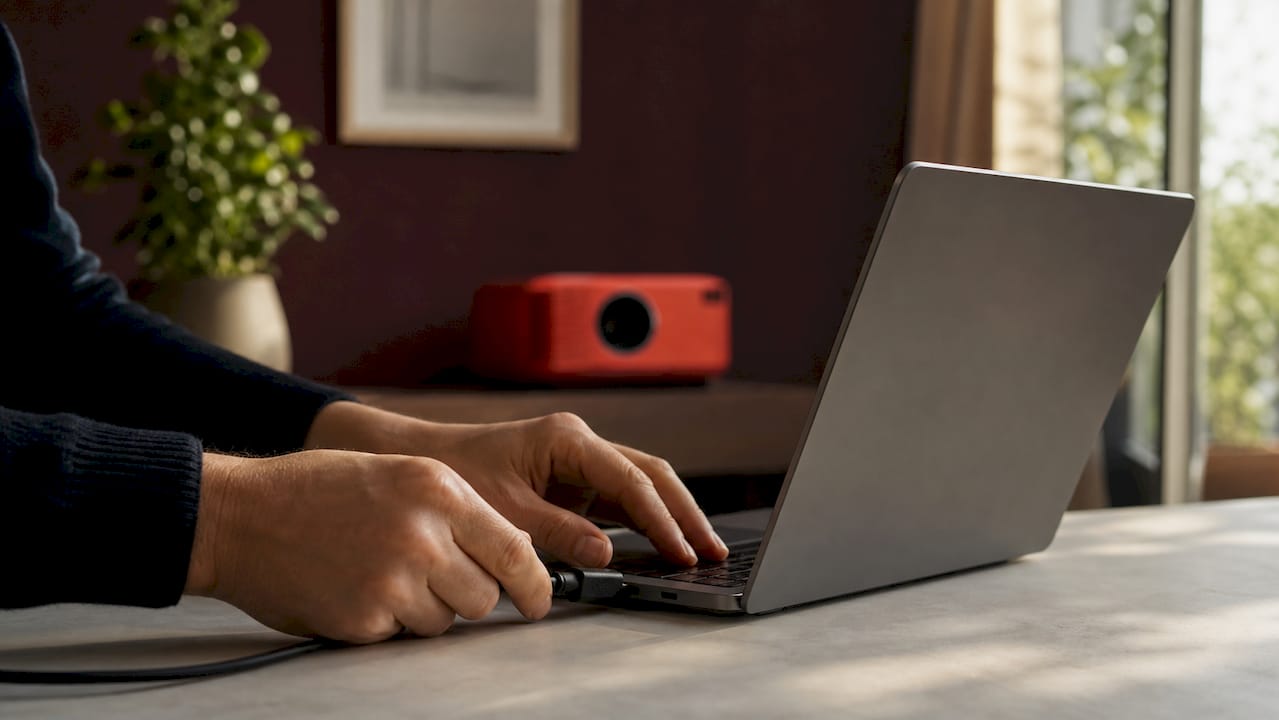
USB-C is the second major option, but it requires a critical check first. Not all USB-C ports output video. Look for a lightning bolt icon (Thunderbolt) or a DisplayPort symbol next to the port. If neither is present, the port is data-only and will not drive a projector. Once confirmed, a USB-C to HDMI adapter connects directly to any modern projector.
VGA remains common in older classrooms and conference rooms across Malaysia. It carries video only, so you need a separate 3.5mm audio cable to get sound through the projector's speakers. Always tighten the VGA connector screws by hand to avoid a loose signal.
| Connection type | Signal quality | Max resolution | Audio support |
|---|---|---|---|
| HDMI | Excellent | 4K (3840 x 2160) | Yes |
| USB-C (DisplayPort Alt) | Excellent | 4K (3840 x 2160) | Yes |
| VGA | Good | 1080p | No (separate cable needed) |
| USB-C to VGA adapter | Good | 1080p | No |
Pro Tip: Check the icon next to every USB-C port before buying an adapter. A Thunderbolt or DisplayPort symbol confirms video output. A plain USB symbol means the port is data-only, and no adapter will fix that.
How do you connect a laptop to a projector wirelessly?
Wireless projection removes cable clutter and works well in conference rooms, classrooms, and home setups where the laptop sits far from the projector. Windows uses Miracast, launched with Win + K, to broadcast the display over Wi-Fi Direct. macOS uses AirPlay, found under System Settings > Displays, to mirror or extend to a compatible receiver.
Setting up wireless projection takes three steps:
- Windows (Miracast): Press Win + K to open the Cast panel. Select your projector or wireless display receiver from the list. Wait for the connection to confirm, then use Win + P to choose your display mode.
- macOS (AirPlay): Open System Settings, go to Displays, and click the AirPlay Display dropdown. Select the receiver connected to your projector. Toggle mirroring or extended display as needed.
- Wireless dongles: Devices like the Anycast M2 Plus plug into the projector's HDMI port and add Miracast and AirPlay support to any projector, including older models without built-in Wi-Fi.
Wireless projection adds real flexibility, but it comes with limits. Wireless latency runs 20–100ms, which makes it unsuitable for gaming or live video editing. Network congestion in a busy office or school can drop the signal mid-presentation. That delay is invisible during a slide deck but obvious during a video demo.
Wireless projection should never be the only method for critical presentations. Carry an HDMI cable as a backup every time. A wireless projector malaysia setup is convenient, but a failed connection during a client pitch is not a recoverable situation.
Pro Tip: Test your wireless setup at the actual venue at least 24 hours before the event. Different rooms have different Wi-Fi environments, and what works in your office may not work in a hotel conference room.
How do you fix display settings and common projector connection problems?
Display mode selection is the first setting to get right after connecting. Windows key + P toggles four modes: PC Screen Only, Duplicate, Extend, and Second Screen Only. Duplicate mirrors your laptop screen to the projector, which works for presentations. Extend gives you two separate screens, useful when you want speaker notes on your laptop while the audience sees slides. Second Screen Only turns off the laptop display entirely.
The most common error after connecting is a "No Signal" message on the projector. Fix it in this order:
- Press the Input or Source button on the projector remote or body. Cycle through HDMI 1, HDMI 2, VGA, and other inputs until the image appears. Manual input selection resolves most detection errors because many projectors do not auto-detect the active input.
- Check that the cable is fully seated at both ends. A loose HDMI connector causes a blank screen even when the projector shows the correct input.
- Restart the projector with the cable connected. Some models only detect a signal on startup.
- On Windows, press Win + P and select Duplicate or Second Screen Only. Some laptops default to PC Screen Only after a new connection.
- Check resolution settings. Right-click the desktop, open Display Settings, and set the resolution to match the projector's native resolution, typically 1920 x 1080 for most office and classroom projectors in Malaysia.
Audio troubleshooting follows a different path depending on the cable. HDMI carries audio automatically, but Windows may not switch the output device. Right-click the speaker icon in the taskbar, select Sound Settings, and set the projector or HDMI output as the default device. VGA carries no audio at all. Connect a 3.5mm cable from the laptop's headphone jack to the projector's audio input, then select the correct audio input on the projector.
Pro Tip: Label your cables when using multiple devices in a shared space. A strip of colored tape on each cable end saves minutes of confusion during setup and prevents plugging the wrong source into the wrong projector.
What cables and adapters do you need for a smooth projector setup?
The right cable kit prevents most connection failures before they happen. Non-compatible adapters cause the majority of connection failures, so buying the correct type matters more than buying the cheapest option.
Active adapters are necessary for certain conversions. Active adapters handle signal format conversion between digital and analog signals, which passive adapters cannot do reliably. An HDMI to VGA conversion always requires an active adapter. A USB-C to VGA conversion also requires an active adapter. Passive adapters for these combinations typically produce no image or a distorted one.
| Cable or adapter | Compatible with | Use case |
|---|---|---|
| HDMI cable | Modern laptops and projectors | General use, presentations, home cinema |
| USB-C to HDMI (active) | USB-C laptops with video output | Modern laptops to HDMI projectors |
| USB-C to VGA (active) | USB-C laptops with video output | Modern laptops to legacy projectors |
| HDMI to VGA (active) | HDMI laptops to VGA projectors | Legacy classroom or office projectors |
| 3.5mm audio cable | VGA setups | Audio when using VGA connections |
For buyers looking at projector accessories in Malaysia, a basic kit should include a 2-meter HDMI cable, a USB-C to HDMI active adapter, and a 3.5mm audio cable. Add a wireless dongle if the setup needs to go cable-free. Bluetooth speakers work as an audio upgrade when the projector's built-in speaker is underpowered, which is common in portable and budget models.
Professionals presenting across different venues in Malaysia should carry both an HDMI cable and an active HDMI to VGA adapter. Older government buildings, schools, and training rooms often still run VGA projectors. The best projector brand options available through Projectordisplay, including Epson projector Malaysia models, Viewsonic projector Malaysia units, and Optoma projector Malaysia devices, all support HDMI natively, but the room's projector may not.
Key Takeaways
Reliable projector-laptop integration depends on matching the correct cable type to your ports, verifying USB-C video support before buying adapters, and always carrying a wired backup for critical presentations.
| Point | Details |
|---|---|
| HDMI is the default choice | HDMI carries audio and video up to 4K with no drivers needed on Windows or macOS. |
| Verify USB-C before buying adapters | Only USB-C ports with Thunderbolt or DisplayPort icons output video to a projector. |
| Active adapters for legacy setups | HDMI to VGA and USB-C to VGA conversions require active adapters, not passive ones. |
| Manual input selection fixes most errors | Press Source or Input on the projector to cycle inputs when a "No Signal" message appears. |
| Wireless needs a wired backup | Wireless latency of 20–100ms and signal drops make HDMI essential for critical events. |
What I've learned from years of projector setups that most guides skip
The single most expensive mistake I see professionals make is trusting wireless projection for a high-stakes presentation without a backup plan. Wireless projector malaysia setups look great in demos. They fail at the worst moments. I keep a short HDMI cable coiled in every laptop bag, and I have used it to save presentations more times than I can count.
The second mistake is buying the cheapest USB-C adapter available. A passive adapter for a USB-C to VGA conversion produces a blank screen every time. Spending a little more on an active adapter from a reliable projector shop eliminates that problem entirely. Projectordisplay stocks adapters and accessories suited for both modern and legacy setups, which matters in Malaysia where older VGA projectors are still common in schools and government offices.
Testing at the venue is not optional for anything important. I always arrive at least 30 minutes early to run a full laptop to projector connection check. Resolution mismatches, audio routing issues, and input source errors all surface during that test run, not during the presentation itself. The best projector in Malaysia means nothing if the connection fails in the room.
One more thing: keep your laptop's display drivers updated. Outdated drivers cause resolution detection failures that look like hardware problems but are actually software fixes. A five-minute update before a big event prevents an hour of troubleshooting during it.
— Projector
Projectors, screens, and accessories for every setup in Malaysia
Projectordisplay is Malaysia's trusted source for projectors, projection screens, and the accessories that make every connection work. Whether you need a best home projector Malaysia setup for movie nights, a best office projector for boardroom presentations, or a best classroom projector for daily teaching, the catalog covers every use case.

Brands like Epson projector Malaysia, Viewsonic projector Malaysia, Optoma projector Malaysia, Panasonic projector Malaysia, and Benq projector Malaysia are all available through Projectordisplay, with fast shipping across Peninsular Malaysia and WhatsApp support for product questions. If you are deciding between display formats, the guide on why projectors beat screens for large rooms lays out the case clearly. For screen options, Projectordisplay carries a full range of projector screen Malaysia products to complete any setup.
FAQ
What is the best way to connect a laptop to a projector?
HDMI is the best wired connection for most setups because it carries audio and video up to 4K with no drivers required. For laptops without HDMI, use a USB-C to HDMI active adapter after confirming the port has a Thunderbolt or DisplayPort icon.
How do I fix a "No Signal" error on my projector?
Press the Source or Input button on the projector remote to manually cycle through available inputs such as HDMI 1, HDMI 2, or VGA. Manual input selection resolves most "No Signal" errors because many projectors do not auto-detect the active source.
Can I connect my laptop to a projector without cables?
Yes. Windows uses Miracast (Win + K) and macOS uses AirPlay (System Settings > Displays) for wireless projection. A wireless dongle plugged into the projector's HDMI port adds this capability to older models that lack built-in Wi-Fi.
Why does my USB-C adapter not work with my projector?
The USB-C port on your laptop may be data-only and not support video output. Check for a Thunderbolt lightning bolt or DisplayPort icon next to the port. If neither is present, the port cannot drive a projector regardless of the adapter used.
Is wireless projection reliable enough for professional presentations?
Wireless projection introduces 20–100ms of latency and is vulnerable to network congestion. Experts recommend always carrying an HDMI cable as a backup when using wireless projection for business or educational presentations.
Recommended
- Projector installation guide 2026: Home and business tips – Projector Display
- Setting Up Mini Projectors: Malaysia Guide for 2026 – Projector Display
- Multi-Purpose Projectors for Schools: 2026 Educator's Guide – Projector Display
- How to connect your laptop to a projector: complete guide – Projector Display