

TL;DR:
- Presentation mode on a projector enhances brightness, contrast, and sharpness for text and slides. It differs from software Presenter View, which manages dual-screen display of notes and slides. Proper setup of both features improves image quality and presentation effectiveness.
Presentation mode on a projector is a hardware image preset that boosts brightness, contrast, and sharpness to make text and slides clearly visible in lit rooms. This built-in picture mode is not the same as PowerPoint's Presenter View, which is a software feature. Knowing the difference between these two tools changes how you set up your equipment and how your audience sees your content. Whether you are a teacher in a classroom, a manager in a boardroom, or a professional using a projector in Malaysia, understanding this mode gives you a real edge.
What is presentation mode on a projector and how does it work?
Presentation mode is a hardware picture preset that increases brightness, contrast, and sharpness to improve text legibility under ambient light. Most projectors ship with several factory picture modes, and presentation mode is specifically tuned for slides, charts, and text-heavy content. It compensates for the washed-out look that occurs when overhead lights or sunlight compete with the projected image.
The mode works by pushing the projector's light output higher and sharpening edge definition so that letters and lines appear crisp. This is especially useful in office meeting rooms and classrooms where turning off all the lights is not practical. The tradeoff is real: color clipping and shadow detail loss affect roughly 90% of non-text content displayed in this mode. That means photos, videos, and graphics look oversaturated or flat when presentation mode is active.
Key benefits for business and education
- Higher brightness output pushes through ambient light in offices and classrooms, keeping slides readable without dimming the room.
- Increased contrast makes black text on white backgrounds pop, reducing eye strain for audiences reading dense slides.
- Enhanced sharpness sharpens the edges of letters and chart lines, which matters most for small fonts projected over long distances.
- Fast activation is available on most projectors via a dedicated button or a quick menu shortcut, so you can switch modes without interrupting a meeting.
Pro Tip: If your slides contain a mix of text and photos, switch to presentation mode only for text-heavy slides and revert to a neutral mode for image slides. Your audience will notice the difference in color quality.
Understanding ideal projector brightness for your specific room helps you decide how aggressively to push the brightness setting within presentation mode.
What is the difference between projector presentation mode and software presenter view?
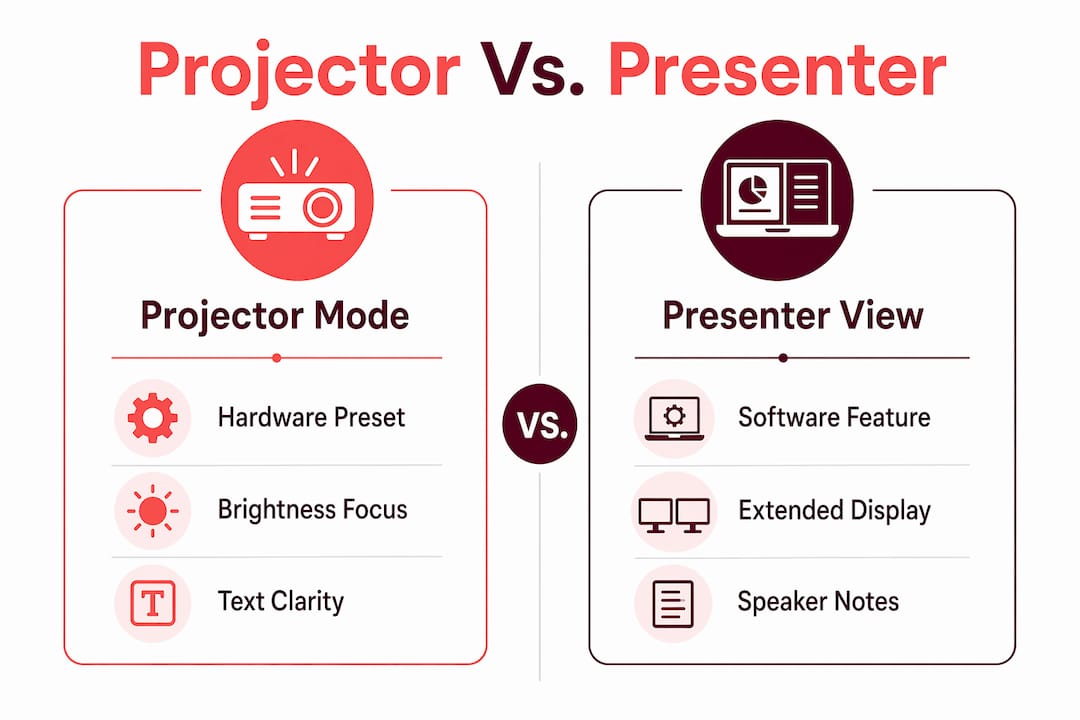
These two features share a name but solve completely different problems. Projector presentation mode is a hardware image setting that controls how the projector processes and displays pixels. Software Presenter View, found in PowerPoint and Google Slides, is a dual-screen management tool that shows your speaker notes on your laptop while the audience sees only the slides on the projector.
Presenter View requires your operating system's display settings to be set to "Extend," not "Duplicate." When the display is extended, your laptop screen and the projector act as two separate monitors. Your presentation software then sends the slide view to the projector and the notes view to your laptop. This setup is what separates a polished presenter from someone fumbling through notes in front of an audience.
How the two features compare
| Feature | Projector presentation mode | Software presenter view |
|---|---|---|
| Type | Hardware image preset | Software dual-screen tool |
| Controls | Brightness, contrast, sharpness | Notes, slide timer, next slide preview |
| Setup location | Projector menu or remote | OS display settings + presentation app |
| Audience sees | Optimized image quality | Slides only, no notes |
| Presenter sees | Same image as audience | Notes, timer, and slide thumbnails |
Some software tools extend this concept further. Notion, for example, offers a software presentation mode that reformats page content into slides directly in the browser, accessible via Ctrl + Alt + P. This approach skips exporting to slideshow software entirely but lacks full presenter controls. The key takeaway is that "presentation mode" means something different depending on whether you are adjusting a projector or a software application.
Steps to set up presenter view correctly
- Connect your projector or external display to your laptop.
- Open OS display settings and select "Extend" as the display mode.
- Open your presentation software and start the slideshow.
- Select "Use Presenter View" in the slideshow options.
- Confirm that the projector shows only the slides and your laptop shows the notes panel.
How to configure presentation mode and presenter view for any environment
Setting up both features correctly before your audience arrives prevents the most common display failures. The proper sequence matters: configure your OS display settings first, then launch your presentation software.
Enabling projector presentation mode
- Power on the projector and press the Menu button on the remote or control panel.
- Navigate to Picture or Image settings.
- Select Presentation from the list of picture modes.
- Adjust brightness and sharpness if the room lighting requires fine-tuning.
- Save the setting if your projector supports user-defined presets.
Many projectors also offer a dedicated shortcut button labeled "Preset" or "Mode" that cycles through picture options without entering the full menu. Check your projector's quick-start guide for the exact key.
Configuring OS display settings for presenter view
Setting display mode to Extend is the single most important step before using Presenter View. Failure to do this often results in the projector showing only the desktop background while your slides play on the laptop screen alone. On Windows, press Win + P and select "Extend." On macOS, go to System Settings, then Displays, and arrange the screens.
Pro Tip: Set your display to Extend before opening PowerPoint. If you launch the software first and then change the display mode, Presenter View may not detect the second screen correctly and will require a restart of the slideshow.
For virtual meetings, share only the presentation window rather than the entire desktop. Sharing the full desktop exposes your speaker notes and any private content visible on your screen. In Zoom or Microsoft Teams, use the "Window" share option and select only the slide window.
After your presentation ends, revert to Duplicate mode before disconnecting the projector. Leaving the display set to Extend causes windows to hide on the now-disconnected secondary screen, which confuses the next user and can make open applications appear to vanish.
What picture modes should you use for video and media content?
Presentation mode is the wrong choice for anything other than text-heavy slides. Most projectors ship with factory-default modes like "Dynamic" or "Vivid" that are tuned for showroom brightness, not accurate image reproduction. Neither Dynamic nor Presentation mode delivers the color accuracy that films, photos, or training videos require.
Cinema or Movie mode is the correct choice for media content. It applies a warmer color temperature and reduces sharpness to produce natural-looking images with visible shadow detail. Calibration experts recommend targeting the D65 standard, which is a 6500K color temperature that matches the reference used in professional video production. This standard ensures that skin tones, gradients, and dark scenes look as the creator intended.
Choosing the right mode by content type
- Presentation mode: Business slides, classroom lectures, text-heavy charts, and data tables in lit rooms.
- Cinema or Movie mode: Films, training videos, recorded webinars, and photo slideshows in darkened rooms.
- Dynamic or Vivid mode: Retail demos and showroom displays where maximum brightness matters more than accuracy.
- User or Custom mode: Calibrated settings saved for a specific room and lighting condition, ideal for permanent installations.
Switching modes takes seconds on most projectors. Developing the habit of matching the mode to the content type is one of the highest-impact projector configuration tips you can apply. For deeper guidance on getting the image right, Projectordisplay's projector calibration guide walks through brightness, contrast, and color temperature adjustments step by step.
| Content type | Recommended mode | Key setting priority |
|---|---|---|
| Text slides | Presentation | Brightness, sharpness |
| Films and video | Cinema or Movie | Color temp (D65), contrast |
| Photos | Cinema or User | Color accuracy, sharpness |
| Showroom demo | Dynamic or Vivid | Maximum brightness |
Key Takeaways
Presentation mode is a hardware projector preset for text-heavy content, and it requires a separate software setup for Presenter View to function correctly in professional environments.
| Point | Details |
|---|---|
| Hardware vs. software | Presentation mode adjusts the projector's image; Presenter View manages dual-screen content in software. |
| Extend display first | Set OS display to Extend before launching presentation software to activate Presenter View correctly. |
| Mode matching matters | Use presentation mode for slides and Cinema mode for video to preserve color accuracy. |
| Post-presentation cleanup | Revert to Duplicate mode after finishing to prevent hidden windows on a disconnected screen. |
| Virtual meeting privacy | Share only the slide window in video calls to keep speaker notes off the shared screen. |
Why "brighter is always better" is the most expensive mistake in presentations
After working with projectors across classrooms, boardrooms, and large venues in Malaysia, one pattern stands out clearly. Presenters default to the brightest mode available and never change it. They assume that maximum brightness equals maximum professionalism. It does not.
Presentation mode earns its place when you are projecting text slides in a room you cannot fully darken. The moment you switch to a training video or a product photo, that same mode turns skin tones orange and crushes shadow detail into flat gray. The audience notices, even if they cannot name the problem. The room feels less polished, and the content loses credibility.
The fix is not complicated. It requires knowing that your projector has multiple modes and spending two minutes before each session to match the mode to the content. Mastering Presenter View is equally worth the effort. Seeing your notes privately while the audience sees only clean slides is the difference between reading from a screen and actually presenting. That skill is considered essential for professional presenters in 2026, and it costs nothing to set up correctly.
The best projector brands available through Projectordisplay, including Epson projector Malaysia models, Viewsonic projector Malaysia units, and Optoma projector Malaysia options, all support multiple picture modes and dual-screen output. The hardware is ready. The only variable is whether you take five minutes to configure it properly before the room fills up.
— Projector
Projectors and screens for every presentation setting in Malaysia
Projectordisplay is the best projector seller in Malaysia for professionals, educators, and home users who want reliable display equipment without guesswork in the buying process.
Whether you need the best office projector for a corporate boardroom, the best classroom projector for a school, or a portable unit for on-site demos, Projectordisplay carries a full range of options including Epson LCD projector models, wireless projector Malaysia units, and laser projectors from brands like Benq projector Malaysia, Panasonic projector Malaysia, and NEC projector Malaysia. Pair any projector with the right projection screen for a complete setup. For large venues and corporate training rooms, the guide on projectors for large rooms explains exactly why projectors outperform flat screens at scale. Contact Projectordisplay via WhatsApp for expert advice on projector mode setup and calibration for your specific space.
FAQ
What does presentation mode do on a projector?
Presentation mode is a hardware image preset that increases brightness, contrast, and sharpness to make text and slides clearly visible in rooms with ambient light. It is designed for text-heavy content and is not suited for video or photo display.
Is presentation mode the same as PowerPoint Presenter View?
No. Presentation mode is a projector hardware setting that controls image quality. Presenter View is a software feature in PowerPoint that shows speaker notes on the presenter's screen while the audience sees only the slides.
How do I enable Presenter View in PowerPoint?
Set your OS display mode to "Extend" first, then open PowerPoint and select "Use Presenter View" in the slideshow settings. Skipping the Extend step often causes the projector to show only the desktop background.
When should I not use presentation mode?
Avoid presentation mode for videos, films, and photos. The increased sharpness and brightness cause color clipping and loss of shadow detail in media content. Switch to Cinema or Movie mode for accurate color reproduction.
What is the best projector picture mode for a dark room?
Cinema or Movie mode calibrated to the D65 standard (6500K color temperature) delivers the most accurate image in a dark room. This mode preserves shadow detail and natural color that Dynamic and Presentation modes sacrifice for brightness.
Recommended
- Using projectors for presentations: practical guide for Malaysia – Projector Display
- Projector Wireless Connection: Enhancing Presentations – Projector Display
- Master wireless projection for seamless presentations – Projector Display
- Multi-Purpose Projectors for Schools: 2026 Educator's Guide – Projector Display