

Every American who spends hours at a screen knows the toll on their eyes can be real. Studies reveal that more than 60 percent of adults experience digital eye strain after prolonged device use. With screens becoming part of daily routines at home and work, protecting your visual health is essential. This guide lays out simple, practical steps to help you create a comfortable viewing environment and support lasting eye comfort.
Table of Contents
- Step 1: Set Up Optimal Viewing Environment
- Step 2: Adjust Projector or Screen Settings
- Step 3: Incorporate Regular Eye Breaks
- Step 4: Modify Lighting to Reduce Glare
- Step 5: Verify Comfort and Visual Clarity
Quick Summary
| Main Insight | Explanation |
|---|---|
| 1. Position Screen Correctly | Place your screen 20 to 26 inches from your face and slightly below eye level to minimize eye strain and neck tension. |
| 2. Adjust Display Settings | Match monitor brightness with room light and use zoom features for small text to prevent leaning closer, reducing eye fatigue. |
| 3. Take Regular Eye Breaks | Follow the 20-20-20 rule: look at something 20 feet away for 20 seconds every 20 minutes to relax your eye muscles. |
| 4. Control Workspace Lighting | Position screens away from direct light sources and use anti-glare features to enhance clarity and reduce eye stress. |
| 5. Verify Comfort and Clarity | Maintain recommended viewing distances and ensure screens are positioned at eye level to enhance comfort during extended use. |
Step 1: Set Up Optimal Viewing Environment
Creating an eye-friendly display setup involves strategic positioning and environmental adjustments that protect your visual health. Your workspace should minimize strain and maximize comfort across various display devices.
Position your screen 20 to 26 inches from your face, ensuring the center sits slightly below eye level. This ergonomic approach reduces neck tension and prevents unnecessary eye movement. When working with projectors in home theater or office settings, angle the projection surface to avoid direct light reflection which can cause visual fatigue.
Carefully arrange your workspace to minimize glare from overhead lights and windows. Consider using adjustable window treatments like blinds or positioning your display to avoid direct sunlight. If you are using a projector in Malaysia for presentations or home entertainment, select a screen location that prevents harsh backlighting or side illumination that could compromise image clarity and strain your eyes.
Pro Tip: Invest in an adjustable monitor stand or projector mount that allows quick height and angle modifications. This flexibility enables you to fine tune your viewing environment throughout the day, reducing potential eye strain during extended use.
Step 2: Adjust Projector or Screen Settings
Configuring your display settings plays a crucial role in reducing eye strain and improving overall visual comfort. This step focuses on fine tuning your projector or screen to create an optimal viewing experience that protects your eyes during extended use.
Adjusting monitor brightness and contrast is fundamental in minimizing eye fatigue. Start by matching your screen brightness to the surrounding ambient light. In bright environments, increase brightness slightly while reducing it in dimmer settings. Many modern projectors and displays offer built in sensors that can automatically adjust these settings.
When working with projectors in Malaysia or home theater setups, utilize the zoom feature to enlarge small text instead of leaning closer to the screen. This approach prevents unnecessary eye strain and maintains proper viewing distance. Additionally, ensure your display is configured so the top of the screen sits at or slightly below eye level allowing your neck to remain in a neutral position.
Pro Tip: Most projectors and displays have color temperature settings. Opt for warmer color tones during evening hours to reduce blue light exposure, which can disrupt sleep patterns and cause additional eye strain.
Step 3: Incorporate Regular Eye Breaks
Preventing digital eye strain requires intentional breaks and strategic visual rest periods throughout your work or entertainment session. This step focuses on implementing proven techniques to give your eyes the recovery time they need.
The 20-20-20 rule offers a simple yet effective method for reducing eye fatigue. Every 20 minutes, pause your work and look at an object 20 feet away for at least 20 seconds. This technique allows your eye muscles to relax and readjust, counteracting the intense focus required when working with projectors or display screens in home or office environments.

Cleveland Clinic recommends taking a comprehensive 15-minute break after two hours of continuous computer use, which helps your eyes fully reset and prevents cumulative strain. During these breaks, step away from your display completely avoid looking at any screens. Engage in light stretching, walk around, or practice some quick eye exercises to promote better circulation and eye muscle flexibility.
Pro Tip: Set recurring smartphone or computer alarms to remind you about these essential eye breaks. Consistency is key in maintaining long term eye health and preventing chronic digital eye strain.
Step 4: Modify Lighting to Reduce Glare
Managing your workspace lighting is crucial for minimizing eye strain and creating a comfortable visual environment. This step focuses on strategic lighting adjustments that protect your eyes while maintaining optimal display visibility.
Position your monitor at right angles to windows and light sources to prevent direct light reflection that causes eye fatigue. Use adjustable window treatments like blinds or translucent curtains to control natural light intensity. In home theater or office settings with projectors in Malaysia, this approach helps maintain screen clarity while reducing unnecessary visual stress.
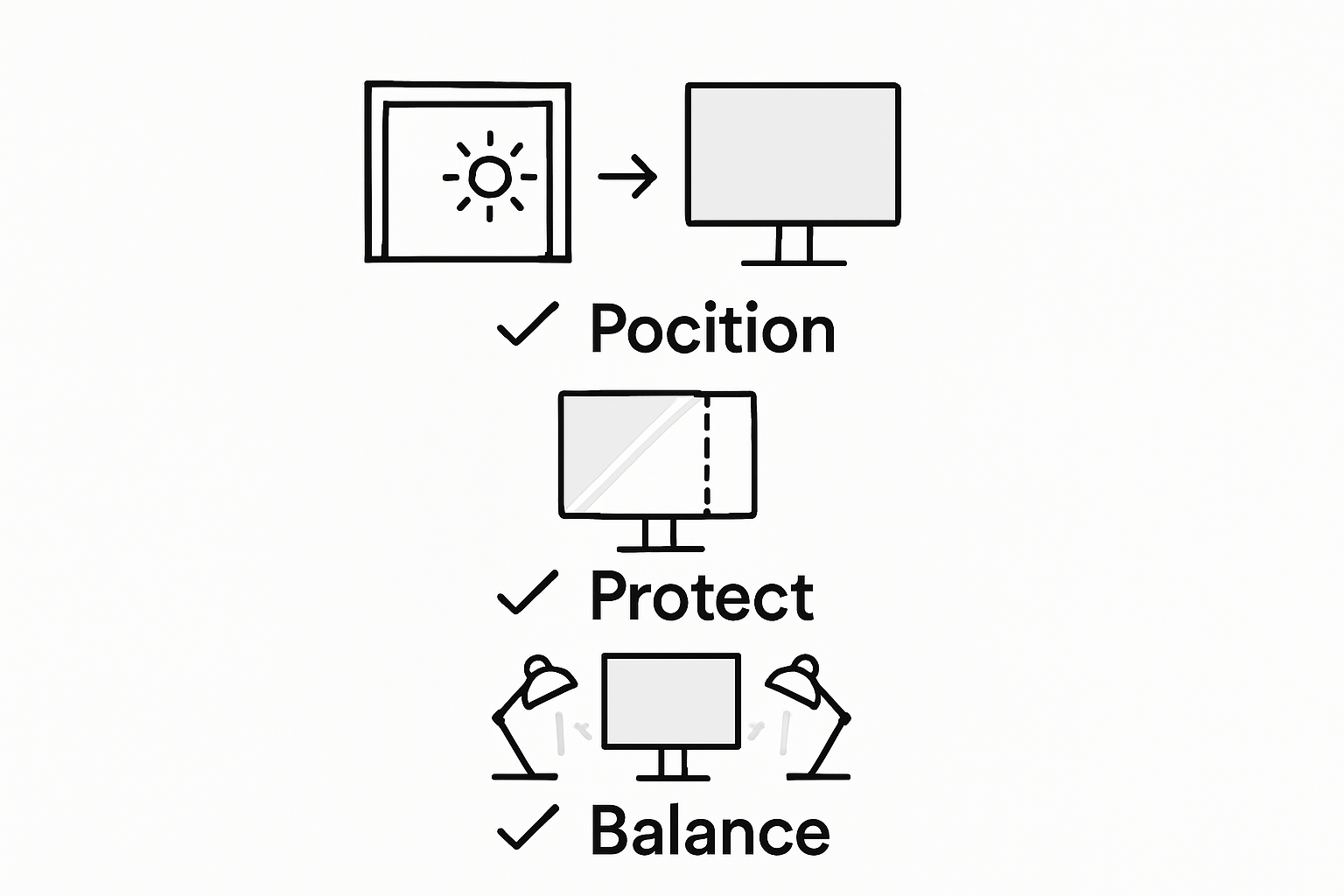
Implement anti glare screens and adjust room lighting to match your display brightness to create a balanced visual environment. Consider using indirect lighting or low wattage bulbs that illuminate your workspace without creating harsh reflections. Matte screen filters can further reduce glare and provide an additional layer of eye protection during extended viewing sessions.
Pro Tip: Experiment with different lighting configurations to find the most comfortable setup for your specific workspace. What works perfectly in one environment might need slight modifications in another.
Step 5: Verify Comfort and Visual Clarity
Ensuring optimal visual comfort requires a systematic approach to assessing your display setup and personal viewing experience. This final step helps you fine tune your environment to minimize potential eye strain and maximize viewing comfort.
Maintain a precise viewing distance based on professional recommendations, positioning computer screens 23 to 25 inches from your eyes. For smartphone and smaller displays, keep them 16 to 18 inches away. When using projectors in Malaysia, adjust your seating to maintain this recommended distance while ensuring clear image visibility and reduced eye muscle tension.
The American Optometric Association suggests using the zoom feature to view small print instead of leaning closer to the screen. Ensure the top of your display sits at or slightly below eye level to prevent neck strain and promote natural viewing angles. Consider investing in computer glasses designed to reduce eye fatigue and enhance visual clarity during extended viewing sessions.
Pro Tip: Conduct a weekly comfort check by paying attention to your eye and neck comfort. Any persistent discomfort signals that your current setup needs adjustment.
Protect Your Eyes with the Right Display Solutions from ProjectorDisplay.com
Eye strain caused by improper display setups is a common challenge for many users whether at home, school, or the office. The article highlights how factors like screen distance, glare, brightness, and improper posture lead to discomfort and fatigue. If you want to enhance your visual experience while naturally preventing eye strain, choosing the right projector and screen setup is essential. High-quality products with features like adjustable brightness, anti-glare capabilities, and ergonomic mounting options make a real difference.

Explore our wide selection of projectors and accessories at ProjectorDisplay.com where you can find portable, laser, and short-throw projectors designed to deliver clear, comfortable viewing. Acting now lets you optimize your workspace or home theater with expertly crafted displays that support healthier eyes and reduce fatigue. Visit our product range and take the first step to upgrade your visual comfort today.
Frequently Asked Questions
How can I position my display to prevent eye strain?
To prevent eye strain, position your screen 20 to 26 inches away from your eyes, with the center slightly below eye level. Adjust your workstation to reduce neck tension and maintain proper eye movement.
What adjustments can I make to my projector settings to reduce eye strain?
Adjusting brightness and contrast on your projector is key to minimizing eye fatigue. Match the brightness to the ambient light around you and use the zoom feature for small text instead of leaning closer to the screen.
How often should I take breaks to avoid digital eye strain?
Incorporate regular breaks by following the 20-20-20 rule: every 20 minutes, look at an object 20 feet away for at least 20 seconds. Consider taking a comprehensive 15-minute break every two hours to allow your eyes to fully rest.
What lighting modifications can I make to reduce glare while using display devices?
Position your monitor at right angles to windows and light sources to prevent glare. Use adjustable blinds or curtains and consider using indirect lighting to maintain an even light balance in your workspace.
How can I verify that my display setup is comfortable and clear?
To ensure visual comfort, maintain a viewing distance of 23 to 25 inches for computer screens and 16 to 18 inches for smaller devices. Check that the top of your display is at or slightly below eye level and make adjustments if you experience any discomfort.
What symptoms indicate that I need to adjust my display setup?
Persistent discomfort in your eyes or neck signals that your current display setup may need adjustment. Conduct a weekly comfort check and make necessary tweaks to your screen position and lighting to reduce strain.
Recommended
- Complete Guide to Ergonomic Office Furniture – Projector Display
- 7 Creative Workspace Ideas to Boost Productivity and Focus – Projector Display
- 7 Best Study Gadgets for Students to Boost Learning Power – Projector Display
- 7 Smart Ways to Boost Office Design Inspiration Today – Projector Display
- Comment limiter les écrans : Guide pratique pour les mamans – The Zoofamily
- 10 Tips για καλύτερο ύπνο και καλύτερη ποιότητα ζωής | Afrokoptiki