
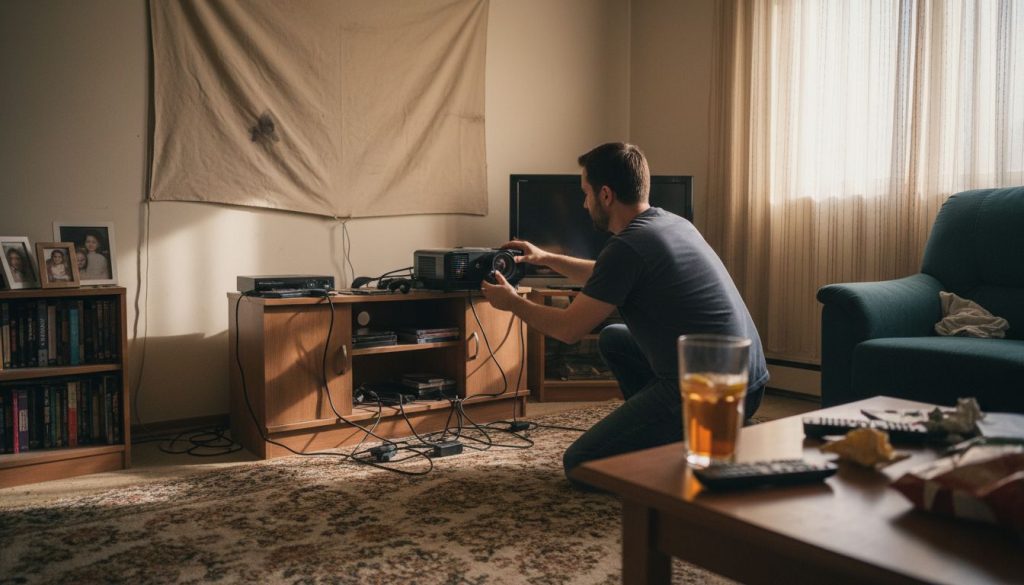
Most American projector users are surprised to learn that even a minor delay can disrupt the entire viewing or gaming experience. Visual lag is not just inconvenient, it affects enjoyment and performance in home theaters and competitive play. This straightforward guide highlights proven methods to help you achieve faster response times and clearer, more reliable visuals from your projector setup.
Table of Contents
- Step 1: Prepare Your Projector And Display Environment
- Step 2: Adjust Video Settings For Minimal Delay
- Step 3: Update Firmware And Essential Device Drivers
- Step 4: Optimize Connected Devices And Source Equipment
- Step 5: Test And Verify Reduced Input Lag Performance
Quick Summary
| Key Insight | Explanation |
|---|---|
| 1. Choose the Right Setup | Select a location with controlled lighting to improve projection quality and reduce input lag. |
| 2. Optimize Video Settings | Disable unnecessary processing features and enable gaming modes to minimize display delays. |
| 3. Update Software Regularly | Keeping firmware and device drivers up-to-date eliminates bottlenecks and enhances performance. |
| 4. Use Wired Connections | Prioritize wired devices over wireless to reduce lag and improve responsiveness. |
| 5. Test Performance Thoroughly | Conduct systematic testing to evaluate the effects of lag reduction strategies on display performance. |
Step 1: Prepare your projector and display environment
Preparing your projector and display environment is critical for reducing input lag and achieving optimal visual performance. A strategic setup can dramatically improve your viewing experience by minimizing potential interference and optimizing display conditions.
Start by selecting the right location for your projector. Choose a space with controlled lighting conditions where you can manage ambient light effectively. Darker rooms typically provide better projection quality. When selecting your projector brightness based on room conditions, consider the ambient light levels. For darker environments, a projector with 1000-2000 lumens works well, while brighter spaces might require 3000 lumens or more to maintain clear image quality.
Position your projector precisely to minimize potential input lag sources. Ensure a direct line of sight to your projection screen with minimal obstructions. Keep cables organized and use high-quality HDMI connections to reduce signal interference. Check your projector's settings menu and disable unnecessary image processing features like excessive motion smoothing or complex color enhancement modes which can introduce additional processing delays.
Warning: Avoid placing your projector near electronic devices that might generate electromagnetic interference, such as wireless routers, mobile phones, or other wireless communication equipment. These can potentially disrupt signal transmission and contribute to input lag.
With your environment strategically prepared, you are now ready to fine-tune your projector settings for the smoothest possible display performance.
Step 2: Adjust video settings for minimal delay
Reducing input lag requires strategic video setting adjustments that can significantly improve your display performance. By making precise modifications to your projector and source device settings, you can minimize processing delays and achieve smoother visual output.
Start by investigating your display's default video processing modes. Disable V-Sync technologies that might introduce input lag, paying close attention to motion smoothing and advanced image enhancement features. While these settings can improve visual quality, they often add computational overhead that increases display latency. Look for a dedicated gaming or low latency mode in your projector settings menu which typically reduces unnecessary image processing.
Examine your graphics settings carefully. If using a computer as your video source, navigate to your graphics control panel and select the most direct rendering path. Disable features like triple buffering and excessive post processing effects. For gaming systems, enable 'game mode' which prioritizes rapid display rendering over complex visual enhancements.
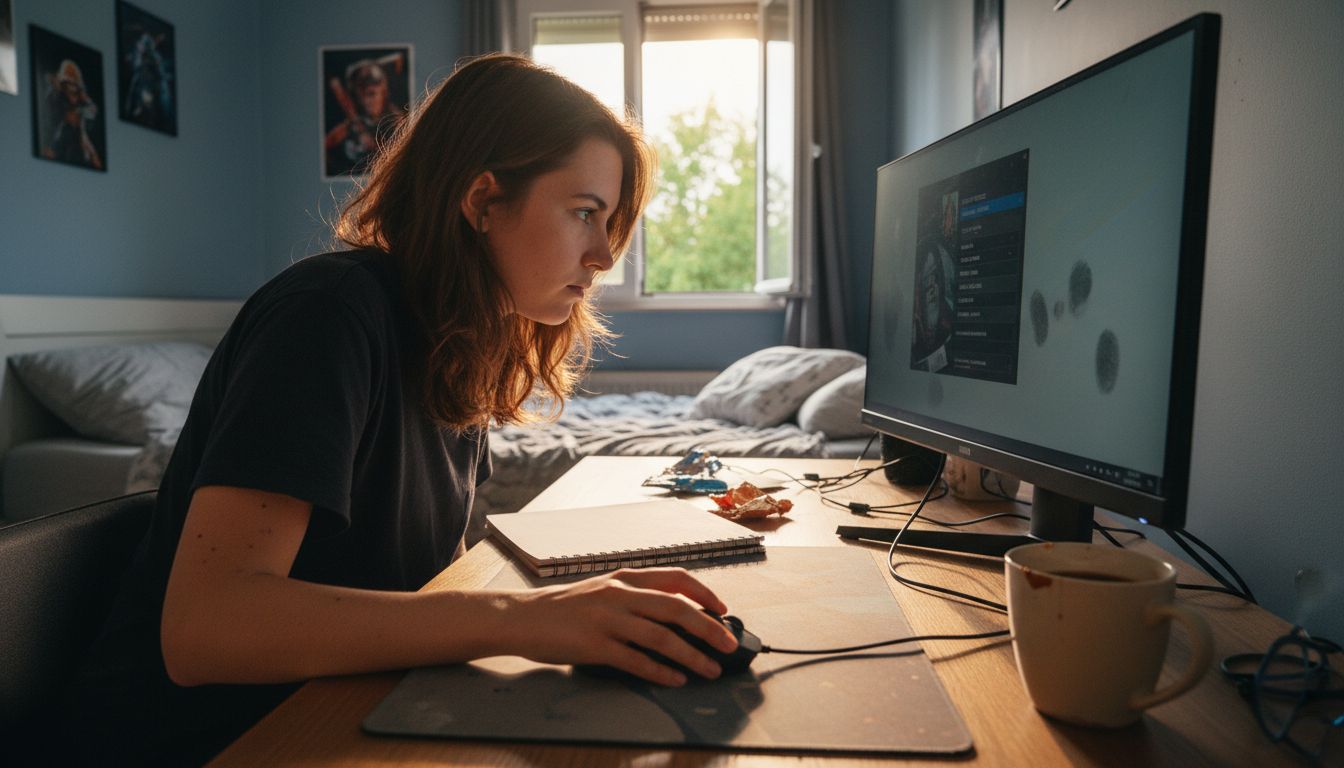
Warning: Some display enhancement technologies create trade offs. Disabling V-Sync can reduce input lag but might introduce screen tearing. Balance your settings based on your specific usage requirements.
With your video settings optimized, you are now prepared to fine-tune your system for the fastest possible display response.
Step 3: Update firmware and essential device drivers
Reducing input lag requires maintaining your devices with the latest software updates and driver configurations. Keeping your system current ensures optimal performance and minimizes potential compatibility issues that could introduce display delays.
Regularly updating your console's firmware and device drivers helps eliminate performance bottlenecks and potential software conflicts. Check your projector manufacturer's website for the most recent firmware version, downloading and installing updates directly through their official support portal. For computer based systems, visit your graphics card manufacturer's website and download the latest driver packages which often include performance optimizations and input lag reduction improvements.
Pay close attention to the update process. Create a system restore point before installing any firmware updates as a precautionary measure. Some updates might require a complete system restart to take full effect. Verify the update installation by checking your device settings and confirming the new software version matches the most recent release from the manufacturer.
Warning: Always download firmware and drivers exclusively from official manufacturer websites to avoid potential security risks or incompatible software installations.
With your system software refreshed and optimized, you are now ready to implement advanced performance tuning strategies.
Step 4: Optimize connected devices and source equipment
Reducing input lag requires strategic optimization of your connected devices and source equipment. By carefully managing your peripheral connections and system configuration, you can significantly minimize potential performance bottlenecks and enhance overall display responsiveness.
Prioritize using wired peripherals to minimize input lag across your display system. Replace wireless keyboards, mice, and controllers with their wired counterparts whenever possible. If wireless devices are necessary, ensure they have fully charged batteries and maintain a direct line of sight with the receiver to reduce signal transmission delays.
Conduct thorough system maintenance on your source equipment. For gaming consoles and computers, regularly clear system caches and remove unnecessary background applications that might consume processing resources. Check your device storage and remove unused games, applications, and temporary files that could potentially slow down system performance. Pay special attention to your device's storage health and consider periodic defragmentation for mechanical hard drives to optimize data access speeds.
Warning: Always back up important data before performing system maintenance or clearing caches to prevent accidental data loss.
With your connected devices optimized and streamlined, you are now prepared to implement final performance refinements.
Step 5: Test and verify reduced input lag performance
Validating the effectiveness of your input lag reduction strategies requires systematic and comprehensive performance testing. Understanding how to measure and interpret your system's responsiveness will help confirm the success of your optimization efforts.
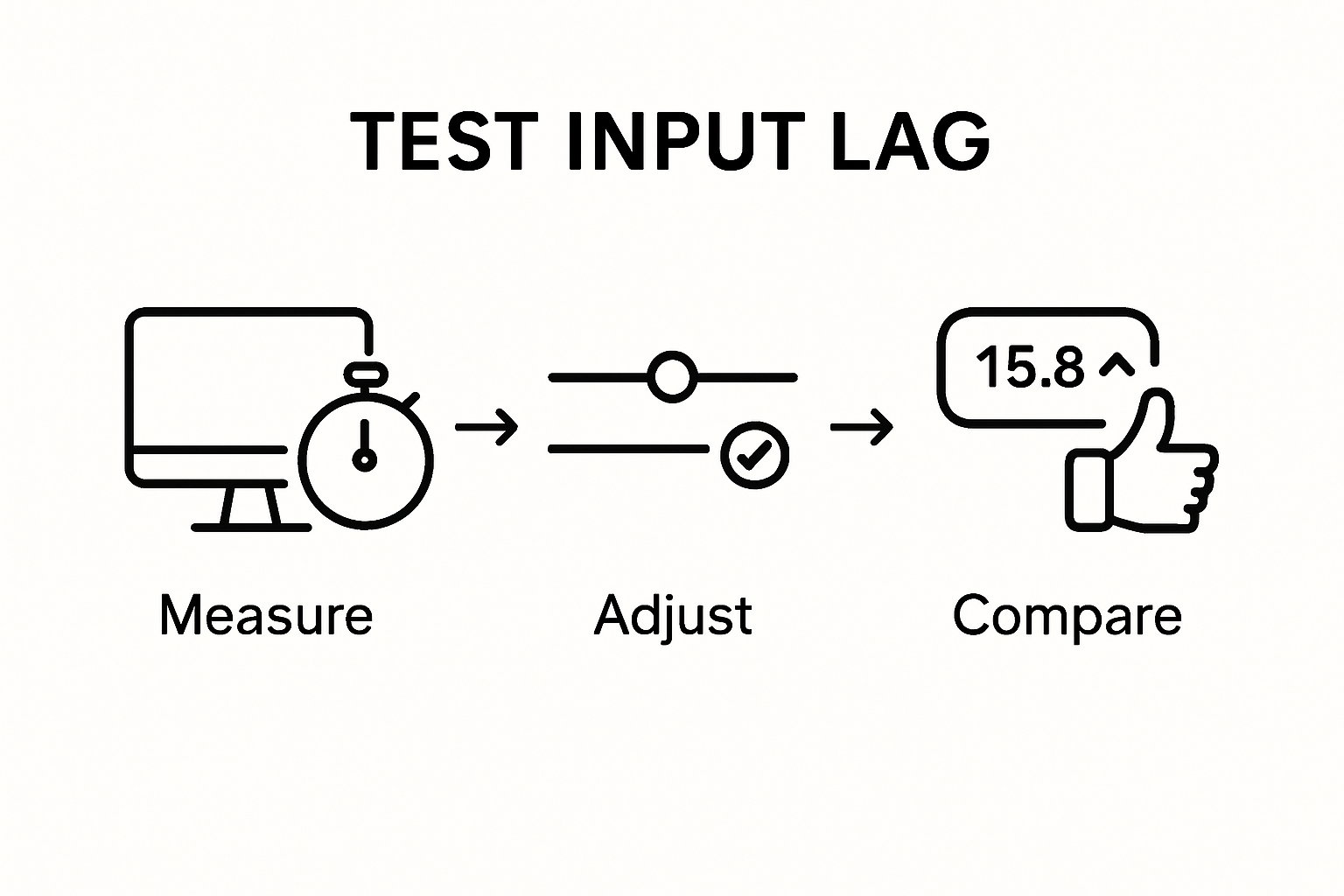
Configure specific testing scenarios to evaluate your display's performance across different applications and usage contexts. Utilize specialized input lag measurement tools and online benchmarking platforms that can precisely calculate response times. For gaming systems, leverage built in performance monitoring features or third party software that can track frame rates, input delays, and visual rendering metrics.
Approach testing comprehensively by examining performance across multiple scenarios. Test your display during fast motion video sequences, interactive gaming environments, and productivity applications to ensure consistent responsiveness. Pay attention to subtle variations in performance and note any remaining lag indicators. Compare your results against manufacturer specifications and industry benchmark standards to validate the improvements you have implemented.
Warning: Some performance testing tools may require technical expertise to interpret results accurately. Consider consulting professional AV technicians if you encounter complex measurement challenges.
With your input lag performance thoroughly verified, you have successfully optimized your display system for maximum responsiveness.
Achieve Smoother Display Performance with the Right Projection Solutions
Struggling with input lag can ruin your viewing and gaming experience by causing delays and frustrating lag. This article explores key challenges like minimizing processing delays and optimizing settings to get the most responsive display possible. If you want to take your visual setup further, it is crucial to invest in high-quality equipment designed to reduce input lag and enhance clarity.
Explore our selection of premium projection screens at Projector Screen Archives to complement your optimized projector setup. With carefully chosen screens, you can improve image sharpness and reduce interference that adds to lag. Combine this with our wide range of projectors and accessories available at ProjectorDisplay.com for a complete performance boost.

Ready to enjoy seamless visuals without frustrating input delays? Visit ProjectorDisplay.com today to discover projector and screen solutions tailored to provide smooth, responsive displays. Act now to elevate your home theater, gaming, or presentation experience with equipment built for low latency and high performance.
Frequently Asked Questions
How can I reduce input lag when using a projector?
To reduce input lag when using a projector, start by properly positioning the projector for a direct line of sight and minimizing obstructions. Additionally, optimize your video settings by disabling unnecessary processing features and enabling low latency modes, which can help enhance responsiveness.
What settings should I adjust on my projector to minimize delay?
Adjusting your projector settings involves disabling features like motion smoothing and enabling a dedicated gaming mode if available. These steps can significantly reduce processing delays, improving the speed of your display response.
How often should I update my projector's firmware and drivers?
You should regularly check for firmware and driver updates for your projector, ideally every few months or whenever experiencing performance issues. Keeping your devices up to date ensures optimal performance and helps minimize input lag.
What are some best practices for connecting devices to reduce lag?
To reduce input lag, prioritize using wired connections for peripherals such as keyboards and mice. If you must use wireless devices, ensure they are charged and positioned to maintain a clear line of sight with the receiver, which can help minimize delays.
How do I test if my input lag reduction efforts are effective?
To test the effectiveness of your input lag reduction strategies, configure specific scenarios with measurement tools that track response times across different applications. Analyze performance during fast motion sequences or interactive gaming to confirm significant improvements in display responsiveness.
What should I do if I'm still experiencing input lag after making adjustments?
If you're still experiencing input lag after making adjustments, consider re-evaluating your device settings and ensuring all firmware and drivers are updated. You can also consult professional AV technicians for detailed assessments of your setup to identify any lingering issues.